Direct Answer
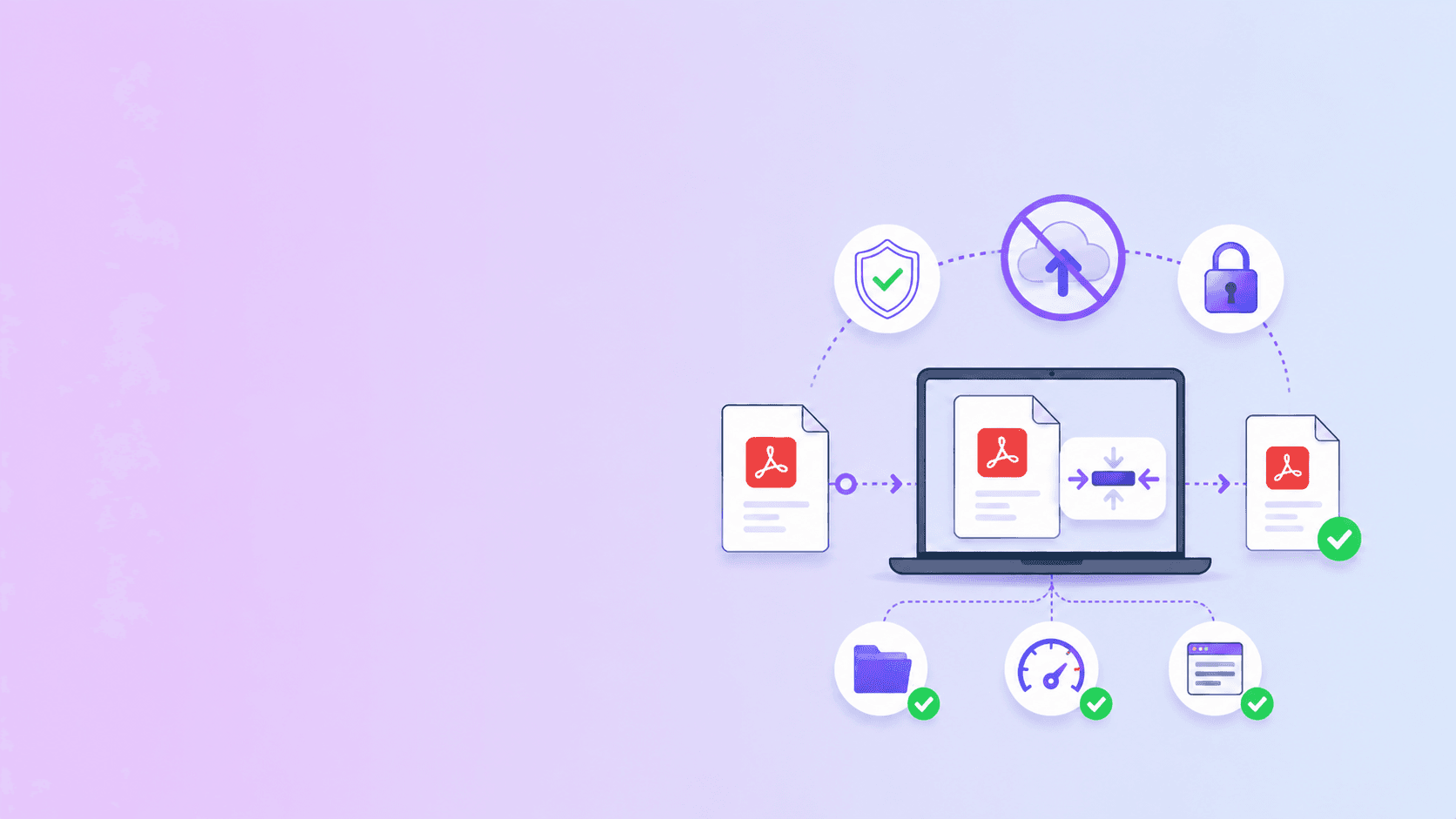
You can compress a PDF without uploading it by using a browser-based PDF compressor. The file is opened locally, processed in the browser, and downloaded back to your device. No-upload compression is the best first choice for sensitive files, routine forms, resumes, school documents, and business PDFs that do not need heavy server-side optimization.
Use Compress PDF and choose the private compression path when you want the file to stay on your device. If the result is not small enough, you can decide whether stronger server compression is worth the privacy tradeoff.
Why No-Upload Compression Matters
PDF compression is often treated as a simple file-size problem. For confidential documents, it is also a data exposure problem.
Many PDFs contain more than visible text. They may include names, addresses, signatures, financial records, internal comments, scanned identity documents, medical information, employee details, or client work. If you upload that file to a cloud converter, you are trusting the provider's storage, deletion process, access controls, logging, and business model.
No-upload compression changes the risk profile. The PDF still opens in your browser, but the document does not need to travel to a remote server just to become smaller.
How Browser Compression Works
A browser-based compressor usually does some combination of these tasks:
- Reads the PDF into browser memory.
- Checks that the file is a real PDF.
- Rewrites PDF objects into a cleaner structure.
- Re-encodes or downscales embedded images when needed.
- Builds a new PDF file in the browser.
- Creates a local download using a blob URL.
The important detail is where the file bytes are processed. In a no-upload workflow, the PDF is handled by JavaScript, WebAssembly, PDF.js, pdf-lib, or browser APIs on your own device.
That is different from a cloud workflow, where the PDF is sent to a server, processed in a worker, stored temporarily, and then downloaded from a server endpoint.
Step-by-Step: Compress a PDF Without Uploading
- Open Compress PDF.
- Add one or more PDF files.
- Choose the free/private compression option.
- Wait while the browser processes the file.
- Download the compressed PDF.
- Check the file size and readability.
For most forms, resumes, assignments, and scanned paperwork, this is the right first pass. It is fast, private, and does not require creating another cloud copy of the document.
When Browser Compression Is Enough
No-upload compression works best when the goal is practical, not extreme:
| File type | Expected result |
|---|---|
| Text-heavy PDF | Small to moderate reduction |
| Resume or application form | Usually enough for upload limits |
| Scanned PDF | Often good, depends on scan resolution |
| Image-heavy brochure | May reduce size, but server compression can go further |
| Already compressed PDF | Limited improvement |
If your file is 1.2 MB and the portal limit is 1 MB, browser compression is usually worth trying first. If your file is 90 MB and every page is a high-resolution scan, a browser may struggle or produce a modest reduction.
When Server Compression Is Worth Considering
Server compression can be useful when:
- The file is still above a strict upload limit.
- The PDF contains many high-resolution images.
- You need stronger image resampling.
- Your browser runs out of memory.
- You are working with non-sensitive or already public content.
The tradeoff is simple: server compression can be stronger, but the file must be uploaded. A privacy-first workflow should make that choice explicit instead of silently routing files to the cloud.
ShellPDFs separates these paths so private compression is the default for ordinary use, while stronger server compression is an optional step.
How to Verify a No-Upload Claim
If you are evaluating any PDF compressor, use this checklist:
- Does the button say "local", "browser", or "no upload" clearly?
- Does the page explain which tools upload and which do not?
- Does basic compression work without account creation?
- Does the browser show a network upload when processing starts?
- Does the tool create a local blob download?
- Is there a privacy policy that separates browser tools from cloud tools?
Technical users can open DevTools, go to the Network tab, clear the log, run compression, and watch for large POST or multipart upload requests. Small script, font, analytics, or ad requests are not the same as uploading your PDF, but a large request matching the file size is a sign that the document left the browser.
Recommended Workflow for Sensitive PDFs
For sensitive files, use this order:
- Remove unneeded pages locally with Remove PDF Pages.
- Run private compression with Compress PDF.
- Check whether the file meets the size limit.
- If not, split the document locally with Split PDF.
- Only use server compression if the content is safe to upload and the smaller size is necessary.
This keeps the highest-risk work local and limits cloud processing to cases where it is genuinely needed.
Key Takeaway
The safest way to compress a PDF online is to avoid uploading it in the first place. Browser-based compression keeps the document on your device, reduces the file size locally, and gives you a direct download.
Start with Compress PDF. Use private compression first, then decide whether stronger server compression is worth the tradeoff for that specific file.
Frequently Asked Questions
ShellPDFs Editorial Desk
ShellPDFs Editorial Desk is the byline we use for product-tested guides reviewed against the live tool flow, privacy boundaries, and file-handling rules before publication. See our editorial standards for the process behind each article.
Focus: Privacy-first PDF workflows, browser-based document processing, and PDF compression
Questions or feedback? Get in touch.