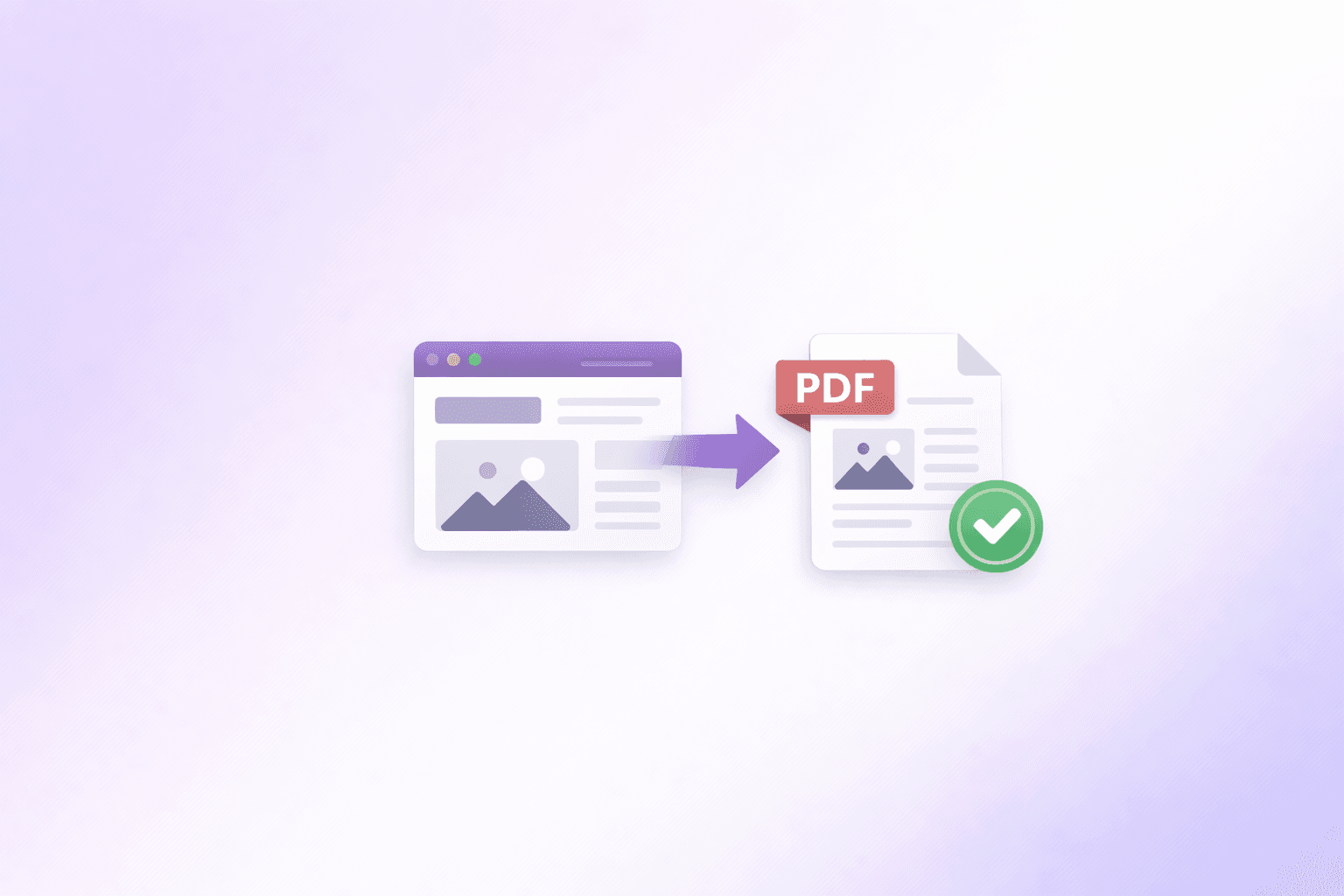
Whether you're saving a recipe, archiving a research article, capturing a digital receipt, or preserving evidence of a webpage for legal or compliance purposes, knowing how to properly convert a webpage to a PDF is an increasingly essential skill.
Bookmarks break when an author deletes or moves a page — a problem so common it has its own name: link rot. Screenshots are awkward for long articles, lose text searchability, and look blurry when zoomed. Exporting a clean, searchable PDF guarantees you have a permanent, accurate copy that works offline, opens in any PDF reader, and can be annotated, shared, or archived like any other document.
In this guide, we cover every method for converting webpages to PDF, when each method is best, and how to fix the most common quality problems.
Why Convert Webpages to PDFs?
Before diving into the how, let us look at the why. Why go through the effort of generating a PDF when you could just bookmark the link?
Permanent archiving: Websites go offline. Articles are edited or deleted. If you need to cite a web source for academic research, save a tutorial for a future project, or preserve a version of a page for legal reference, a PDF ensures you have an accurate snapshot exactly as the page existed on that specific date and time.
Searchability and text extraction: Unlike a screenshot, which is just a flat image, a properly generated PDF preserves the text layer. You can highlight text, copy paragraphs, and use Ctrl+F or Cmd+F to search through a 40-page converted article instantly. Text-based PDFs are also indexable by document management systems and email search.
Sharing and legal proof: If you need to share a digital invoice with your accounting department, forward a product listing to a colleague, or prove that a website displayed a specific price or policy at a certain time, a PDF is the universally accepted standard. A screenshot can be edited easily and carries little evidentiary weight; a PDF from a reliable conversion tool is far more credible.
Offline reading: Once converted, the PDF lives on your device. You can read it on a plane, in a basement, or anywhere without a reliable internet connection. This is especially useful for long-form research, documentation, and reference materials you return to repeatedly.
Consistent formatting for print: Web pages are designed for screens, not printers. A dedicated PDF conversion tool handles pagination, margins, and print formatting far better than a browser's default print dialog.
When Each Method Works Best
There are three main approaches for converting a webpage to PDF, and each has a different use case:
Browser Print Dialog (Ctrl+P): Best for simple articles, blog posts, and pages you want to capture quickly. Free, instant, requires nothing extra. The quality depends heavily on how the website is coded — some sites have excellent print stylesheets, others look broken.
Dedicated Conversion Tool: Best for preserving the desktop visual layout of a page, capturing sites with dynamic content, or when you need consistent high-quality results regardless of how the website handles print styles. A server-side tool loads the page in a controlled environment, waits for all assets to load, and renders a PDF that looks like a screenshot rather than a printout.
Browser Extension: Useful if you convert webpages frequently and want a one-click workflow. Extensions operate in your browser context, meaning they can capture pages you are logged into, which dedicated tools cannot.
Method 1: The Built-In Browser Method
The fastest way to save a page is usually right inside your browser. Chrome, Edge, Safari, and Firefox all include built-in PDF export.
On Chrome, Edge, or Brave: Navigate to the page you want to save. Press Ctrl+P on Windows or Cmd+P on Mac. In the Destination dropdown, select "Save as PDF." Click More Settings to access additional controls: turn off Headers and footers to remove timestamps and URLs from margins, or check Background graphics if the page looks broken without its background colors. Click Save and choose your file location.
On Safari: Navigate to the webpage. Go to File > Export as PDF in the menu bar. Choose your save location and click Save.
Limitations: Native browser printing often triggers print-specific stylesheets designed by the website author. These can strip out images, collapse sidebars, change fonts, or radically alter the layout you see on screen. Some sites intentionally break the print view to discourage PDF saving. For these cases, a dedicated tool gives far better results.
Method 2: Using the ShellPDFs Webpage to PDF Tool
For a high-fidelity capture that looks exactly like the desktop version of the page, use a dedicated server-side converter. The Webpage to PDF tool loads the URL in an isolated rendering environment, waits for all fonts and images to fully load, and generates a clean PDF that reflects the actual visual layout of the page.
How to use it:
Paste the URL of any publicly accessible page into the input field. Choose optional settings — landscape or portrait orientation, scale level, and grayscale mode. Click Convert and the tool will render the page and offer your PDF for download, typically in under five seconds.
Tuning the output:
Scale: If a page has oversized elements that look awkward when paginated, reducing scale to 80% forces the page into a wider viewport, fitting more content per printed page. If content is very small, increase it to 110% or 120%.
Landscape mode: Wide data tables, spreadsheets, and dashboards that get cut off on portrait pages render cleanly in landscape orientation.
Grayscale: If you only care about the text and want to reduce file size — or plan to print on a black-and-white printer — grayscale mode strips color information from the output, resulting in significantly smaller files.
After converting:
If the output file is larger than ideal for emailing or uploading, run it through the Compress PDF tool. Image-heavy pages especially benefit from compression — results can often come in 50-80% smaller with no visible quality loss on screen.
Common Problems and How to Fix Them
Content is cut off at page edges: This is usually a wide element — a table, a code block, or a sidebar — that overflows the page width. Try switching to landscape orientation, or reduce the scale setting.
Page looks completely different from what you see in the browser: You likely hit a print stylesheet. Use a dedicated conversion tool instead of the browser print dialog, as it captures the screen rendering rather than the print rendering.
Images are missing or broken: Some images are protected by hotlink prevention — they refuse to load in any context other than the original page. This is a restriction set by the website, not a tool limitation. You cannot override this without saving the image separately.
Dynamic content is missing: Infinite-scroll feeds, lazy-loaded images below the fold, and JavaScript-rendered tables may not appear in the converted PDF because the tool captures the page at a specific moment. Scroll to the bottom of the page in a browser first, or wait for full load before converting.
The output file is very large: This is normal for image-rich pages. Always run the output through Compress PDF after converting to bring the file to a manageable size.
Privacy Considerations
When you use a server-side converter, your requested URL is sent to the conversion service's servers so they can load and render the page. You should not use this method for pages behind authentication walls, pages containing your personal login session, or internal network addresses.
For private dashboards, internal tools, or any page that requires you to be logged in, use your browser's built-in print-to-PDF while logged in. The conversion happens entirely on your device, and your session credentials never leave your browser.
Organizing and Storing Your Webpage PDFs
Once you have a collection of converted webpages, keeping them organized matters. A few practical approaches:
Name files with dates in the filename — for example, 2026-03-policy-page.pdf — so you always know when the snapshot was taken without opening the file.
If you are building a research archive, consider merging related pages into a single document using the Merge PDF tool. A single well-organized merged file is easier to search and share than a folder of dozens of individual conversion outputs.
For recurring archiving tasks — saving a weekly newsletter, capturing a pricing page every month — the process of converting, compressing, and organizing can be done quickly with a consistent workflow using these tools in combination.
Frequently Asked Questions
ShellPDFs Team
The ShellPDFs editorial group writes and maintains guides for everyday PDF workflows, with updates made when tool behavior or documented limits change. See our editorial standards for the process behind each article.
Questions or feedback? Get in touch.