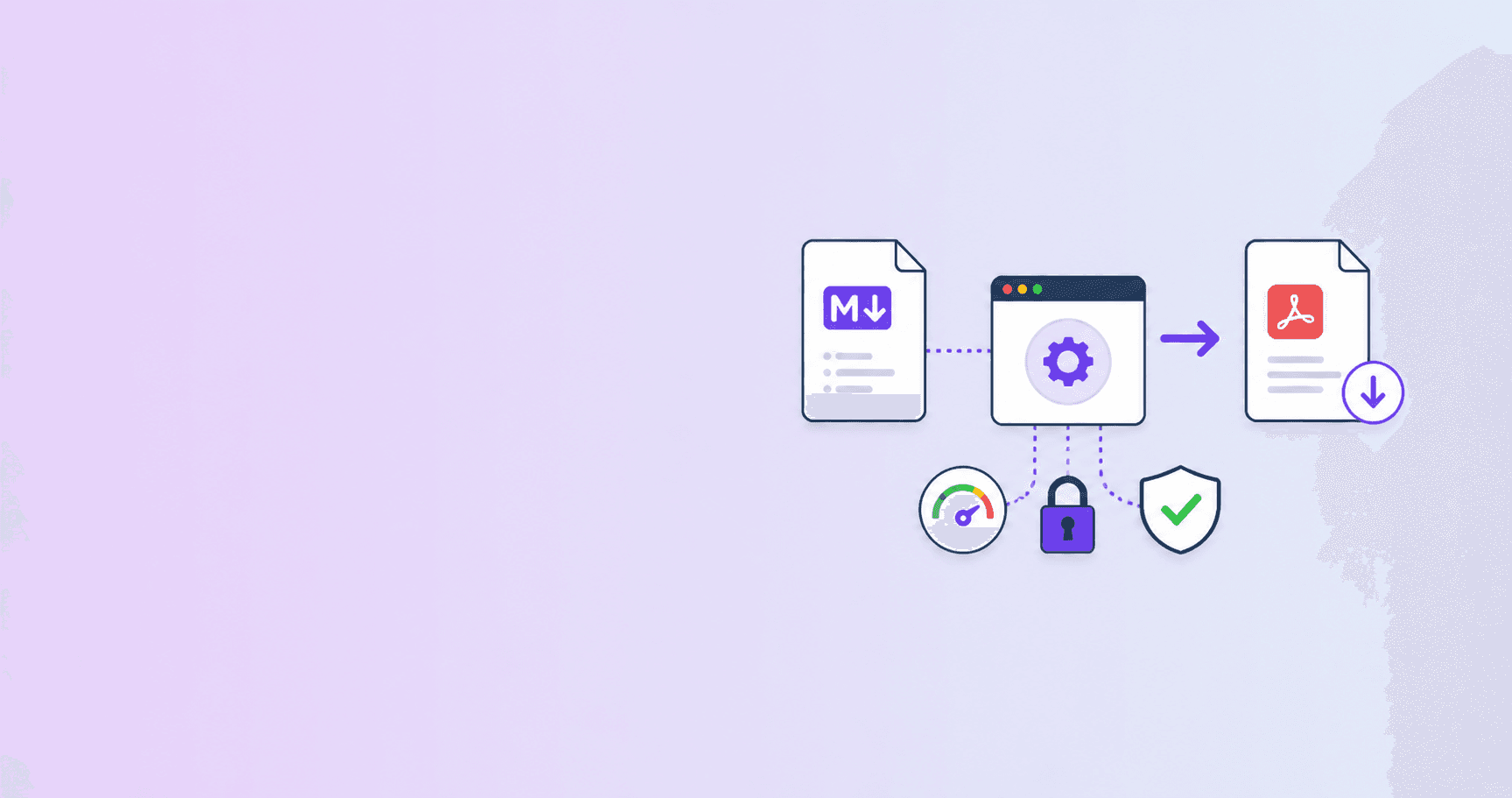
Dozens of tools claim to convert Markdown to PDF online. Most of them have one or more serious problems: they upload your content to a server, they strip code syntax highlighting, they mangle math equations, or the exported PDF does not match the preview.
This guide explains what separates a genuinely good Markdown PDF converter from the rest, and what to look for depending on your use case.
Quick Verdict
The best Markdown to PDF converter for one-off documents is usually a browser-based converter that keeps the Markdown on your device, renders GitHub Flavored Markdown, supports math and code highlighting, and prints only the document body. ShellPDFs Markdown to PDF is built for that use case: private export, live preview, KaTeX math, syntax-highlighted code, GFM tables, and clean PDF output without uploading your .md file.
If you need automated batch conversion in CI, use a command-line tool such as Pandoc instead. If you need a quick private export from a browser, use a browser converter.
| Use Case | Best Fit | Why |
|---|---|---|
| Private notes or internal docs | Browser-based Markdown to PDF | Content stays on your device |
| README or technical specs | ShellPDFs Markdown to PDF | GFM, code highlighting, tables, and math support |
| Automated build pipelines | Pandoc or a CLI converter | Scriptable and repeatable |
| Complex page layouts | Headless Chrome or a desktop editor | More control over headers, footers, and pagination |
What Actually Matters in a Markdown to PDF Converter
When most people search for an md-to-pdf converter, they want three things: it should be fast, the output should look right, and their content should stay private. A fourth requirement surfaces for technical writers and developers: math and code need to render correctly.
Here is how to evaluate each of these dimensions.
Rendering Quality: Does the Output Match the Input?
The single most frustrating failure in Markdown conversion is a PDF that looks nothing like the formatted document you expected. This happens because of two common problems.
The CSS mismatch problem. If a converter uses different CSS for the screen preview and the PDF output, what you see is not what you get. Tables that look right in preview may be cut off in the PDF. Code blocks that display correctly on screen may lose their background in print. A good converter uses the same stylesheet — or a dedicated print stylesheet that faithfully mirrors the screen layout — for both.
The app UI bleed problem. Some browser-based tools call window.print() directly on the main page. This captures the entire browser viewport, including toolbars, sidebars, and editor chrome. The resulting PDF includes things the user never wanted. A correct implementation creates an isolated print frame containing only the document content.
ShellPDFs solves both problems. The preview CSS and the print CSS are derived from the same source. The PDF export builds a hidden iframe with srcdoc, waits for all assets to load, then calls print() only on that frame. The editor never appears in the output.
Privacy: Where Does Your Content Go?
This question matters more for Markdown than for most other document formats. Markdown is often where developers write their most sensitive content: internal architecture docs, proprietary algorithm notes, customer-specific technical specs.
Server-based converters upload your Markdown text (and any embedded images) to a remote server. You typically have no visibility into how long it is retained, whether it is logged, or whether it is used for any secondary purpose. For private documents, this is a real risk.
Browser-based converters render locally. The Markdown text never leaves your device. Nothing is transmitted to any server. The conversion is entirely self-contained.
For sensitive documents, the browser-based approach is the only acceptable choice. For public or non-confidential content, server-based converters are fine and sometimes offer stronger rendering for complex layouts.
ShellPDFs Markdown to PDF is fully browser-based. The only network requests the page makes after initial load are for loading KaTeX fonts from a CDN — your Markdown content itself is never transmitted anywhere.
Math Support: KaTeX vs MathJax vs Nothing
If you write any technical documentation, you need a converter that handles math correctly.
No math support is the baseline failure mode. The Markdown $E = mc^2$ renders as literal dollar signs and text. Most simple converters fall into this category.
MathJax is a JavaScript math typesetting library that handles a wide range of LaTeX math syntax. It produces very accurate output but can be slow to render — initial load times of 1–3 seconds per page are common in complex documents.
KaTeX is a faster LaTeX math renderer. It handles the vast majority of math syntax used in documentation and handles inline and display math well. Rendering is nearly instant. ShellPDFs uses KaTeX (via rehype-katex) for all math, which means even a 20-page document with dense equations renders without perceptible delay.
When evaluating a converter for math-heavy work, paste this test and check the output:
Inline: $\int_0^1 x^2 \, dx = \frac{1}{3}$

Block:
$$
\sum_{n=1}^{\infty} \frac{1}{n^2} = \frac{\pi^2}{6}
$$
If either equation renders as a raw string or as garbled characters, the converter does not have proper math support.
Code Block Rendering: Syntax Highlighting in Print
Code blocks are the second technical requirement that separates basic converters from developer-grade ones.
A plain converter wraps code in a <pre> tag with a monospace font. This is readable but unprofessional — all tokens appear in the same color, making the code harder to scan quickly.
A good converter applies language-aware syntax highlighting before generating the PDF. ShellPDFs uses highlight.js with language autodetection, supporting TypeScript, Python, Go, Rust, Java, C, SQL, Bash, YAML, JSON, and 170+ other languages. The highlighting renders in print using the same color palette as the screen preview.
The print styling matter. Some converters apply syntax highlighting on screen but use a CSS print stylesheet that overrides all colors to black-and-white. This defeats the purpose of highlighting in the PDF. ShellPDFs preserves color highlighting in print by explicitly setting print-color-adjust: exact in the export CSS.
GFM Feature Coverage
GitHub Flavored Markdown (GFM) is the superset of standard Markdown that most developers use. It adds several features that are critical for technical documentation but not supported by basic converters:
Tables. Pipe tables with alignment. Wide tables need overflow handling so they do not clip at the print margin.
Task lists. Checkbox syntax (- [x] and - [ ]). These should render as actual checkboxes, not as [x] text.
Strikethrough. ~~deleted~~ renders as struck-through text.
Fenced code blocks. Triple-backtick blocks with optional language identifier. The language tag should drive syntax highlighting.
Autolinks. URLs in text that are automatically linkified.
ShellPDFs implements the full GFM spec via remark-gfm. All of the above render correctly in both the preview and the PDF.
What to Look for in an Online Markdown to PDF Tool
Based on the criteria above, here is a practical checklist when evaluating any md-to-pdf converter:
Rendering accuracy
- Does the preview use the same CSS as the PDF?
- Is the PDF export isolated from the app UI?
- Do tables render without clipping?
Privacy
- Is rendering done client-side (no upload)?
- Does the tool require an account or login?
- Is the source available for inspection?
Math support
- Is inline math (
$...$) supported? - Is block math (
$$...$$) supported? - Does math render correctly in the exported PDF (not just on screen)?
Code quality
- Are fenced code blocks highlighted by language?
- Does syntax highlighting appear in the printed PDF?
- Are code blocks protected from awkward page breaks?
GFM compliance
- Do task lists render as checkboxes?
- Do tables work with alignment?
- Is strikethrough supported?
Export options
- Can you choose paper size (A4, Letter, Legal)?
- Is there a standalone HTML export option?
- Does the filename default to something sensible?
When a Browser Converter Is the Right Tool
Browser-based md-to-pdf conversion is the right choice for:
- Private or confidential documents where server upload is not acceptable
- Technical documentation with code and math that need correct rendering
- Quick exports where installing Pandoc or configuring a build step is too much overhead
- Mobile use where desktop CLI tools are not available
It is the wrong choice for:
- Automated pipelines (CI/CD, batch processing) where a CLI tool like Pandoc or puppeteer-based
md-to-pdfis the right fit - Documents requiring complex layout (precise column positioning, custom headers/footers, page numbers) where a full rendering engine like wkhtmltopdf or a headless Chrome pipeline gives more control
For interactive, one-off exports — which is the vast majority of Markdown-to-PDF use cases — a browser-based tool is faster, simpler, and more private than any alternative.
The ShellPDFs Approach
ShellPDFs Markdown to PDF was built specifically to handle the technical requirements that most converters miss: correct math, highlighted code, GFM task lists, isolated print output, and no server upload.
The converter is free, requires no account, and works on any device with a modern browser. For documents that need to stay private and look professional, it is the best-in-class browser-based option.
Frequently Asked Questions
Free Tool
Markdown to PDF
Convert Markdown to PDF instantly in your browser. No upload, no account, no limits.
Try Markdown to PDFShellPDFs Team
The ShellPDFs editorial group writes and maintains guides for everyday PDF workflows, with updates made when tool behavior or documented limits change. See our editorial standards for the process behind each article.
Questions or feedback? Get in touch.