Markdown is everywhere. README files, engineering specs, meeting notes, product documentation, personal wikis — the format has won across developer teams, technical writers, and anyone who wants to write quickly without fighting a word processor.
The problem is distribution. When you need to share a document professionally, print it, or get a signature on it, Markdown is the wrong format. PDF is what the world expects.
This guide covers everything you need to know to convert Markdown to PDF cleanly — with correct layout, math rendering, code highlighting, and no app UI bleeding into the output.
The Right Way to Convert Markdown to PDF
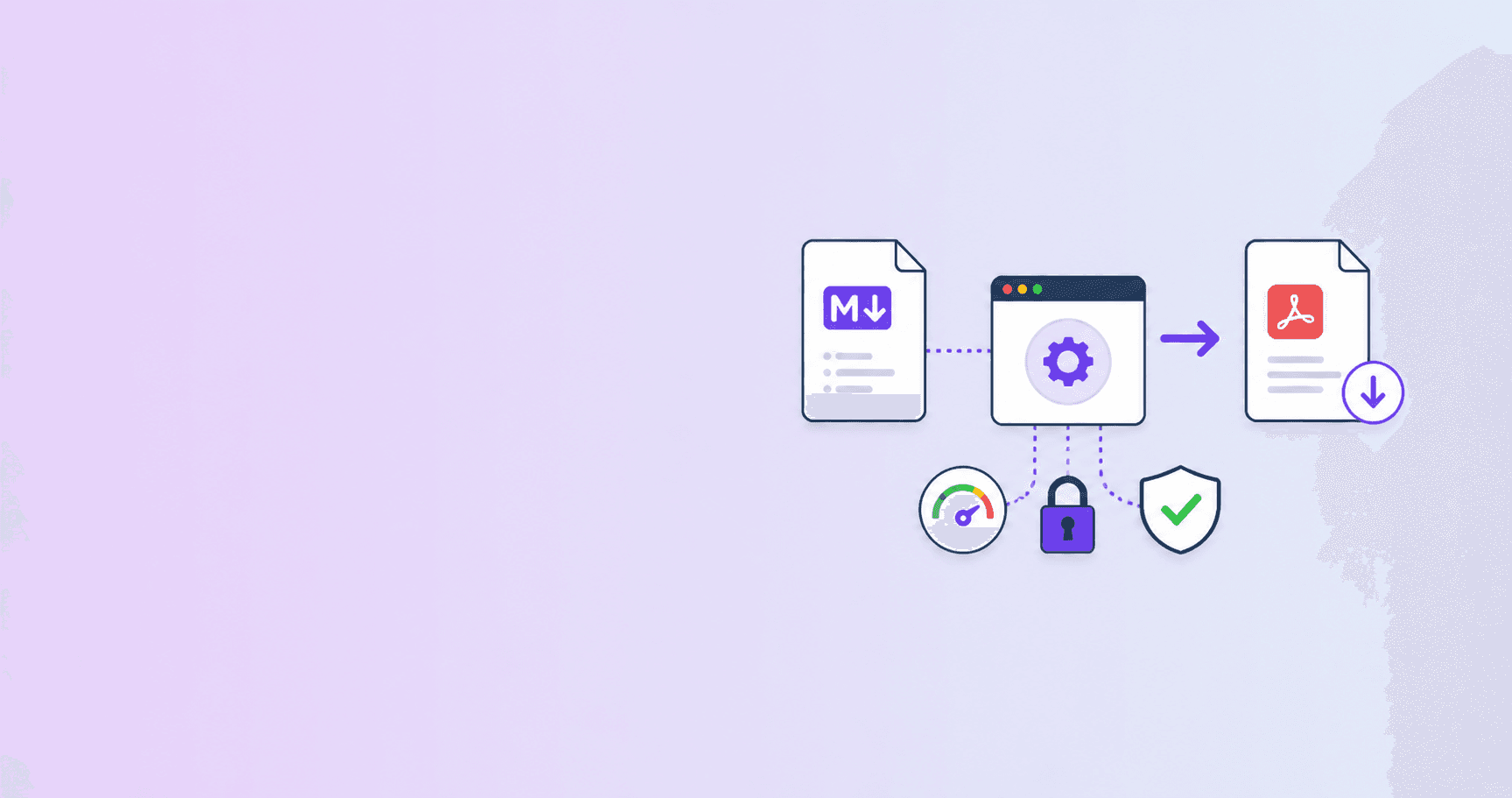
There are several ways to do this. Some require installing tools. Some upload your content to a server. The cleanest option for most people is a browser-based converter that renders the Markdown locally and uses the browser's native print engine to produce the PDF.
The ShellPDFs Markdown to PDF converter works this way. Your content stays on your device. The renderer runs in JavaScript. The print output is isolated so only your document appears in the PDF.
Here is the step-by-step process.
Step 1: Open the Converter
Go to shellpdfs.com/markdown-to-pdf. The tool loads instantly — no login, no extension, no file size cap.
Step 2: Write or Upload Your Markdown
You have two options:
Type or paste directly. The editor accepts any GitHub Flavored Markdown. The preview pane on the right updates in real time with a 300ms debounce so typing stays smooth even on long documents.
Upload a .md file. Click "Upload .md File" and select any .md, .markdown, or .txt file from your device. The editor loads the contents and the preview renders immediately.
Step 3: Choose Your Paper Size
Select A4, Letter, or Legal from the Page Size selector. The preview reflows to match the paper dimensions, so you can see exactly how content will paginate before exporting.
A4 is the default and the right choice for most international use. Use Letter for US letter format, and Legal for US legal documents.
Step 4: Review the Preview
The preview panel mirrors the print output. It uses the same CSS as the exported PDF, including:
- Correct margins for the selected paper size
- Page-break protection on code blocks, tables, images, and table rows
- KaTeX-rendered math (inline and block)
- Syntax-highlighted code fences
What you see is what you get. If a heading sits at an awkward position near a page break, you can adjust the Markdown to push it down before exporting.
Step 5: Export the PDF
Click Export PDF. The converter creates a hidden iframe containing only your rendered document with the print CSS injected. The browser's native print dialog opens on that isolated frame.
From the print dialog, select "Save as PDF" (or the equivalent for your browser and OS) and save the file. The filename defaults to your source file's name.
What Markdown Features Are Supported
The converter uses the unified/remark/rehype pipeline with GitHub Flavored Markdown support, KaTeX for math, and highlight.js for syntax highlighting. Here is what renders correctly:
Structure and formatting: headings (H1–H6), bold, italic, strikethrough, blockquotes, horizontal rules, ordered and unordered lists, nested lists.
Tables: GFM pipe tables with left, right, and center alignment.
Task lists: checkboxes rendered as checked or unchecked, correctly styled for print.
Code blocks: fenced code blocks with language-specific syntax highlighting for TypeScript, Python, JavaScript, Go, SQL, Bash, and 180+ other languages.
Math: inline math ($E = mc^2$) and block math ($$\int_0^1 x^2 \, dx$$) rendered with KaTeX. Equations paginate cleanly in the PDF.
Images: external HTTPS images and base64 data URLs. Images are protected against awkward page breaks.
Links: external links open in a new tab in the preview. In the exported PDF, they remain as clickable hyperlinks.
How to Embed Images That Stay on Your Device
One of the most common questions is how to include local images in a Markdown PDF without uploading them to a server.
The "Embed Image" button converts a local image file to a base64 data URL and inserts the Markdown image tag at the current cursor position. The image data becomes part of the Markdown string itself, so the entire document — text and images — stays entirely local.
This approach has one trade-off: large images increase the Markdown string size significantly. A 2 MB photograph embedded as base64 will add roughly 2.7 MB to the content size, which the converter handles via a background Web Worker to keep the editor responsive.
For production documents, prefer referencing images by HTTPS URL rather than embedding. The URL approach keeps the file small and avoids the base64 overhead.
Common Problems and How to Fix Them
The PDF includes the app toolbar. This should not happen with the ShellPDFs converter because the export uses an isolated iframe. If it does, make sure you are using the "Export PDF" button rather than printing the page yourself with Ctrl+P.
Math equations show as raw LaTeX or garbled characters. This typically means the KaTeX CSS was not loaded when the page rendered. Hard-reload the page (Ctrl+Shift+R) and try again.
Code blocks break across pages awkwardly. The converter applies break-inside: avoid to code blocks, but very long blocks — more than a page in length — cannot avoid breaking because they exceed a single page. Break long code blocks into smaller segments with explanatory text between them.
Tables extend beyond the page margin. Wide tables with many columns may overflow the page width. You can reduce the number of columns, use shorter header text, or switch to Legal size (wider page) to accommodate the content.
Images appear blurry in the PDF. The browser's print engine rasterizes vector content at the screen's device pixel ratio. For sharp output, save the PDF at the highest quality setting in the print dialog, and avoid downscaling the print scale below 100%.
Exporting a Standalone HTML File
If you need to share a document that opens in a browser rather than a PDF viewer, "Export HTML" downloads a fully self-contained HTML file. It includes all CSS inline and the same print rules as the PDF export. It renders identically to the preview when opened locally.
This is useful for:
- Sending documents to reviewers who prefer browser-based reading
- Archiving documentation that needs to remain viewable without a PDF reader
- Embedding the output in a web page or documentation system
The exported HTML also contains the @page rules for the selected paper size, so printing it from a browser produces the same output as the PDF export.
Why Browser-Based Is Better Than Installing a Tool
Desktop tools like Pandoc, wkhtmltopdf, and groff are powerful but add installation overhead, version management, and dependencies. For most Markdown-to-PDF conversions, the browser approach is faster to start, requires no maintenance, and produces output that's indistinguishable from the command-line tools for standard documents.
The privacy advantage is also real. If your Markdown contains internal notes, proprietary code, or sensitive specifications, a browser-based converter that never sends data to a server is materially safer than uploading to a third-party service.
The ShellPDFs Markdown to PDF converter is free, requires no account, and works on any device with a modern browser.
Frequently Asked Questions
Free Tool
Markdown to PDF
Convert Markdown to PDF instantly in your browser. No upload, no account, no limits.
Try Markdown to PDFShellPDFs Team
The ShellPDFs editorial group writes and maintains guides for everyday PDF workflows, with updates made when tool behavior or documented limits change. See our editorial standards for the process behind each article.
Questions or feedback? Get in touch.