Most of the time, the PDF documents we receive are far larger than we actually need. You might receive a 100-page manual when you only need a specific troubleshooting chapter, or a massive 50-page financial report when you only want to forward the executive summary.
Printing these files wastes paper. Emailing them wastes bandwidth.
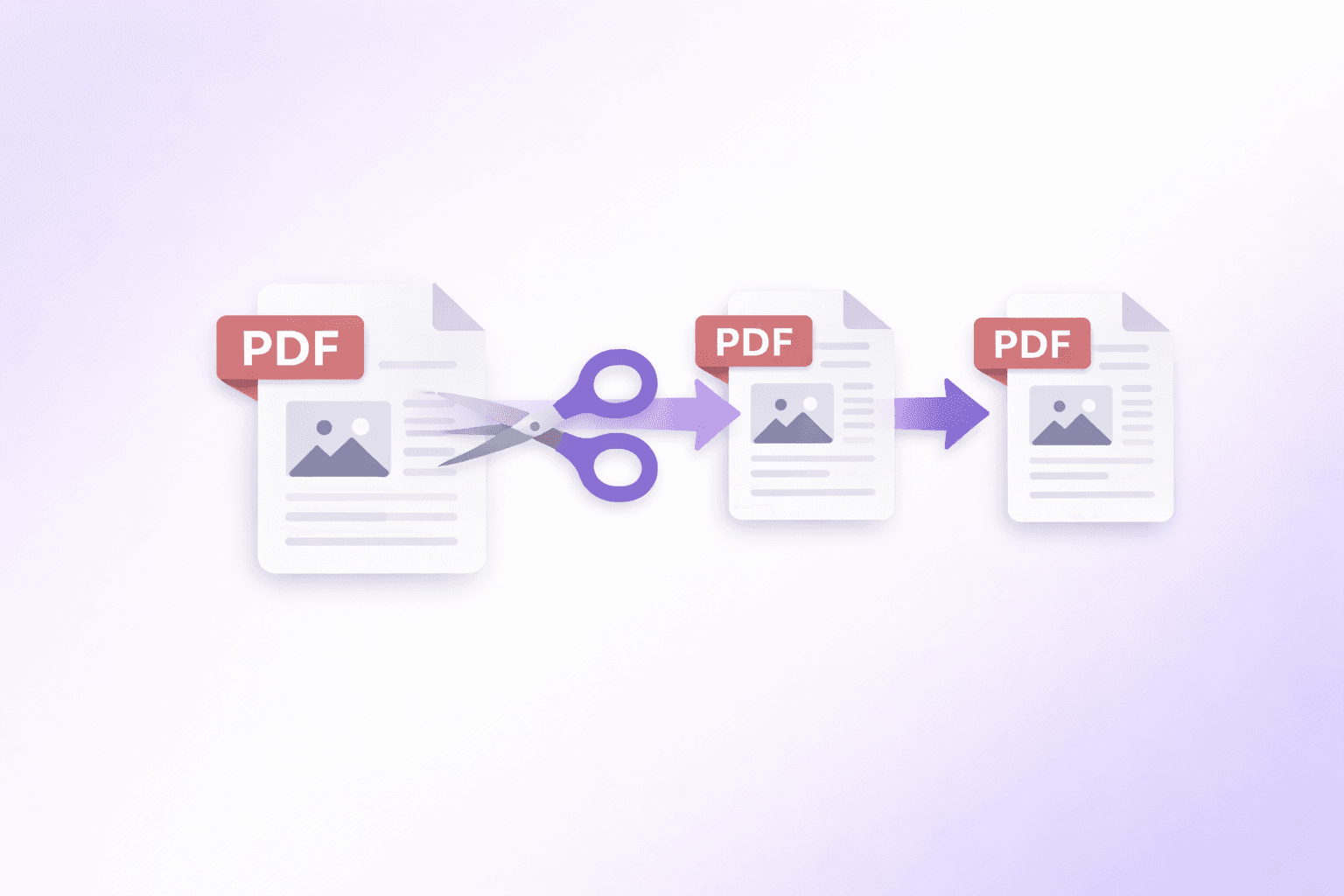
Extracting and sharing only the relevant pages is the professional standard for document distribution. Here is how you can easily split and separate specific pages from any PDF, directly in your browser.
The Problem with Desktop Software
To split a PDF or extract a subset of pages historically required bulky, premium software distributions like Adobe Acrobat Pro. While some free alternatives exist, they usually involve clunky desktop applications infected with adware, or questionable online converters that force you to upload your sensitive contracts to a remote cloud server.
Client-side extraction natively inside the browser gives you the power of Adobe without the required installation, and the convenience of an online tool without the massive security risks of file uploading.
Step-by-Step Guide to Extracting PDF Pages
Here is how you can chop down massive files securely and rapidly using the Split PDF tool.
1. Load Your Massive PDF
Drag and drop your large PDF file directly into your browser tab. Since ShellPDF operates completely locally, loading a 200-page PDF happens instantly, with zero upload times. The tool will parse the document and generate a grid of visual thumbnails representing every individual page.
2. Select What You Need
Hover over the grid and simply click the pages you want to keep. Selected pages are highlighted. If you need a sequential chunk, such as an entire chapter, you can use the built-in range selector (e.g., entering "15-25") to highlight that exact section lightning fast.
3. Extract Unselected or Selected Pages
Once you have highlighted your target pages, you have two options depending on your end goal:
- Extract Selected Pages: This groups only the pages you clicked into a brand-new PDF.
- Extract Unselected Pages: This strips away your selections and packs the remaining (unselected) pages into a separate PDF.
4. Shrink It Down
If the pages you extracted contain heavy imagery, the output file might still be rather large. Simply check the Compress after splitting option right before extracting. Your browser will run the final subset of pages through our compression engine automatically, outputting a highly optimized document ready for strict email attachment limits. You can also optimize any standalone document using the dedicated Compress PDF tool.
5. Download the Result
Hit Apply & Download PDF. Your device will compile the exact pages you chose, compress them if requested, and save the final PDF straight to your hard drive.
Best Practices for Splitting
Extracting pages is a destructive process for your workflow only if you overwrite your original file. Always ensure your browser downloads the extracted subset as a new copy, appending a suffix (like _split.pdf) to distinguish it from the master file.
If you extract pages and realize they are slightly out of order, or you need to sprinkle in a blank separator page before emailing, consider passing your newly split document directly into the Organize PDF tool to drag-and-drop the pages into their perfect positions!