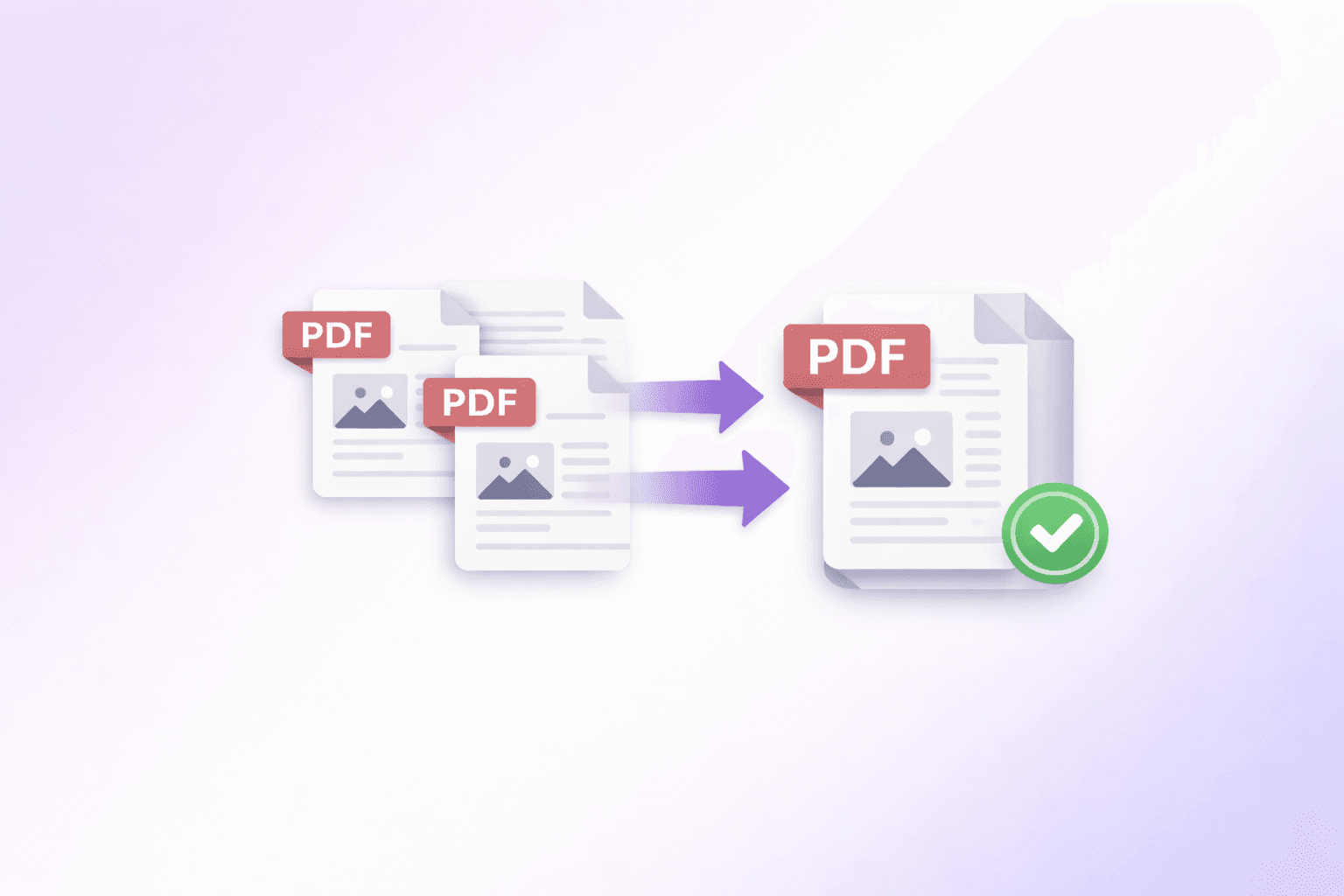
Whether you're compiling monthly reports into a single annual document, assembling a portfolio, or organizing tax receipts, at some point you will inevitably need to combine multiple PDF files into one.
Historically, this required expensive premium software like Adobe Acrobat. Thankfully, modern web technologies now allow you to perform heavy PDF manipulations directly in your browser, entirely for free.
Here is exactly how you can combine your documents into a single fluid file in seconds — and what to watch out for along the way.
Why Merge PDFs Locally?
When you search for "Merge PDF" online, you will find dozens of free utilities. However, nearly all of them require you to upload your files to their servers. The server does the processing and sends the merged file back.
This traditional approach has several major drawbacks:
Privacy Risks: You are handing over your potentially sensitive documents — invoices, contracts, personal records — to a third party. You have no guarantee those files are deleted after processing.
Speed Limits: Uploading and downloading heavy PDF files is gated by your internet connection speed. A 50 MB merge job can take a painfully long time on a mobile connection.
File Size Limits: Most tools impose artificial caps (often 20 MB or fewer files) to save on server costs, which makes them useless for real-world business documents.
Local, in-browser processing eliminates all of these issues. Tools like ShellPDFs use WebAssembly and JavaScript to read and merge the files directly within your browser tab. The data never leaves your computer, making it instantly fast, entirely private, and free from artificial file-size constraints.
When Should You Merge PDFs?
Merging is the right move in several common situations:
Annual or periodic reporting: You have 12 monthly summary PDFs and need to send a single annual document to a stakeholder. Merging gives them one clean file instead of a confusing email attachment list.
Portfolio assembly: Designers, architects, and writers often need to present multiple pieces of work as one cohesive document. Merging keeps everything in a single file that opens with one click.
Legal and financial filing: Courts, accountants, and government portals often require supporting documents to be submitted as a single PDF rather than dozens of separate files.
Client deliverables: When sending a proposal alongside supporting annexures, references, or certificates, a merged PDF feels more polished and professional than a folder of separate attachments.
Personal record-keeping: Combining scanned receipts, insurance documents, or medical records into annual summary PDFs makes long-term storage and retrieval far easier.
Step-by-Step Guide to Combining PDFs
1. Gather and Upload Your Files
Navigate to the Merge PDF tool. Select all the individual PDF files you wish to combine. You can drag and drop them simultaneously into the upload zone.
There is no practical file count limit — you can load five files or fifty. The browser handles the entire process, so the only constraint is how much RAM your device has available.
2. Check the Sequence
The files will appear as thumbnails showing the document title. Read through them and verify they are in the correct order. The first file in the list becomes the first pages of your final document.
If the sequence is wrong, simply click, hold, and drag the file cards to reorder them exactly how you want. Changes are reflected instantly — no waiting for previews to load.
3. Preview Before You Merge
Before committing, it is worth scrolling through the thumbnail grid to check that all files loaded cleanly. Occasionally, a corrupted or password-protected PDF will show a warning icon. Better to catch this before merging than to discover missing pages after.
If a file fails to load, remove it from the queue, check the original on your device, and try re-adding it. Common causes are password protection, very old PDF versions (pre-1.4), or files that were exported incorrectly by another application.
4. Consider Compression
Combining multiple files naturally adds up their weights. If you are merging ten 5 MB files, the output will be approximately 50 MB. If you plan to email this final document, it might bounce back due to attachment size limits — most email providers cap attachments at 25 MB.
ShellPDFs provides a seamless Compress after merging option. Ticking this checkbox runs the merged document through our compression engine before saving it to your computer, keeping the file size manageable without noticeable quality loss. Alternatively, you can always compress your documents at any time using the standalone Compress PDF tool.
5. Apply and Download
Click Merge & Download PDF. Your browser will lock the documents together and download the final file to your device. The process typically takes under five seconds even for large, multi-file merges.
Troubleshooting Common Merge Problems
Pages appear in the wrong order after merging: This usually means the files were loaded in the wrong sequence. Re-upload them and use drag-and-drop to confirm the order before merging.
Merged file is unexpectedly large: This is normal when combining image-heavy files. Use the Compress after merging checkbox or run the result through the standalone Compress PDF tool afterward.
Some pages appear blank: This typically happens when a source PDF has embedded content that references external fonts or resources. Try opening the problem PDF in a PDF reader first, printing it to a new PDF using your OS built-in "Print to PDF" function, and then re-uploading the reprinted version.
Password-protected PDF will not load: You need to remove the password from the PDF before merging. Most PDF readers allow you to open a protected file and save a copy without the password, provided you know the original password.
Beyond Simple Merging
Often, combining files is only half the battle. Once your files are merged into one large document, you might realize a page is upside down, or you need to insert a blank separator page between two distinct sections for print formatting.
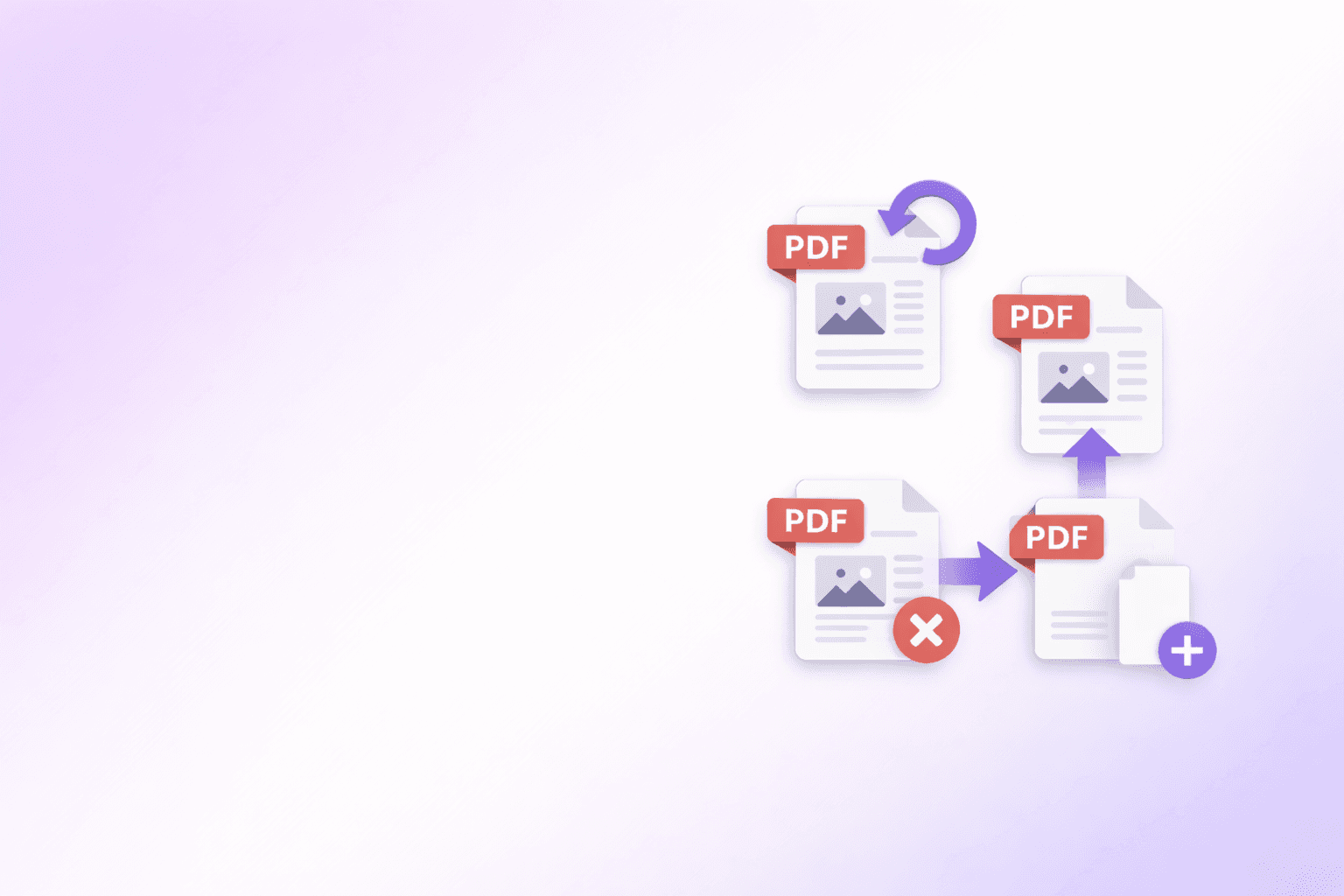
For these granular adjustments, you can drop your newly created file directly into the Organize PDF tool. It lets you delete pages, rotate individual scans, reorder pages by drag-and-drop, and insert blank pages exactly where needed — all without re-uploading or leaving your browser.
If you only need to remove a handful of pages from the merged result, the Remove PDF Pages tool is a faster option. Load your merged file, click the pages to remove, and download the cleaned-up version in seconds.
And if you eventually need to split the merged document back into sections — for example, to share individual chapters or quarterly summaries separately — the Split PDF tool lets you extract any page range back into a standalone file.
How Browser-Based Merging Works Under the Hood
For the technically curious: ShellPDFs processes PDFs locally in your browser. When you upload your PDFs, each file is read as an ArrayBuffer in memory. The tool then copies the page tree and all referenced resources — fonts, images, annotations — from each source document into a single output PDF object. The result is serialized back to binary and offered as a browser download, all without any data ever touching a network socket.
This architecture is why the tool has no file size limits, no daily quotas, and no privacy exposure. There is simply no server involved.
Privacy and Security Considerations
If you are merging sensitive documents — employment contracts, medical records, financial statements — local processing gives you absolute certainty that your files have not been exposed to any third party.
That said, there are a few good practices worth following regardless of what tool you use:
Always download your merged file and verify it opens correctly before deleting your source files. Keep a backup of the originals somewhere secure in case the merged version needs to be reconstructed differently later. And if your final document is highly sensitive, consider applying password protection after merging using a trusted local PDF application.
Advanced PDF Merging: Professional Techniques
Handling Corrupted or Damaged PDFs During Merge
Sometimes a PDF in your merge batch fails to load. Common causes and solutions:
Password-Protected PDFs: The source file is encrypted. You must remove the password first:
- Open the PDF in a PDF reader that can handle the password (if you have it)
- Save/export a new copy without password protection
- Use this unencrypted copy in your merge batch
Incompatible PDF Versions: Very old PDFs (pre-1.4) or non-standard exports sometimes fail. Solution:
- Open in Adobe Acrobat or a modern PDF reader
- Re-save/re-export the file
- The re-export automatically converts to current standard format
- Use the re-exported version in your merge
Missing Font Encoding: Sometimes PDFs reference fonts that the browser can't reconstruct. Workaround:
- Print the PDF to a new PDF (using macOS Preview, Windows Print dialog, or online tool)
- This flattens the fonts into vector shapes (solvable but slower)
- Use the reprinted PDF in merge
Truncated or Corrupted File: File was interrupted during download or transfer. Solution:
- Re-download the original file from the source
- Verify file size matches expected size
- Try again with the fresh copy
Batch Merging: Combining Dozens of Files
When merging 10+ PDFs, consider this workflow:
1. Pre-sort your files: Before uploading, rename files with numeric prefixes:
01-Introduction.pdf02-Chapter1.pdf03-Chapter2.pdf
Your file manager will automatically sort them in order, making upload order obvious.
2. Group logically: If you have 50+ files, merge in logical groups first:
- Merge chapters 1-10 → output
Part1.pdf - Merge chapters 11-20 → output
Part2.pdf - Merge chapters 21-30 → output
Part3.pdf - Then merge Part1, Part2, Part3 → final document
This approach prevents timeout issues and gives you intermediate checkpoints.
3. Compress in batches: After merging groups, compress each intermediate file before the final merge. This keeps individual files manageable and reduces final file size.
4. Test incrementally: After each merge step, verify the output before proceeding:
- Check file opens in reader
- Verify page count matches expectations
- Scan for obviously missing content
This catches errors early rather than discovering problems in the final 200-page output.
Adding Bookmarks and Navigation to Merged PDFs
After merging, your document is just sequential pages. For professional deliverables, add structure:
Manual approach (using PDF reader):
- Open the merged PDF in Adobe Acrobat Pro
- Select Tools → Organize Pages
- Add bookmarks for each major section
- This creates a navigable table of contents in the PDF viewer
Why bookmarks matter:
- Professional appearance
- Viewers can jump directly to sections
- Improves accessibility
- Required for some government/legal filings
For ShellPDFs users: After merging, open the result in Acrobat Pro to add bookmarks if needed. (Future versions may support bookmark generation.)
Preserving Document Metadata During Merge
PDFs contain metadata (document title, author, creation date, etc.). When you merge:
What gets preserved:
- All page content, fonts, images, annotations remain identical
What may be reset:
- Document title (becomes generic "document.pdf" unless renamed)
- Author field (typically becomes empty)
- Creation date (typically becomes merge date, not original dates)
- Custom metadata fields
If metadata preservation is critical:
- After merging, open in PDF editor (Adobe Acrobat Pro, Preview, etc.)
- Edit Document Properties to set title, author, subject
- Re-save with updated metadata
For most use cases, this is unnecessary. But for archival or legal documents, maintaining accurate metadata is important for long-term records management.
Comparing: Browser-Based vs. Server-Based PDF Merging
Here's a technical comparison to help you understand the trade-offs:
| Feature | Browser-Based (ShellPDFs) | Server-Based (Traditional) |
|---|---|---|
| Privacy | Files never leave your device ✅ | Files uploaded to server ⚠️ |
| Speed | Instant, no upload overhead | Limited by internet speed |
| File size limit | Depends on RAM (unlimited in practice) | Usually 20-100 MB total |
| Batch merging | Support dozens of files | Often limited to 5-10 files |
| Bookmark support | Not yet | Available on many |
| Compression support | Yes, built-in | Sometimes available |
| Cost | Always free | Free or limited, paid premium |
| Reliability | No server dependencies | Subject to server outages |
| Account needed | No | Often required |
Verdict: For privacy-conscious users, local merging is superior. For users needing advanced features (bookmarks, metadata editing), server-based tools sometimes offer more. Best practice: use ShellPDFs for merging, then use Acrobat Pro locally if you need advanced features.
Real-World Professional Workflows
Legal Firm Example: Assembling discovery documents
- Start with 47 individual case documents
- Merge into 5 logical groups (depositions, contracts, communications, exhibits, analysis)
- Compress each group to <10 MB
- Final merge to create master discovery package
- Add bookmarks in Acrobat for court filing
- Password-protect if sensitive
Accounting Firm Example: Annual client packages
- Monthly financial statements (12 PDFs)
- Tax return documentation (audit report, supporting schedules)
- Merge into single annual package
- Add title page with client name
- Compress to <5 MB for email
- Distribute to client and auditors
Publishing Example: Creating e-books
- Export chapters from layout software as individual PDFs
- Merge all chapters in order
- Manually add title page, table of contents, back matter
- Optimize for e-reader (compress, ensure compatibility)
- Add bookmarks for chapter navigation
- Publish to distribution platform
Nonprofit Example: Creating annual reports
- Collect contributions from 15 different departments (PDF sections)
- Merge in strategic order (executive summary, programs, financials, board list)
- Compress to <2 MB for web distribution
- Add watermark/branding in PDF editor
- Make available for download on website
When NOT to Merge PDFs
There are situations where merging is the wrong approach:
You have 500+ pages: Instead of one massive file, create a separate PDF per major section. Easier to navigate, email, and handle.
PDFs have different compression schemes: Merging a 150 DPI scanned PDF with a vector graphic PDF creates inconsistent quality. Consider separating or re-compressing first.
You need true multi-level navigation: If your document needs chapter bookmarks, sub-chapter bookmarks, and cross-references, you'll need to add these manually in Acrobat. Don't merge first and add structure later — structure your source documents first, then merge.
Files have conflicting metadata or security settings: Some PDFs have different encryption or form field settings. Test merging a few first before committing to merging dozens.
You're assembling for print and need page numbering across documents: Printer drivers expect consistent page formatting. Merge first, then apply page numbers in a second step using a PDF editor.
Advanced Troubleshooting
"File size grew unexpectedly after merge": This can happen if original PDFs had significant compression that's temporarily undone during merge. The browser reconstructs the full objects. Solution: compress the result.
"Merge seems to hang on large files": Browser ran out of available memory. Solution: merge in smaller batches (merge A+B, merge C+D, then merge the results). Most devices have 2-4 GB available; this is usually enough for 500+ MB total merge, but not always.
"Some pages appear in different order than I selected": This typically indicates a browser caching issue. Clear your browser cache and retry.
"Merged file won't open in older PDF readers": Modern PDF specifications (1.7+) may not be fully compatible with readers from 2010 or earlier. Solution: if you need compatibility with legacy software, save the merged PDF in compatibility mode (in a modern reader like Acrobat Pro, export as PDF 1.4).
Conclusion: Merging PDFs Is Easier Than Ever
A decade ago, combining PDFs required expensive software. Today, privacy-preserving, free, in-browser tools make the process instant and effortless.
For simple merging, ShellPDFs delivers the best privacy-to-speed ratio. For document assembly that requires advanced features (bookmarks, metadata, security settings), combine ShellPDFs with traditional PDF editing software.
The key to successful merging:
- Pre-sort and organize your files before merging
- Check file count and order one final time
- Verify the result opens and displays correctly
- Compress if sharing the file
Then you're ready to confidently merge PDFs for whatever project needs them — legal documents, annual reports, portfolios, or personal archives.
Frequently Asked Questions
ShellPDFs Editorial Desk
ShellPDFs Editorial Desk is the byline we use for product-tested guides reviewed against the live tool flow, privacy boundaries, and file-handling rules before publication. See our editorial standards for the process behind each article.
Focus: PDF workflow automation specialist with experience optimizing document assembly for enterprise and legal teams
Questions or feedback? Get in touch.