Web pages are not permanent. Articles get updated, pricing pages change, regulatory guidance is revised, and entire websites go offline. When you need a reliable, shareable snapshot of online content — for research, compliance, legal evidence, or personal reference — saving it as a PDF is the most practical approach.
This guide covers when and how to save web pages as PDFs, the limitations of built-in browser tools, and how ShellPDFs handles the conversion to produce clean, accurate results.
Why Save Web Pages as PDFs?
There are several practical situations where a PDF snapshot is more useful than a bookmark or screenshot.
Legal and compliance work often requires preserving the exact state of a published page at a specific point in time. A URL can change at any moment, but a PDF with a timestamp provides a fixed reference. Researchers archiving sources, journalists preserving articles, and procurement teams saving vendor pricing all benefit from the same approach.
PDFs are also easier to share than links. A PDF works offline, can be emailed as an attachment, and looks the same on every device. Unlike a link, it does not depend on the original server staying online.
The Problem with Browser Print-to-PDF
Every modern browser has a built-in "Print to PDF" option, but the results are often poor. Browser print mode strips background colors by default, breaks multi-column layouts, cuts content awkwardly across page boundaries, and frequently mishandles JavaScript-rendered content (charts, interactive tables, lazy-loaded images).
For simple text-heavy pages, browser print can work fine. But for anything with modern web design — responsive layouts, embedded media, dynamic content — the output typically requires cleanup or is simply unusable.
How ShellPDFs Webpage to PDF Works
ShellPDFs takes a different approach by rendering the page server-side using a headless Chromium browser. Here is what happens when you submit a URL:
First, the URL is validated. ShellPDFs blocks private network addresses and metadata endpoints to prevent server-side request forgery (SSRF). Only publicly accessible URLs are accepted.
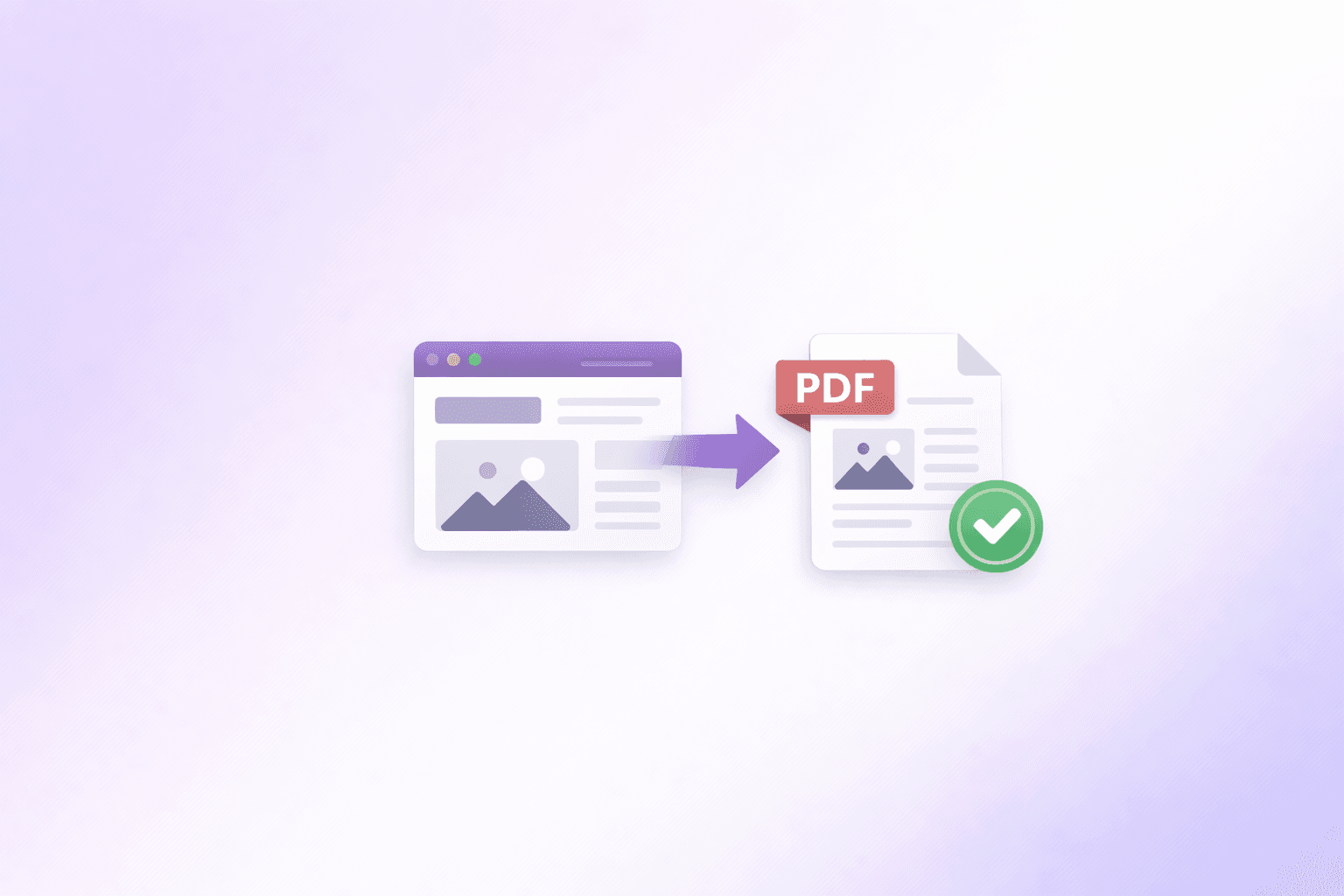
Next, a headless Chromium instance loads the page, executes JavaScript, waits for dynamic content to render, and captures the result as a vector-quality PDF. Because Chromium renders the page the same way a real browser would, layouts, fonts, and colors are preserved accurately.
The generated PDF is made available for download and automatically deleted within one hour. The page content is never stored, indexed, or used for any purpose beyond generating your file.
Tips for Getting the Best Results
Not every web page converts perfectly. Here are a few things that help.
Use the direct URL for the content you want. If a page has multiple tabs or sections loaded dynamically, navigate to the specific section first and copy that URL. ShellPDFs captures what loads at the URL you provide.
Avoid URLs that redirect through authentication flows. If the page requires login, ShellPDFs cannot access it. Use your browser's print-to-PDF for those pages instead.
For long-form articles, the tool handles scrolling content well. But very long pages (50+ printed pages) may take longer to render. If you only need part of the content, consider using the Split PDF or Remove PDF Pages tools afterward to extract the pages you need.
If the page has an intrusive cookie banner, check whether adding a query parameter or using a direct article URL bypasses it. Many sites have cleaner URLs for their actual content.
Common Use Cases
Researchers and students save journal articles, government publications, and reference materials as PDFs for offline access and citation. The PDF format preserves the page layout and is universally accepted in academic submissions.
Legal professionals capture terms of service, published policies, and online evidence. A timestamped PDF provides a defensible record of what was published at a specific time.
Business teams save competitor pricing pages, product comparisons, and vendor documentation. PDFs are easier to circulate internally than links that may require VPN access or expire.
Personal users save recipes, travel itineraries, event details, and articles they want to read offline. A PDF on your device works regardless of internet connectivity.
FAQ
Why use a dedicated tool instead of browser Print to PDF? Browser print mode often breaks layouts, drops styling, and mishandles JavaScript content. ShellPDFs renders the full page in a real Chromium browser for accurate results.
Can I save pages that require login? No. ShellPDFs only captures publicly accessible pages. For authenticated content, use your browser's built-in print feature.
How does ShellPDFs handle privacy? The page is rendered in an isolated headless browser and the PDF is deleted within one hour. Page content is never stored or indexed.
What about cookie banners or pop-ups? They may appear in the output if present when the page loads. Try using a direct content URL that bypasses overlays for cleaner results.
Try It Now
Open the Webpage to PDF tool to save any public web page as a clean, shareable PDF — no browser extension or account required.
Frequently Asked Questions
ShellPDFs Editorial Team
The ShellPDFs editorial group writes and maintains guides for everyday PDF workflows, with updates made when tool behavior or documented limits change. See our editorial standards for the process behind each article.
Questions or feedback? Get in touch.