Direct Answer
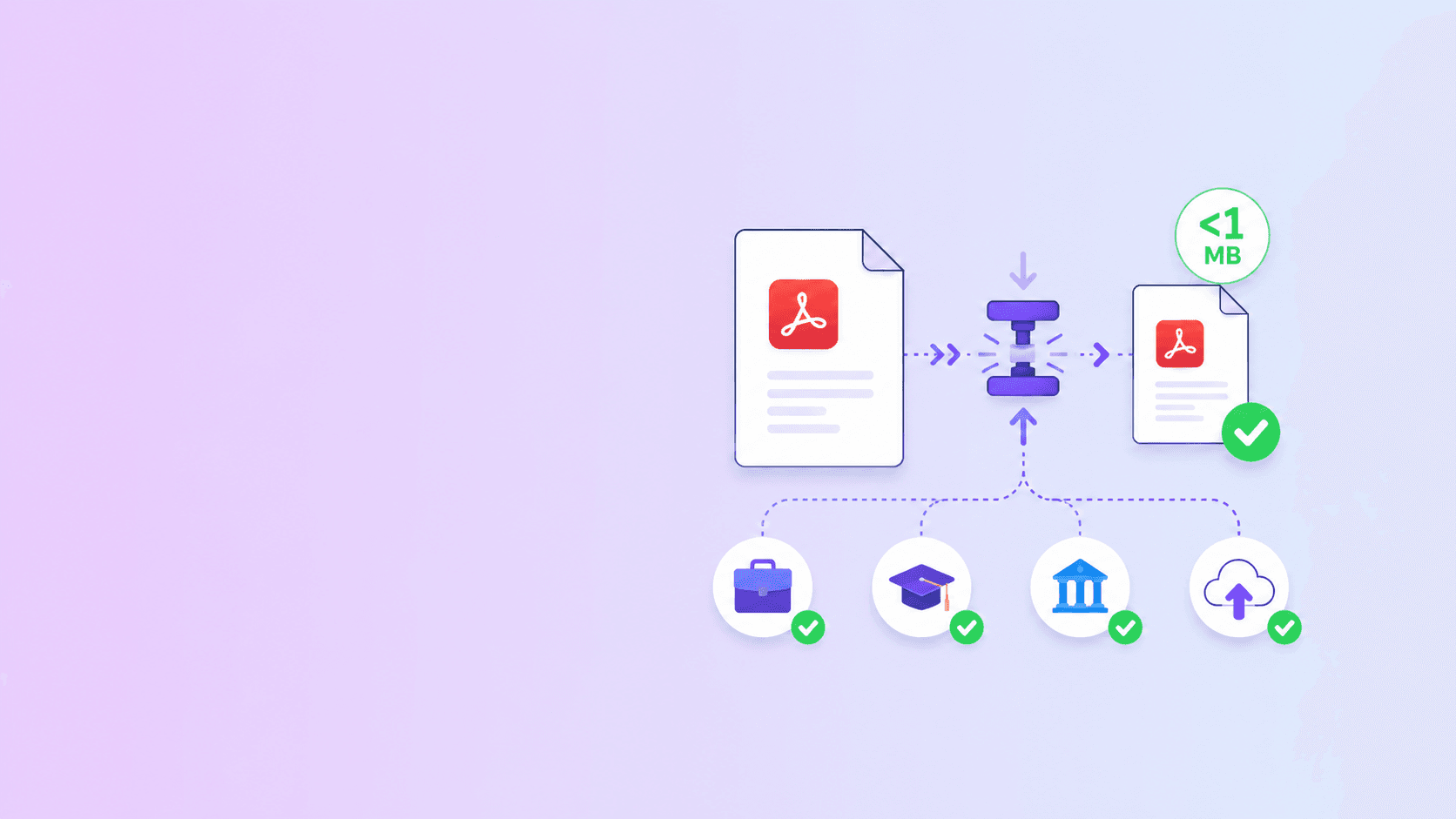
To compress a PDF under 1 MB for an upload form, remove unnecessary pages first, then run PDF compression, then check readability. If the file is a short text document, this is usually easy. If it is a long scanned document or image-heavy file, 1 MB may not be realistic without reducing quality too much.
Use Compress PDF first. If the result is still too large, use Remove PDF Pages or Split PDF depending on what the form allows.
Why Upload Forms Use 1 MB Limits
Strict upload forms are common on:
- Job portals.
- University systems.
- Scholarship applications.
- Government forms.
- Visa and immigration portals.
- Insurance workflows.
- Vendor registration pages.
These systems often set small limits to control storage, reduce failed uploads, and keep document review fast. The limit may feel arbitrary, but you still have to meet it.
Start With the File Type
Your strategy depends on what kind of PDF you have.
| PDF type | Under 1 MB likely? | Best action |
|---|---|---|
| 1 to 5 page resume | Yes | Compress |
| Text-heavy certificate packet | Usually | Remove extras, compress |
| 10 page scanned form | Maybe | Compress, possibly rescan |
| Photo-heavy portfolio | Hard | Split or reduce images |
| 50 page scan | Unlikely | Split or ask for alternate upload |
The biggest mistake is assuming every PDF can hit any size limit. Some files simply contain too much visual data.
Step 1: Remove Pages You Do Not Need
Before compressing, open the PDF and remove:
- Blank scanner pages.
- Duplicate pages.
- Instruction sheets.
- Internal cover pages.
- Old versions.
- Appendices the form does not request.
Use Remove PDF Pages. This step is local, fast, and often produces the largest reduction.
If you remove 3 scanned pages from a 10-page file, you may reduce the size by 30 percent before compression even starts.
Step 2: Compress the PDF
Next, run the file through Compress PDF.
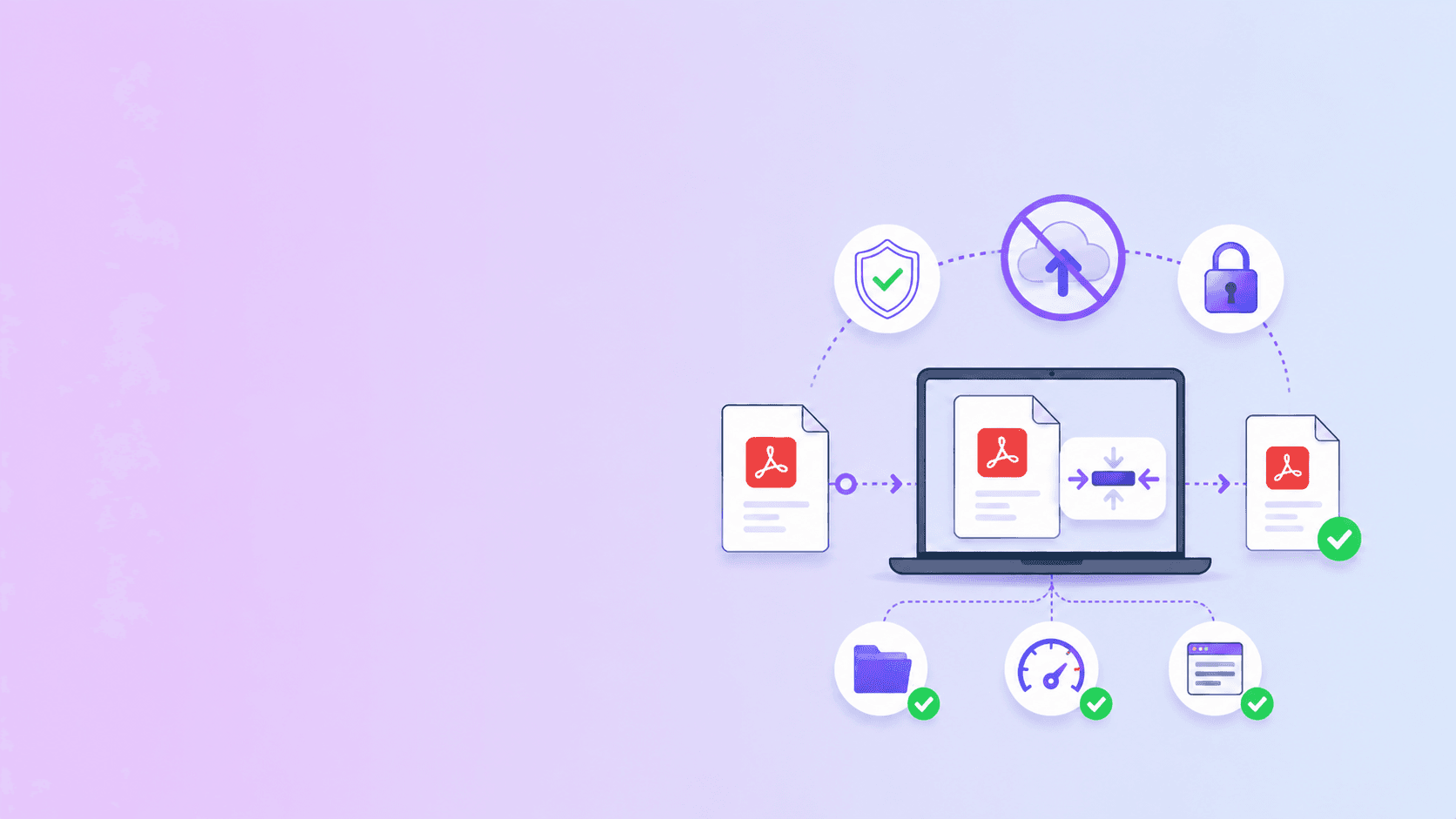
Use private/browser compression first when the document is sensitive. This keeps the file on your device and is often enough for resumes, forms, and ordinary PDFs.
If the file is still too large and the document is safe to upload, use stronger server compression. Stronger compression can downsample images more aggressively, which is helpful for scanned pages and image-heavy documents.
Step 3: Check Readability
Never submit a compressed PDF without checking it.
Open the result and review:
- Names.
- Dates.
- ID numbers.
- Signatures.
- Stamps.
- Small text.
- QR codes or barcodes.
- Tables.
If the file is under 1 MB but unreadable, it is not a successful compression.
Step 4: If It Is Still Too Large
If compression does not reach the target, try these options in order:
Remove more pages
If the form asks for only the latest certificate, do not include the whole packet. If it asks for one page of ID, do not upload both sides unless required.
Split the document
Some portals allow multiple uploads. If so, use Split PDF and upload smaller sections separately.
Rescan at a better size
For scanned documents, the original scan may be too large. Rescanning at a readable resolution can work better than repeated compression.
For ordinary text documents, 150 DPI is often readable on screen. Avoid low-quality scans that make official text hard to verify.
Ask for an alternate submission method
If the form limit is unrealistic for the required document, contact support. Some portals provide an email or alternate upload path for large documents.
What Not to Do
Avoid:
- Taking screenshots of every page and rebuilding a PDF.
- Compressing until text becomes blurry.
- Cropping important margins.
- Removing required pages.
- Uploading confidential files to unknown converters.
- Renaming a file extension to bypass a form check.
The goal is a smaller valid PDF, not a broken upload.
Best Workflow for Sensitive Uploads
- Remove pages locally.
- Compress privately in the browser.
- Check readability.
- Use server compression only if acceptable.
- Split only if the form allows multiple files.
- Keep the original PDF as backup.
Key Takeaway
Getting a PDF under 1 MB is easiest when you reduce the page count before compression. Short text PDFs usually compress well. Long scanned PDFs may need page removal, rescanning, or splitting.
Start with Compress PDF, then use Remove PDF Pages if the file is still too large.
Frequently Asked Questions
ShellPDFs Editorial Desk
ShellPDFs Editorial Desk is the byline we use for product-tested guides reviewed against the live tool flow, privacy boundaries, and file-handling rules before publication. See our editorial standards for the process behind each article.
Focus: PDF compression workflows for job portals, school submissions, and document upload limits
Questions or feedback? Get in touch.