Direct Answer
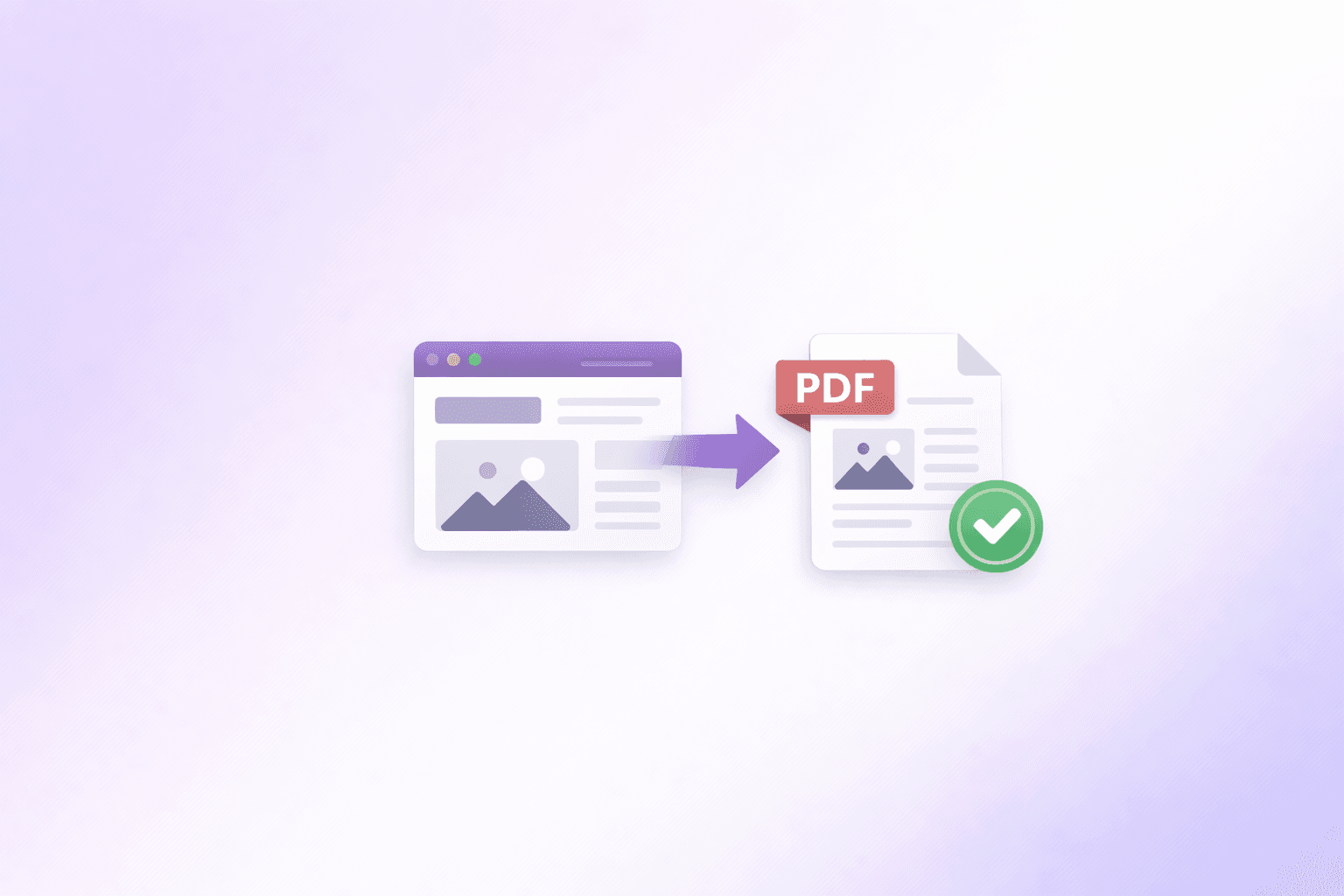
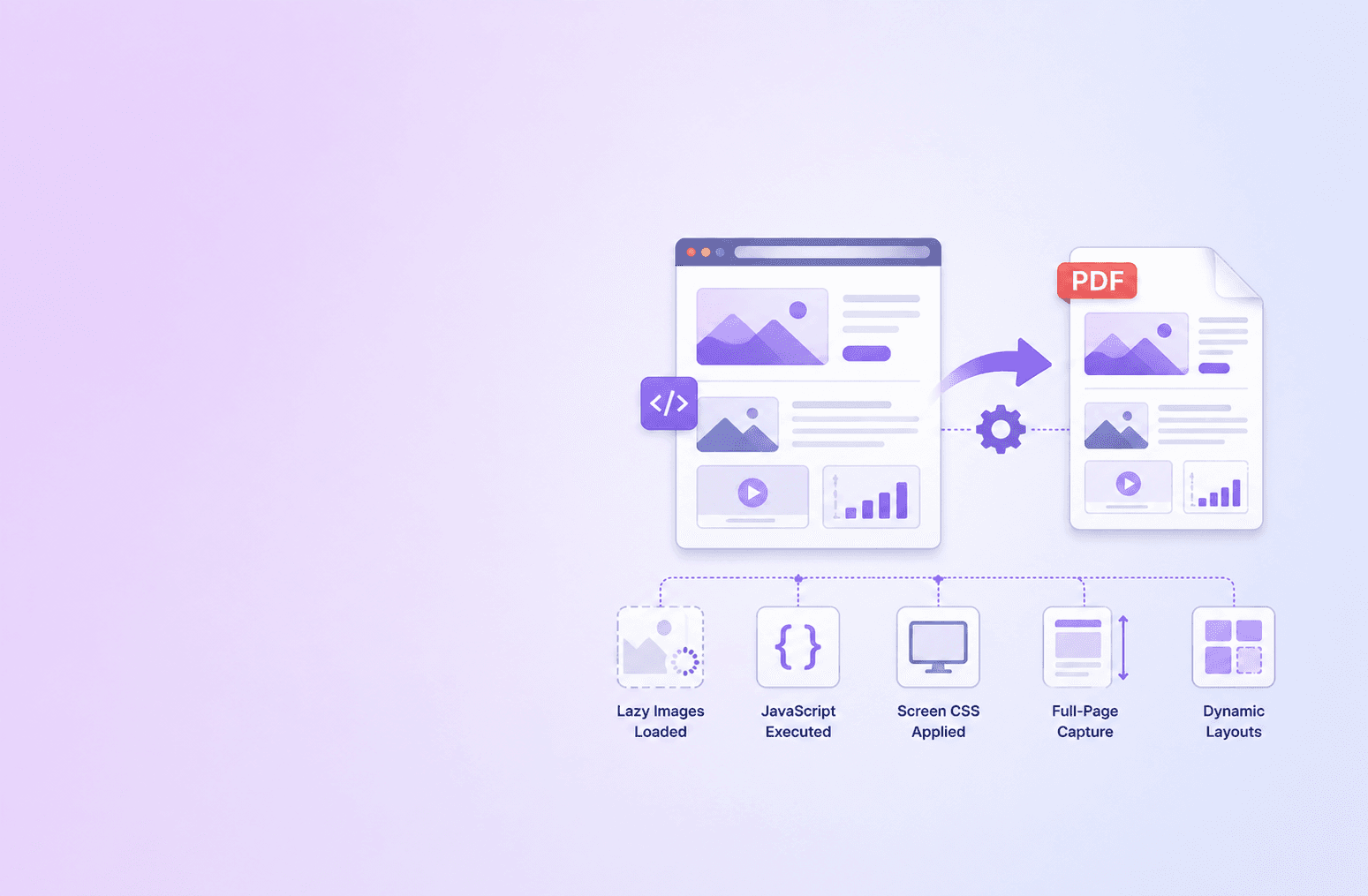
The best way to convert a modern webpage to PDF is to render the page like a real browser, wait for JavaScript, fonts, layout, and lazy-loaded images to settle, then generate the PDF using screen media rather than blindly relying on the site's print stylesheet.
That sounds obvious until you see how most broken webpage PDFs are created. A converter loads a URL, waits for the first HTML event, calls print, and returns whatever the browser had at that moment. For old static pages, that can work. For modern JavaScript pages, it often creates a PDF with missing images, blank hero sections, cropped dashboards, or a layout that looks nothing like the browser.
High-fidelity webpage to PDF conversion is not just "HTML to PDF." It is controlled browser rendering.
If you need a practical tool, the ShellPDFs Webpage to PDF converter is built for public webpages that need accurate, downloadable PDF output. This guide explains what "high fidelity" really means and how to avoid the quality problems that frustrate users.
Why modern webpages are harder to capture
The web moved from static HTML pages to client-rendered applications. A page may be mostly empty when the initial HTML arrives, then fill itself with content after JavaScript fetches data, hydrates components, loads fonts, decodes images, and runs layout effects.
That creates four common failure points for JavaScript webpage to PDF tools.
The page is captured before hydration finishes
Many React, Next.js, Vue, and Angular pages send initial markup that is incomplete until JavaScript runs. If a converter prints too early, the PDF may contain a header and a blank body.
The fix is not an unlimited wait. The fix is a bounded readiness model:
- wait for the DOM to exist
- wait for fonts
- wait for important network activity to quiet down
- wait for page height and visible content to stabilize
- wait for images that are already visible to decode
This is what separates reliable webpage archiving from a quick screenshot wrapper.
Lazy-loaded images never enter the viewport
Modern pages save bandwidth by loading images only when they approach the viewport. If a converter never scrolls, those images may remain placeholders. If it jumps instantly to the bottom, some intersection observers still do not fire correctly.
A stronger converter scrolls incrementally through the page, pauses long enough for observers and image requests to run, then returns to the top before printing.
Print CSS changes the page
Browsers use print media when generating PDFs by default. That means CSS inside @media print can remove backgrounds, hide sections, collapse navigation, or reflow the page into a narrow paper layout.
Print CSS is useful when the site author designed it well. But many sites do not. For visual webpage preservation, screen CSS PDF rendering often produces a better result because it captures the page the user actually saw.
The PDF page size crops wide layouts
A modern landing page, dashboard, pricing table, or design portfolio may be wider than an A4 sheet. If a converter forces A4 by default, the meaningful content can sit off-page or get clipped.
That is why "best match" sizing is often better than paper sizing for screen-first pages. A4, Letter, and Legal should still exist, but they should be explicit choices, not the only default.
What high-fidelity webpage to PDF rendering should do
A serious converter should behave more like a browser capture pipeline than a single print command.
1. Validate the URL safely
Before rendering, the service must reject unsupported protocols, private network addresses, metadata endpoints, and localhost targets. A webpage converter is a server-side browser; without URL validation, it can become an SSRF risk.
For public conversion tools, this means:
- allow only
httpandhttps - block private IPv4 and IPv6 ranges
- block localhost and link-local addresses
- re-check DNS during browser requests
- reject
file:and other local access protocols
Security and quality are connected. A fast converter that can hit internal services is not a good converter.
2. Render with a real browser engine
High-quality HTML to PDF rendering needs the same layout engine users see in their browsers. That means loading CSS, fonts, images, JavaScript, and responsive layout in an isolated Chromium environment.
This matters for:
- CSS grid and flexbox
- web fonts
- SVGs and responsive images
- canvas snapshots
- client-side routing
- JavaScript-rendered content
Basic HTML parsers are useful for article extraction, but they cannot faithfully render modern visual pages.
3. Wait for readiness, not just load
There is no single browser event that means "this webpage is ready for PDF." load can fire too early, and networkidle can hang on analytics, long polling, or websockets.
The better approach is layered:
- Navigate until the DOM is available.
- Wait briefly for network quiet.
- Wait for
document.fonts.ready. - Scroll to trigger lazy-loaded content.
- Watch for stable text length, image count, and page height.
- Decode visible images.
- Add a small stabilization delay.
This keeps the capture bounded without pretending modern pages are static documents.
4. Use screen media for visual archives
For many public pages, screen media produces a PDF that matches the visible page more closely than print media. This is especially true for:
- SaaS landing pages
- pricing pages
- documentation sites
- portfolios
- ecommerce product pages
- dashboards exported for reference
Print media can still be valuable for clean text articles. But if the user asked to save the webpage, they usually expect what they saw on screen.
5. Detect bad captures before returning them
The most underrated feature in a high-quality converter is a bad-capture detector.
Before returning the file, the service can inspect simple signals:
- text length
- visible loaded image count
- final URL
- page height
- phrases like "access denied", "captcha", or "enable JavaScript"
- ratio of loaded images to visible images
If the capture looks weak, retry once with a higher-fidelity profile. If it still looks blocked or gated, tell the user honestly instead of pretending the output is perfect.
The converter should not merely ask, "Did PDF generation finish?" It should ask, "Does this PDF appear to contain the page the user expected?"
Best settings for common webpages
Different pages need different output strategies.
Articles and documentation
Use standard paper sizing if you plan to print. A4 or Letter usually works well for documentation, guides, and policy pages.
If the page has a clean print stylesheet, browser print-to-PDF can be enough. If the print stylesheet strips too much content, use a screen-rendered converter.
Landing pages and marketing pages
Use best-match sizing or full-page capture. These pages often rely on screen composition, background images, and wide responsive layouts.
Forcing them into A4 too early can crop content or create awkward page breaks.
Tables and dashboards
Use landscape or best-match sizing. Wide tables, charts, and analytics views are rarely designed for portrait paper.
If the dashboard is private or behind login, use your browser's built-in PDF export while logged in. Public converters should not handle your session cookies.
Ecommerce and product pages
Use screen rendering and wait for images. Product pages often lazy-load galleries, variants, reviews, and recommendations.
After conversion, use Compress PDF because product pages can produce image-heavy PDFs.
Why screenshots are not enough
A screenshot can be useful for visual proof, but it is not the same as a PDF.
A high-quality webpage PDF can preserve:
- selectable text
- searchable content
- multipage structure
- page metadata
- annotation support
- standard document portability
Screenshots are raster images. They blur when zoomed, hide text from search, and become hard to annotate at scale.
For professional archiving, PDFs are easier to store, share, compress, search, and attach to workflows.
Privacy and access limits
No public webpage to PDF converter should promise perfect access to every page. Some pages require login. Some block automated browsers. Some serve different content by location, cookies, consent state, or bot detection.
The honest boundary is simple:
- public pages: use a server-side converter
- private pages: use browser print-to-PDF
- internal network pages: do not send them to a public converter
- pages with CAPTCHAs or anti-bot gates: expect partial or blocked output
ShellPDFs keeps the converter focused on public URLs and ephemeral output. Generated files are intended for one-time download and short retention, which fits the privacy posture of a utility that handles document workflows.
A practical workflow for clean webpage PDFs
- Open Webpage to PDF.
- Paste the public URL.
- Use Best match for visual pages, or choose A4/Letter if you need print paper sizing.
- Use landscape for wide tables.
- Download the output.
- Compress the PDF if the page contained many images.
For content that starts in Markdown instead of a live webpage, use Markdown to PDF. Markdown is usually better for technical docs, READMEs, specs, and internal documentation because the source already has structure.
The future of webpage archiving
The best converters will not be the ones with the most settings. They will be the ones with the best defaults:
- safe URL validation
- browser-accurate rendering
- screen-media capture
- lazy-load handling
- quality detection
- one bounded retry
- honest messages when a page is blocked
That is how webpage to PDF moves from "sometimes works" to a dependable archiving workflow.
Capture public webpages as clean, searchable PDFs with screen-aware rendering and privacy-first cleanup.
Try Webpage to PDFFrequently Asked Questions
ShellPDFs Team
The ShellPDFs editorial group writes and maintains guides for everyday PDF workflows, with updates made when tool behavior or documented limits change. See our editorial standards for the process behind each article.
Focus: Browser rendering, PDF conversion, and privacy-first document workflows
Questions or feedback? Get in touch.