We have all been there: you scan a massive 50-page document into a single PDF, only to discover that page 12 is scanned upside down, page 32 is completely blank, and the appendix is entirely out of order.
If you are dealing with a finalized presentation, an e-book, or a legal contract, correcting these structural mistakes visually is far simpler than trying to fix the source documents and compiling them all over again. Here is exactly how to clean up, reorder, and polish your PDFs locally and entirely for free.
When Does a PDF Need Organizing?
Most people think of PDF organization as something that happens after a botched scan, but there are actually many situations where you need to restructure a document:
Scanned documents with orientation errors: Physical documents fed into a scanner can come out rotated. A single page in the wrong direction makes the whole document look unprofessional and frustrating to read.
Merged files that need resequencing: When you combine multiple PDFs, the order of the source files dictates the page sequence of the output. Sometimes you realize after merging that sections are in the wrong order.
Reports with misplaced appendices: An appendix that was compiled separately and appended to the end of a report might logically belong in the middle. Moving it is far easier than rebuilding the document.
Legal documents requiring specific page formatting: Court submissions and formal contracts often have strict requirements about page order, including which pages should be right-hand pages for double-sided printing.
Cleaning up drafts before finalizing: Internal review drafts often accumulate redundant pages, version notes, and placeholder content. Organizing removes these before a document goes out.
Presentations that need sections reordered: Slide decks exported as PDFs often get reorganized after client feedback. Reordering the PDF directly is faster than reopening the original presentation file.
The Power of Visual Organization
When reordering a long document, seeing is believing. Attempting to organize pages by typing out numbers — "Move page 42 to page 5" — in clunky software is a recipe for errors.
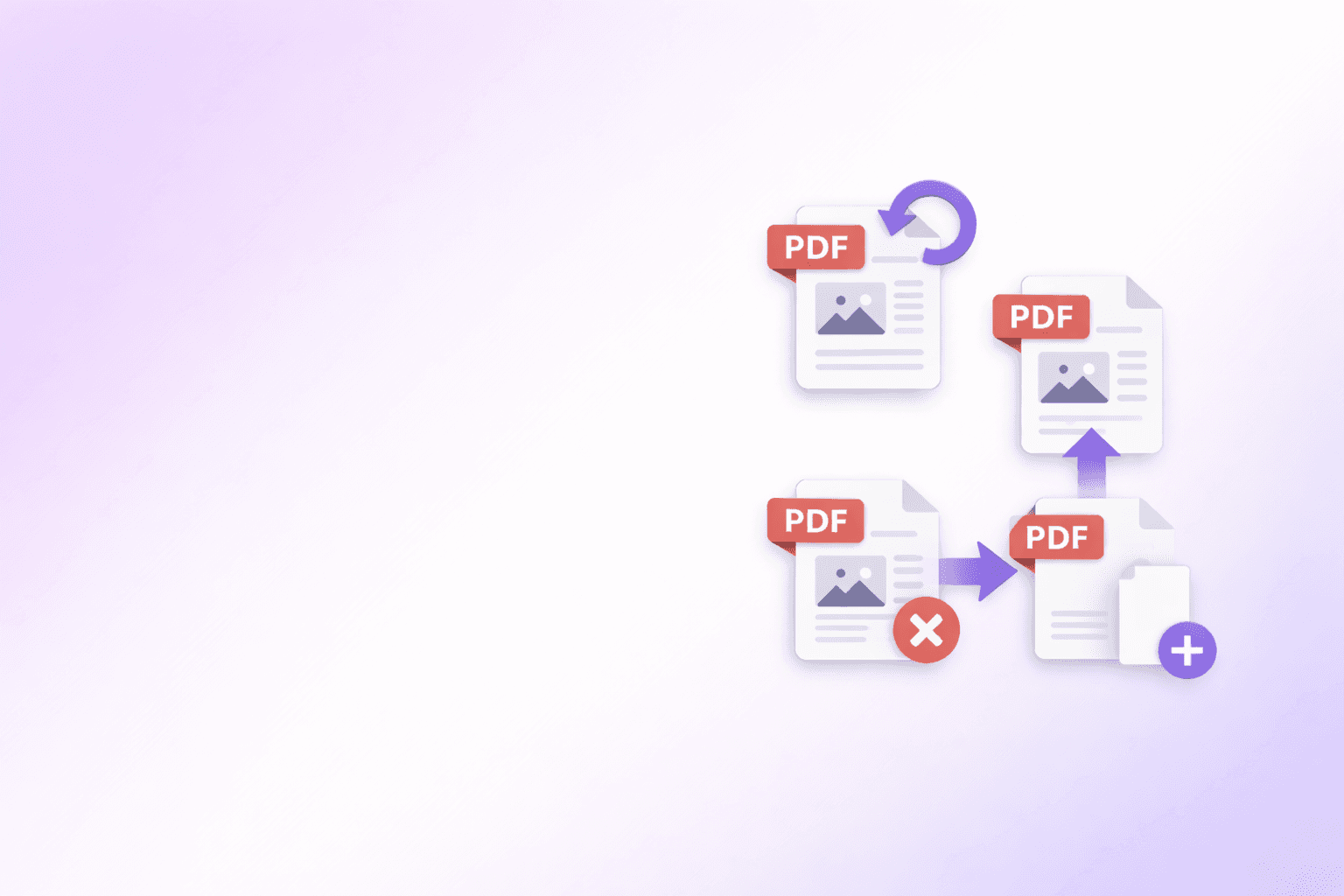
The Organize PDF tool solves this by parsing your PDF natively in the browser and turning every page into a drag-and-drop card. This bird's-eye view gives you the power to see your structural edits applied in real time, long before you ever click save.
Best of all, this visual processing occurs securely on your own device without requiring a server upload.
Step-by-Step Guide to Organizing PDFs
1. Load Your PDF
Drag and drop your PDF file directly into your browser tab. Since ShellPDF processes locally, your browser will instantly unpack the PDF and generate a grid displaying every single page as an interactive thumbnail.
Even for large documents — 100 pages or more — loading is near-instant because no upload is involved.
2. Drag and Drop to Reorder
Is Chapter 3 somehow sitting in front of Chapter 1? Click and hold the errant page, and drag it exactly where it belongs in the grid. The other pages will fluidly snap out of the way to make room.
You can drag pages across long distances in a multi-page document by scrolling while holding the drag. The grid scrolls automatically as you approach the edges, so you never lose control of the page you are moving.
3. Rotate Upside-Down Scans
If some pages passed through the scanner in the wrong orientation, hover over the offending page and click the Rotate icon. You can spin individual pages 90 degrees at a time until they look correct.
If the entire document is sideways — a common result when legal-size documents are scanned on a letter-size scanner — click the Rotate All button in the centralized action bar to fix the whole file instantly.
For documents where only alternating pages are rotated (a common issue with duplex scans), you can select every other page and rotate them as a group.
4. Delete Unwanted Pages
Whether it is a blank page created by a scanner misfeed, a draft cover sheet that was not removed before filing, or a page of internal notes that slipped into the final copy, hover over the unwanted page and click the Delete icon.
If your primary goal is simply removing a large number of pages efficiently, the dedicated Remove PDF Pages tool offers bulk selection shortcuts — including range input and invert selection — that are faster for pure deletion workflows.
5. Insert Blank Separator Pages
Sometimes you need to insert a deliberate blank page — for example, to force a new chapter to start on a right-hand page for double-sided printing, or to add a visual break between document sections.
Hover between any two pages and click the green + (Insert blank page) icon to inject a fresh blank card exactly where you need it. You can insert as many blank pages as required in any positions throughout the document.
6. Compress and Download
If you are organizing heavy, media-rich files, making structural adjustments will not inherently make the file lighter. Tick the Compress after organizing checkbox to instruct your browser to optimize the entire document after you have finished restructuring it.
Click Apply & Download PDF when your sequence is perfect. Your browser will compile the exact order you crafted visually, compress the file if requested, and immediately save the final document to your hard drive.
Best Practices for Document Structure
Always keep the original: The organize operation creates a new output file and never modifies your source PDF. But it is still good practice to verify the downloaded result before distributing it.
Use consistent naming: When you save reorganized versions of a document, add a suffix like _v2 or _reordered to distinguish them from originals. Overwriting with the same filename makes it easy to lose track of which version is which.
Combine tools for complex jobs: For heavily disorganized documents, a multi-step workflow often works best. Use Merge PDF to bring together all the source files, then use Organize PDF to sequence them correctly, then use Compress PDF to optimize the final output. Each tool does one thing well, and they work together naturally.
Check double-sided print requirements: If your document will be printed double-sided, odd-numbered pages should carry section starts. Use blank page insertion to ensure chapters and major sections open on the correct side.
How Visual Organization Works Under the Hood
ShellPDF processes PDFs locally in your browser. When you load a PDF, the tool parses the document structure in memory and renders page previews as canvas elements. When you reorder, rotate, or delete pages, the tool manipulates the in-memory representation of the document — updating the page tree without ever touching your original file on disk.
When you click Apply, the modified document is serialized from memory to binary and offered as a browser download. The whole process happens locally with no data leaving your device.
When to Use Other Tools Instead
If your goal is specifically to extract a range of pages into its own file — rather than reorganizing within the same document — the Split PDF tool is built for that. It offers a dedicated extraction workflow with range selection optimized for splitting tasks.
If you only need to delete pages and nothing else, the Remove PDF Pages tool provides a faster, more focused interface with bulk selection tools designed purely for deletion.
And if the document you are organizing needs to have pages from other files merged in before you restructure it, start with Merge PDF to combine everything first, then bring the merged result into Organize PDF.
Frequently Asked Questions
Free Tool
Organize PDF
Rotate, delete, reorder and add blank pages. No upload, no account.
Try Organize PDFShellPDFs Team
The ShellPDFs editorial group writes and maintains guides for everyday PDF workflows, with updates made when tool behavior or documented limits change. See our editorial standards for the process behind each article.
Questions or feedback? Get in touch.