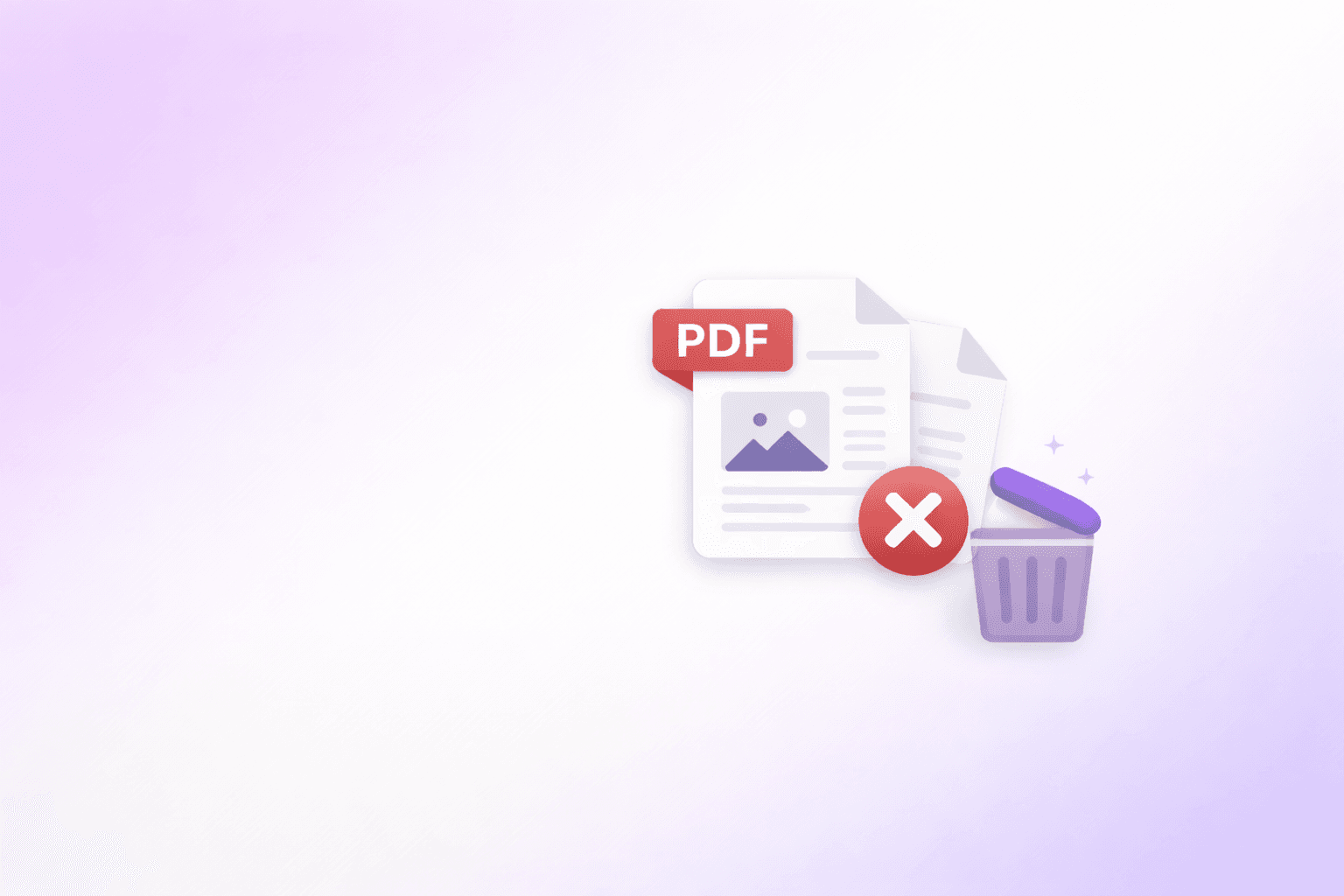
We have all encountered a bulky PDF document that contains pages we simply do not need. Whether it is a blank page from a scanner error, a confidential appendix you cannot share with a client, or a massive cover section inflating the final file size, sometimes you just need to delete a few pages and move on.
While traditional desktop software can be expensive and clunky, the Remove PDF Pages tool by ShellPDFs allows you to trim your documents instantly, visually, and completely securely in your web browser.
Here is a complete guide to quickly and safely removing pages from your PDF files online for free.
Why Would You Need to Remove PDF Pages?
Page removal is one of the most common PDF tasks, and it comes up in a surprising variety of situations:
Blank pages from scanner errors: Flatbed scanners frequently insert blank pages when a sheet feeds incorrectly. These empty pages inflate the file and confuse recipients. Removing them is a quick one-step cleanup.
Cover pages and internal headers not meant for external sharing: A document might have an internal cover sheet, a routing slip, or a draft watermark page that should not go to external recipients. Stripping those pages out takes seconds.
Confidential appendices: Contracts and reports often end with appendices that contain sensitive pricing, internal notes, or third-party data. Removing those pages before forwarding protects information that should not leave the organization.
Reducing file size by eliminating low-value content: Every page adds to the file weight. A 30-page document with 10 pages of dense image-heavy charts that are not relevant to the recipient can be trimmed to 20 pages, significantly reducing file size without needing compression.
Cleaning up merged documents: When you combine files using a merge tool, you sometimes end up with duplicate pages, stray separator pages, or content from a file that should not have been included. Removing those cleanly is faster than starting the merge over.
Creating distribution-ready versions: You might have a master document and need to create a shorter public-facing version. Rather than recreating the document from scratch, you remove the internal-only pages from the master copy.
Why Browser-Based PDF Editing Matters
Most online PDF editors require you to upload your document to their remote servers for processing. This means your files — which might contain confidential contracts, financial statements, or personal data — leave your device entirely.
ShellPDFs takes a privacy-first approach. The entire page removal process happens locally on your machine:
Zero Uploads: Your document stays on your device the entire time. No data travels across a network.
Instant Processing: Without waiting for server queues or download speeds, processing is virtually instant even on slow internet connections.
No File Size Limits: You are not restricted by artificial cloud upload caps. You can edit documents as large as your device's memory can handle.
No Account Required: There is nothing to sign up for, no email to verify, and no payment wall to get past.
Step-by-Step Guide: How to Delete Pages from a PDF
Here is how you can easily strip out unwanted pages using the Remove PDF Pages tool.
1. Load Your PDF Document
Drag and drop your PDF file directly into the browser window. Because ShellPDFs processes files locally, your browser will immediately unpack the document and display a clean, interactive grid of page thumbnails.
There is no upload progress bar, no waiting for server confirmation — the file opens in the tool the moment you drop it.
2. Visually Select Pages for Removal
Hover over any page thumbnail and click the clearly marked Trash icon. The page will immediately be highlighted with a red overlay, indicating it is slated for deletion. You can scroll through your entire document and click as many individual pages as you need.
The visual approach is particularly helpful for longer documents where you need to scan through to find specific pages. Rather than guessing "is it page 14 or page 15?", you can see the actual content and mark exactly what you want gone.
3. Use Page Ranges for Faster Trimming
If you are dealing with a 500-page document and need to remove the first 50 pages, clicking individual thumbnails is not practical.
Instead, use the text input box above the grid. Typing a range sequence like 1-50, 55, 100-120 will instantly select all of those pages for removal simultaneously. The visual grid will update in real time to reflect your text input. You can combine the text range and manual clicking in any order — both selection methods work together.
4. Bulk Actions for Complex Selections
For more advanced trimming scenarios, use the quick-action links above the grid:
Select All marks every page for deletion. This is useful if you only want to keep one or two pages — hit Select All and then uncheck the handful of pages you want to keep.
Deselect All clears your current selection entirely, letting you start over if you went too far with your selections.
Invert Selection flips your choice. If you selected pages 1-10 to be removed, clicking Invert will instantly select pages 11 onward for removal instead. This is extremely useful when you want to keep a small number of pages and discard the rest.
5. Shrink Your File and Download
If you are deleting pages to reduce your document's footprint, you can take it further. Checking the Compress after removal option tells your browser to optimize the remaining pages before exporting.
Once your selection is perfect, click Remove Selected Pages. Your browser instantly compiles a clean new PDF structure and saves it to your hard drive. The output file uses a suffix like _removed.pdf to distinguish it from the original, which remains untouched on your device.
Common Mistakes to Avoid
Not keeping the original: The remove operation creates a new file and never touches your source PDF. But it is still good practice to verify your output file opens correctly before doing anything with it.
Confusing "remove" with "redact": Removing a page deletes it from the PDF entirely. If you need to keep the page but black out specific text or images within it, that is a different operation called redaction, which requires a different type of tool.
Forgetting to check the page count: After removing pages, always quickly verify the total page count of the output matches your expectation. A mismatch usually means a range input had a typo.
Beyond Just Removing Pages
If your document needs further structural work after removing pages — such as rotating scanned pages that came out sideways, reordering sections, or inserting blank separator pages — the Organize PDF tool handles all of that on the same privacy-first, zero-upload architecture.
If you realize after removal that the file is still larger than needed for emailing or portal submission, run it through Compress PDF to reduce the size without affecting visible content quality.
And if what you actually need is not to remove pages but to extract a specific range into its own file — for example, isolating chapters 3 and 4 from a manual — the Split PDF tool is built exactly for that workflow.
Advanced Page Removal: Professional Techniques
Batch Page Removal: Removing Multiple Non-Consecutive Pages
The visual interface handles single pages, but what if you need to remove dozens of scattered pages?
Using Range Syntax: Instead of clicking each page, type a range into the selection box:
1-5, 10, 15-20, 25, 30-50
This instantly selects all those pages. The syntax supports:
- Consecutive ranges:
1-5(pages 1 through 5) - Individual pages:
7, 9, 11(separate with commas and spaces) - Mixed ranges:
1-3, 7, 10-15, 20(any combination)
Why this is faster than clicking:
- Removing 50 pages from a 500-page document: Click 50 times, or type one range
- Large documents: Scrolling through 500 thumbnails to find pages to remove is exhausting
Advanced workflow for large documents:
- Identify page ranges to remove in your original document (write them down or highlight)
- Upload to ShellPDFs and use the range syntax
- Review the highlighted selections (double-check visually)
- Execute removal in one step
Removing Pages vs. Redacting Content: When to Use Each
Page Removal: Deletes pages entirely. File size reduces. Pages are permanently gone.
- Use for: Irrelevant pages, confidential attachments, duplicates, blank pages
- Result: File is smaller, pages cannot be recovered
Content Redaction: Blacks out sensitive text/images but keeps pages in the document.
- Use for: Protecting specific data within pages you need to keep (account numbers, SSNs, medical info)
- Result: File size same or larger; redaction is permanent but more targeted
Key distinction:
- Remove pages → for pages you don't need
- Redact content → for pages you need, but with sensitive parts hidden
Compliance note: For FOIA (Freedom of Information Act) requests and government submissions:
- Redaction is often required (shows what was withheld)
- Page removal alone may trigger compliance violations (appears you're hiding data)
- Best practice: Redact sensitive data AND remove completely unnecessary pages
ShellPDFs handles page removal. For redaction, use Adobe Acrobat Pro or similar tools that support true redaction (not just black boxes over text, which can be reversed).
Handling Corrupted or Damaged Pages
Sometimes a page in your document displays incorrectly — upside-down, garbled, or compressed strangely. You have two approaches:
Option 1: Remove the problematic page
- Load PDF into Remove Pages tool
- Delete the corrupted page
- Download result
- Fastest solution; content is lost but document is clean
Option 2: Fix the page before removal
- Open PDF in Adobe Acrobat or PDF editor
- Repair the corrupted page (rotate, re-save, or convert from image)
- Save a corrected copy
- Upload corrected copy to ShellPDFs and remove if still needed
When to choose which:
- If page contains critical information → fix it (Option 2)
- If page is duplicate or low-value → remove it (Option 1)
- If repair is too expensive (time/effort) → remove it (Option 1)
Combining Removal with Other Tools: Professional Workflow
A typical professional document optimization workflow:
Original Document (100 pages, 45 MB)
    ↓
[Remove Pages] - delete blank pages, cover sheets, irrelevant sections (now 73 pages)
    ↓
[Organize PDF] - rotate wrongly-scanned pages, reorder sections (still 73 pages, better structure)
    ↓
[Compress PDF] - aggressive compression for email/portal submission (now 45 MB → 8 MB)
    ↓
Final Document (73 pages, 8 MB, clean structure)
Why this order?
- Remove first: Why compress pages you're going to delete?
- Organize second: Now that junk is gone, fix structural issues
- Compress last: After structure is final, compress aggressively
Removing first also makes compression more effective (20% fewer pages = 20% less data to compress).
Page Removal Impact on File Size
Different document types see different size reductions:
Text-heavy document (reports, contracts):
- 10% page removal → ~5-10% file size reduction
- Reason: Text is small; most size is structure and metadata
Image-heavy document (brochures, scanned books):
- 10% page removal → ~10-15% file size reduction
- Reason: Images dominate; remove 10% of pages, remove 10% of images
Scanned document (e-books, archival):
- 10% page removal → ~10% file size reduction
- Reason: Each page is roughly equal in file size (same scan resolution)
Maximum impact scenario:
- Remove 50% of pages from a 500-page scanned book
- Expect 45-50% file size reduction (almost proportional)
Minimum impact scenario:
- Remove 5 blank pages from 200-page text document
- Expect 1-2% file size reduction
Redaction vs. Removal in Different Industries
Legal/Litigation:
- Court discovery: Use redaction for privilege; removal for truly irrelevant (but carefully!)
- FOIA requests: Redact sensitive data; don't remove pages entirely (compliance issue)
- Strategy: Mark pages with "REDACTED" notation; show withholding was intentional
Healthcare:
- HIPAA compliance: Redact patient identifiers (SSN, medical record number) before sharing
- Research data: Remove pages with identifiable information not essential to research
- Strategy: Redact sparingly; removing pages from medical records can look like data destruction
Finance/Accounting:
- Before sharing financials: Remove internal-only pages (management forecasts, sensitive planning)
- Regulatory submission: Usually cannot remove pages; must submit as-is
- Strategy: Prepare clean versions for external stakeholders; keep originals for records
Government/Military:
- FOIA compliance: Redact classified information; cannot remove pages entirely
- Internal sharing: Can remove pages entirely if legitimately irrelevant
- Strategy: Use standardized redaction markers; log what was removed and why
Automation: Batch Removing Pages from Multiple Documents
If you have 20 PDFs and need to remove the same page range from each:
Manual approach (faster than you might think):
- Open ShellPDFs Remove Pages tool
- Load first PDF
- Enter range
1-5, 50-55(removes cover and appendix) - Download result
- Repeat for next 19 PDFs
Time: ~2-3 minutes for 20 documents (maybe 10 seconds per document after first)
Scripted approach (if you have dozens):
- Use Ghostscript or similar CLI tools to script the removal
- Command-line tools can batch-process entire folders
- Requires technical knowledge but scales to 1000+ documents
Recommendation: For fewer than 50 documents, use the browser tool. Faster to set up, no learning curve. For 100+ documents, consider automation.
Real-World Use Cases for Page Removal
Client deliverables:
- Remove internal cost analysis pages before sending proposal to client
- Keep structure intact but remove sensitive pricing information
- Impact: Professional appearance; protects confidential business info
Archival and long-term storage:
- Remove blank pages inserted by scanner feed errors
- Remove temporary metadata pages
- Remove duplicate pages scanned twice
- Impact: Cleaner archive; easier to navigate
Email and portal submissions:
- Remove cover pages and internal headers
- Remove duplicate pages from multi-version documents
- Remove appendices not required by recipient
- Impact: Smaller file size; faster transmission; cleaner package
Academic and research:
- Remove draft comments and revision marks from final thesis
- Remove internal author notes before publication submission
- Remove high-resolution versions before distribution (keep only low-res)
- Impact: Professional submission; IP protection; file size control
Financial compliance:
- Remove internal-only budget pages before shareholder distribution
- Remove forecasts and planning documents from regulatory filings (must be submitted as originally created!)
- Remove working notes and calculations before archival
- Impact: Compliance; IP protection
Troubleshooting and Limits
"I removed the wrong pages — can I undo?"
No, but:
- Your original PDF is never modified (it stays on your device)
- Undo is impossible in a browser environment
- Solution: Keep original, re-do the removal with correct pages
"Removing pages didn't reduce file size much"
Possible reasons:
- Document is mostly text (small file, limited room for reduction)
- Pages you removed were mostly blank (little data in them)
- Document is already optimized (no metadata bloat)
Solution: If size reduction is critical, combine removal with compression.
"Can I remove pages and combine with other PDFs in one step?"
Not directly. Workflow:
- Remove pages from PDF A → output A-trimmed
- Combine A-trimmed with PDF B → final document
Each tool does one thing well. Use them in sequence for complex workflows.
"What about removing pages from encrypted PDFs?"
Encrypted PDFs cannot be edited by ShellPDFs (by design — we cannot read encrypted data).
Solution:
- Decrypt the PDF in your PDF reader (if you have the password)
- Save a decrypted copy
- Remove pages from the decrypted copy
Note: Password-protected PDFs are intentionally protected. Only remove protection if you own the document or have explicit permission.
Conclusion: When to Remove Pages
Page removal is straightforward but worth doing intentionally:
✅ Remove pages if:
- They're genuinely not needed (blank pages, duplicates, irrelevant sections)
- You're reducing file size for distribution
- You're protecting confidential information (combined with secure sharing)
- You're cleaning up scanned documents
❌ Do NOT remove pages if:
- Legal/regulatory requires full document (FOIA, court discovery)
- Pages contain information recipient might need
- You're uncertain whether they're needed
- Removal could be seen as evidence destruction
When in doubt, keep the pages and use redaction or compression instead of removal.
The simplest approach: Test on a copy first. Remove pages, verify the result meets your needs, then distribute confidently.
Frequently Asked Questions
ShellPDFs Editorial Desk
ShellPDFs Editorial Desk is the byline we use for product-tested guides reviewed against the live tool flow, privacy boundaries, and file-handling rules before publication. See our editorial standards for the process behind each article.
Focus: Document security specialist with expertise in redaction, compliance, and privacy-preserving document workflows
Questions or feedback? Get in touch.