How to Rotate PDF Pages Online Without Losing Quality
If you need to rotate a PDF without losing quality, the fastest option is to use a browser-based rotate tool that changes page orientation without re-encoding the content. That means your text stays crisp, images stay sharp, and the file size stays almost the same.
On ShellPDFs, you can rotate all pages or only the pages that are sideways in just a few clicks. The rotation happens locally in your browser, so your file never leaves your device, and the original PDF remains untouched.
Quick Answer
To rotate PDF pages online without losing quality, open the Rotate PDF tool, upload your file, select the pages that need fixing, apply a 90°, 180°, or 270° rotation, and download the updated PDF. Because rotation is a page orientation change rather than a re-export, the quality is preserved.
Why Rotating a PDF Does Not Reduce Quality
Most people worry that online tools will “re-save” their PDFs and blur images or alter fonts. That happens when a tool re-renders pages as images and then rebuilds the PDF. Rotation is different.
Rotation is a View Change, Not a Rebuild
A proper rotate tool updates the page’s rotation property inside the PDF structure. The underlying content stream stays the same. That means:
- Text remains vector-sharp.
- Images keep their original resolution.
- Fonts and metadata stay intact.
- File size changes are minimal.
If you choose compression afterward, that can change quality, but rotation alone does not.
When Quality Can Drop
Quality loss usually comes from these cases:
- The tool rasterizes pages (turns them into images).
- The tool forces a re-export to a different PDF version.
- The user selects a lossy compression step.
ShellPDFs rotates pages without rasterizing, so you avoid those pitfalls by default.
Step-by-Step: Rotate PDF Pages Online
Use this quick workflow to rotate a PDF in under a minute.
Step 1: Open the Rotate PDF Tool
Go to the Rotate PDF tool on ShellPDFs. It runs in your browser, so no signup or upload is required.
Step 2: Upload Your PDF
Drag and drop your PDF into the upload area or click to browse your device. You will see page thumbnails once the file loads.
Step 3: Select the Pages to Rotate
Choose all pages if the entire document is sideways, or select only the pages that need correction. This is useful when only one scan is rotated wrong.
Step 4: Choose the Rotation Angle
Pick the correct rotation: 90° clockwise, 180°, or 270° (counter-clockwise). Preview the result to confirm the orientation is right.
Step 5: Download the Fixed PDF
Click Rotate & Download to save the corrected PDF. Your original file remains unchanged, and the new file keeps the same visual quality.
Which Pages Should You Rotate?
Different scenarios call for different rotation choices. Here are the most common ones.
A Single Sideways Page
If only one page is sideways, rotate just that page. You can keep the rest of the document untouched, which preserves layout consistency and keeps the file size stable.
A Mixed Portrait and Landscape PDF
Reports often include a mix of portrait pages and wide landscape charts. Rotate only the landscape pages that are upside down. Do not rotate all pages, or the portrait pages will be wrong.
A Full Document from a Phone Scan
If you scanned a document with your phone and held it sideways, rotate every page by 90°. This fixes the entire file in one step.
Common Mistakes (and How to Avoid Them)
Rotating the wrong direction. If a page ends up upside down, just rotate again by 180° instead of starting over. Rotation is non-destructive and can be adjusted repeatedly.
Rotating the entire file when only one page is wrong. Use page selection to fix only the misaligned pages. This keeps mixed-orientation documents readable.
Saving a screenshot instead of a PDF. Some users export a screenshot and convert it back to PDF, which destroys text clarity. Always rotate the PDF itself.
Compressing right after rotation without checking settings. Compression can reduce image quality. If quality matters, rotate first and skip compression unless you need a smaller file.
Using tools that upload sensitive files. If the document contains private data, avoid server-based tools. ShellPDFs processes locally in the browser for privacy.
Related Tasks You Might Need After Rotation
Rotation is often just one step in PDF cleanup. These follow-on tasks are common and easy to complete.
Reorder Pages After Rotation
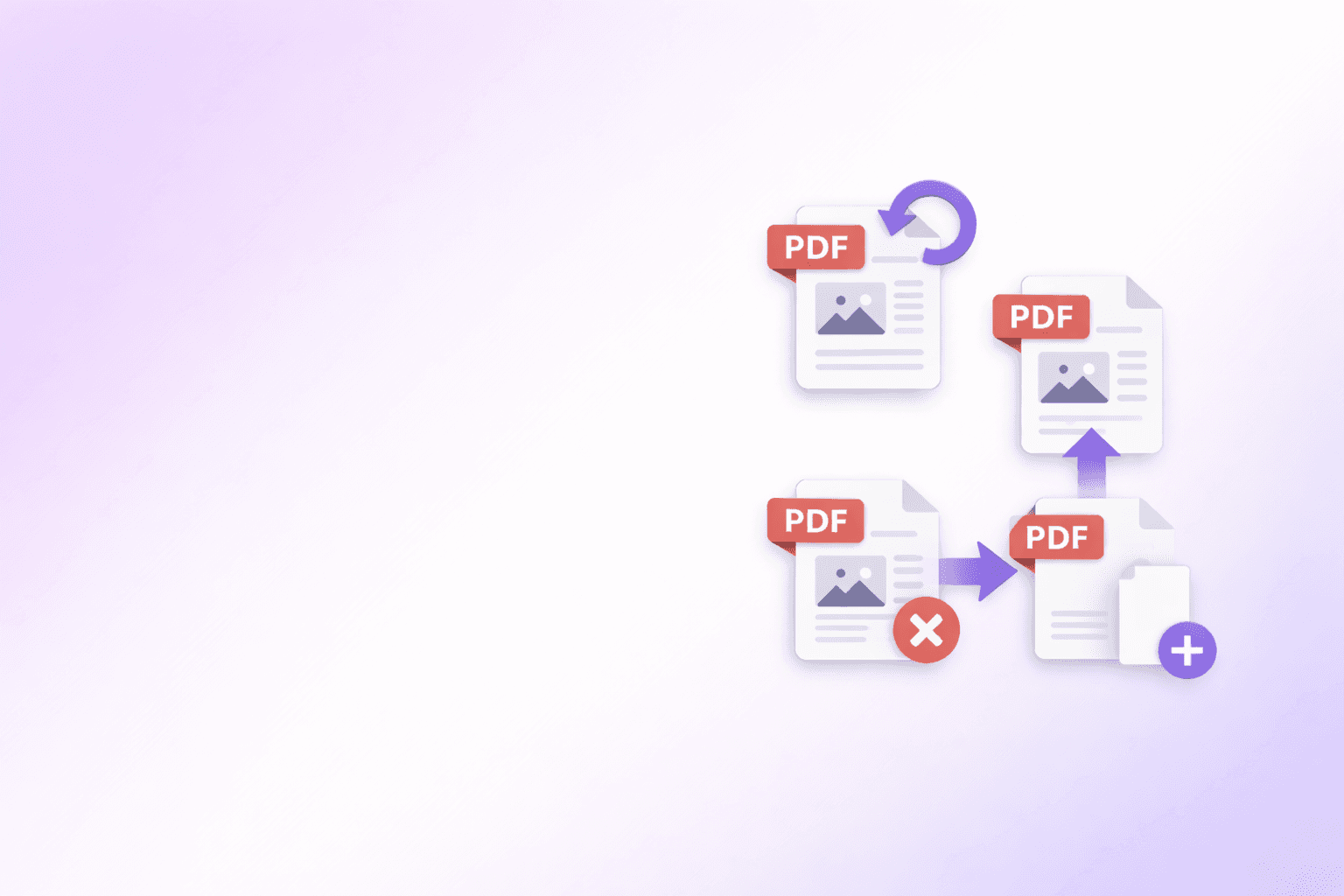
If rotated pages also need to move to another section, use the Organize PDF tool to drag and reorder pages visually.
Remove Blank or Duplicate Pages
Scans frequently include blank pages. Use Remove PDF Pages to delete them without editing the rest of the file.
Compress the Final File
If the PDF is large after scanning, use Compress PDF to shrink the file size while keeping readability high.
FAQ
Can I rotate a PDF on my phone?
Yes. ShellPDFs works on mobile browsers, so you can rotate PDFs on iPhone or Android without installing an app.
Does rotation affect searchable text?
No. The text remains selectable and searchable because the content is not converted to an image during rotation.
What angles can I rotate a PDF?
Most tools support 90°, 180°, and 270°. Those are the standard rotations used in PDF viewers and printers.
Why is my rotated PDF still sideways in some viewers?
Some older viewers ignore rotation metadata. Try opening the PDF in a modern reader like Chrome, Edge, or Adobe Acrobat, or rotate again with a tool that writes standard PDF rotation values.
Will rotation change my PDF metadata?
Rotation does not change document metadata like title or author. It only updates page orientation values.
Conclusion
Rotating PDF pages should never degrade quality. The key is using a tool that adjusts page orientation without re-rendering the content. With ShellPDFs, you can rotate a single page or the entire document in seconds, keep everything sharp, and download the corrected file immediately.
If you need to fix sideways pages right now, try the Rotate PDF tool on ShellPDFs for a fast, private, and lossless result.
Also useful: How to Reorder and Organize PDF Pages | How to Remove Pages from a PDF | How to Compress PDF Without Losing Quality
Frequently Asked Questions
ShellPDFs Team
The ShellPDFs editorial group writes and maintains guides for everyday PDF workflows, with updates made when tool behavior or documented limits change. See our editorial standards for the process behind each article.
Questions or feedback? Get in touch.