Direct Answer
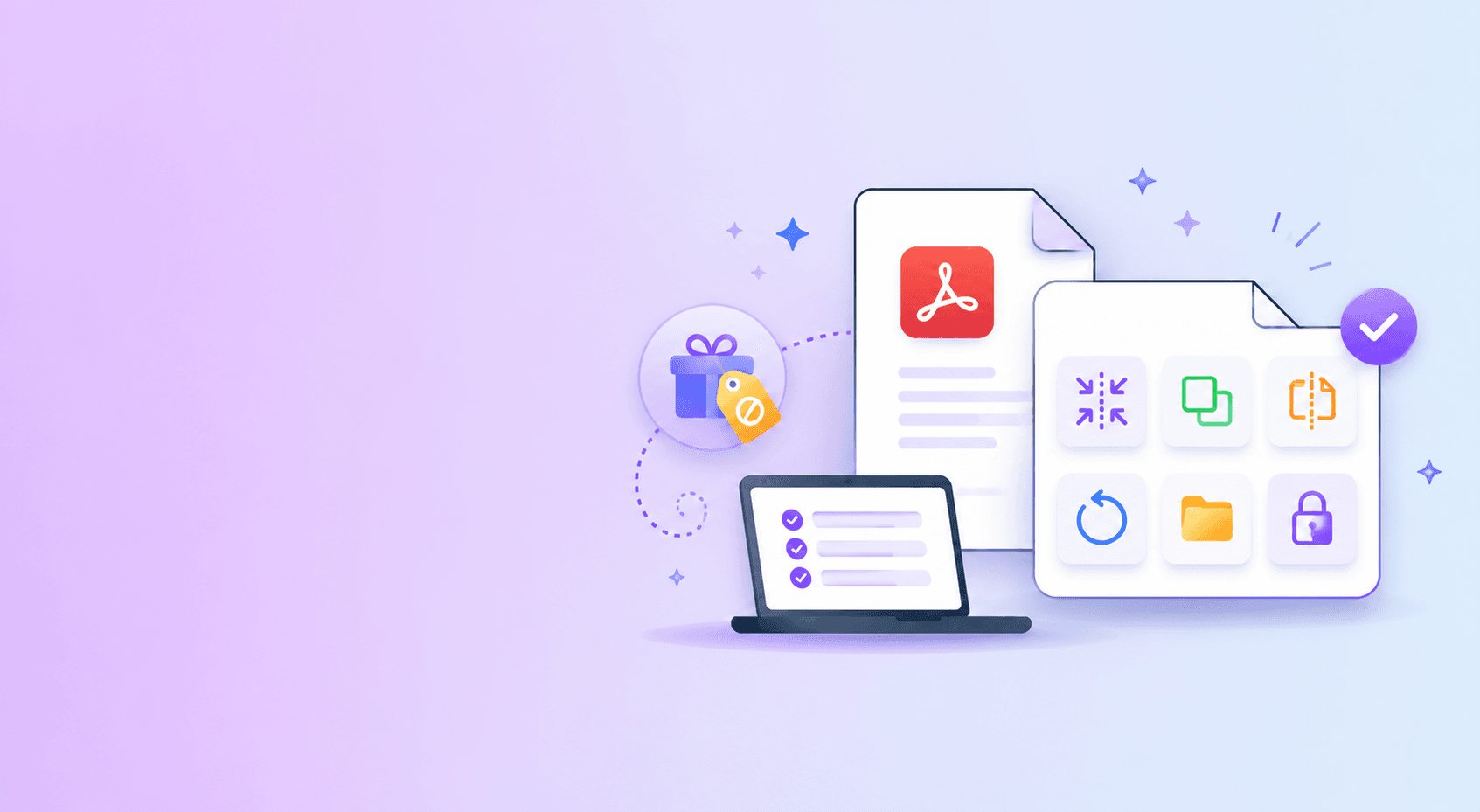
The best free Adobe Acrobat alternative depends on what you actually need. If your tasks are basic PDF cleanup, such as compressing, merging, splitting, rotating, removing pages, organizing pages, converting Markdown, OCR, or password protecting a file, ShellPDFs covers the everyday workflow without requiring a full Acrobat subscription.
Adobe Acrobat Pro is still the stronger choice for deep PDF editing, advanced redaction, accessibility tagging, complex forms, print production, and enterprise controls. But most people searching for an Acrobat alternative are not trying to rebuild a legal publishing workflow. They just need to fix a PDF and move on.
What Counts as a Basic PDF Task?
Basic PDF tasks are actions that change file structure without rewriting the entire document by hand:
- Compress a large PDF.
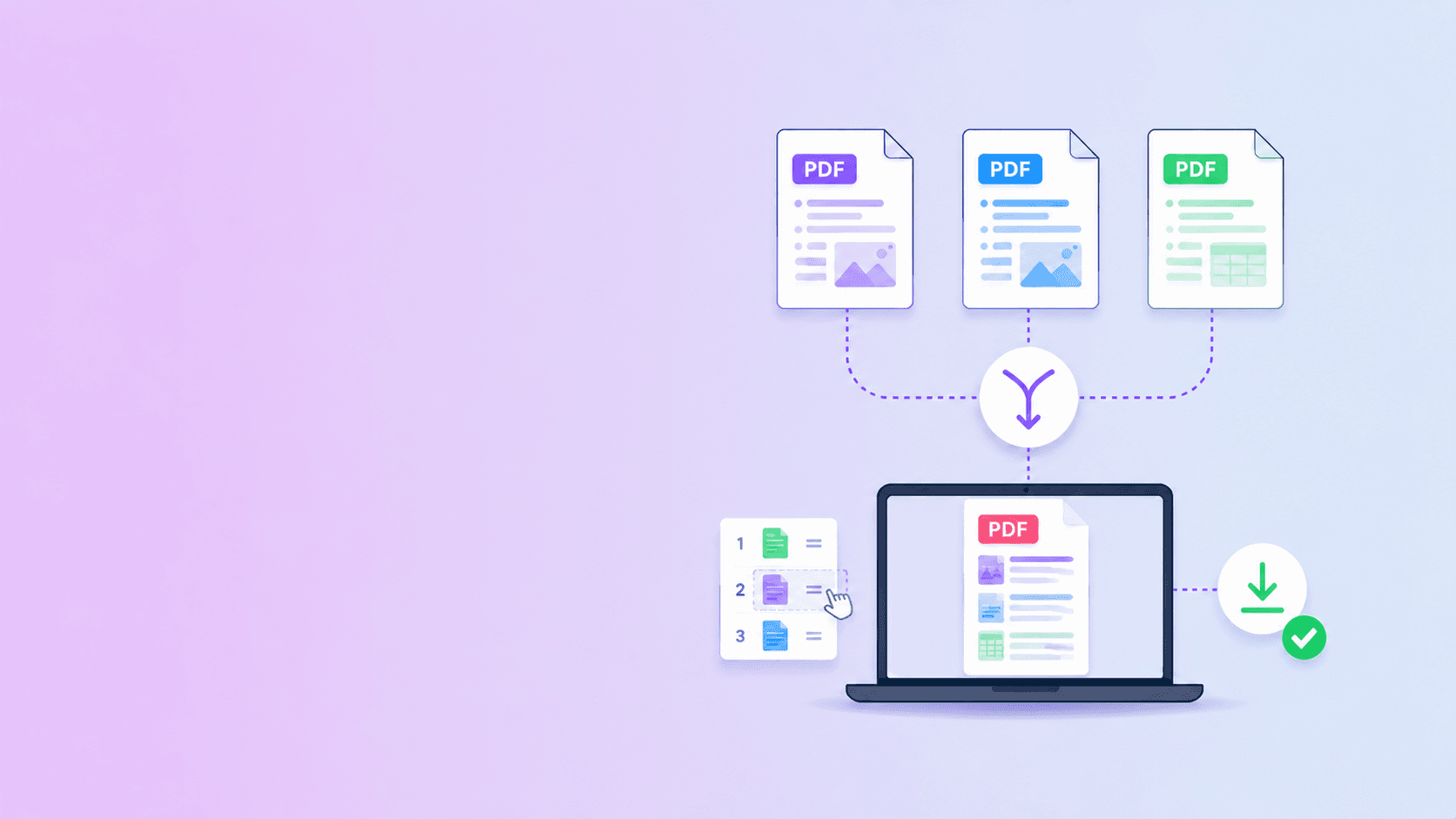
- Merge multiple PDFs.
- Split or extract pages.
- Remove unwanted pages.
- Reorder pages.
- Rotate sideways pages.
- Add password protection.
- Make scanned pages searchable.
- Convert a webpage or Markdown document to PDF.
These tasks do not usually require a full desktop editor. They require a reliable utility with clear privacy behavior.
Quick Comparison
| Task | Do you need Acrobat Pro? | ShellPDFs path |
|---|---|---|
| Compress a PDF | No | Compress PDF |
| Merge PDFs | No | Merge PDF |
| Split a PDF | No | Split PDF |
| Remove pages | No | Remove PDF Pages |
| Reorder pages | No | Organize PDF |
| Rotate pages | No | Rotate PDF |
| Password protect | No | Password Protect PDF |
| Advanced redaction | Usually yes | Use a dedicated editor |
| Form authoring | Usually yes | Use a dedicated editor |
| Accessibility tagging | Usually yes | Use a dedicated editor |
Why People Look for Acrobat Alternatives
The most common reason is not that Acrobat is bad software. It is that the subscription feels oversized for the job.
If you only need to delete two pages from a 12-page PDF, paying for a professional editor feels unreasonable. If you only need to shrink a file for a job portal, a heavyweight desktop application is unnecessary. If you only need to combine three receipts into one file, the workflow should take seconds.
There is also a privacy reason. Many online alternatives require uploads. That is fine for public documents, but it is a bad default for contracts, invoices, tax forms, medical paperwork, internal HR files, or client reports.
ShellPDFs is built around a simple split:
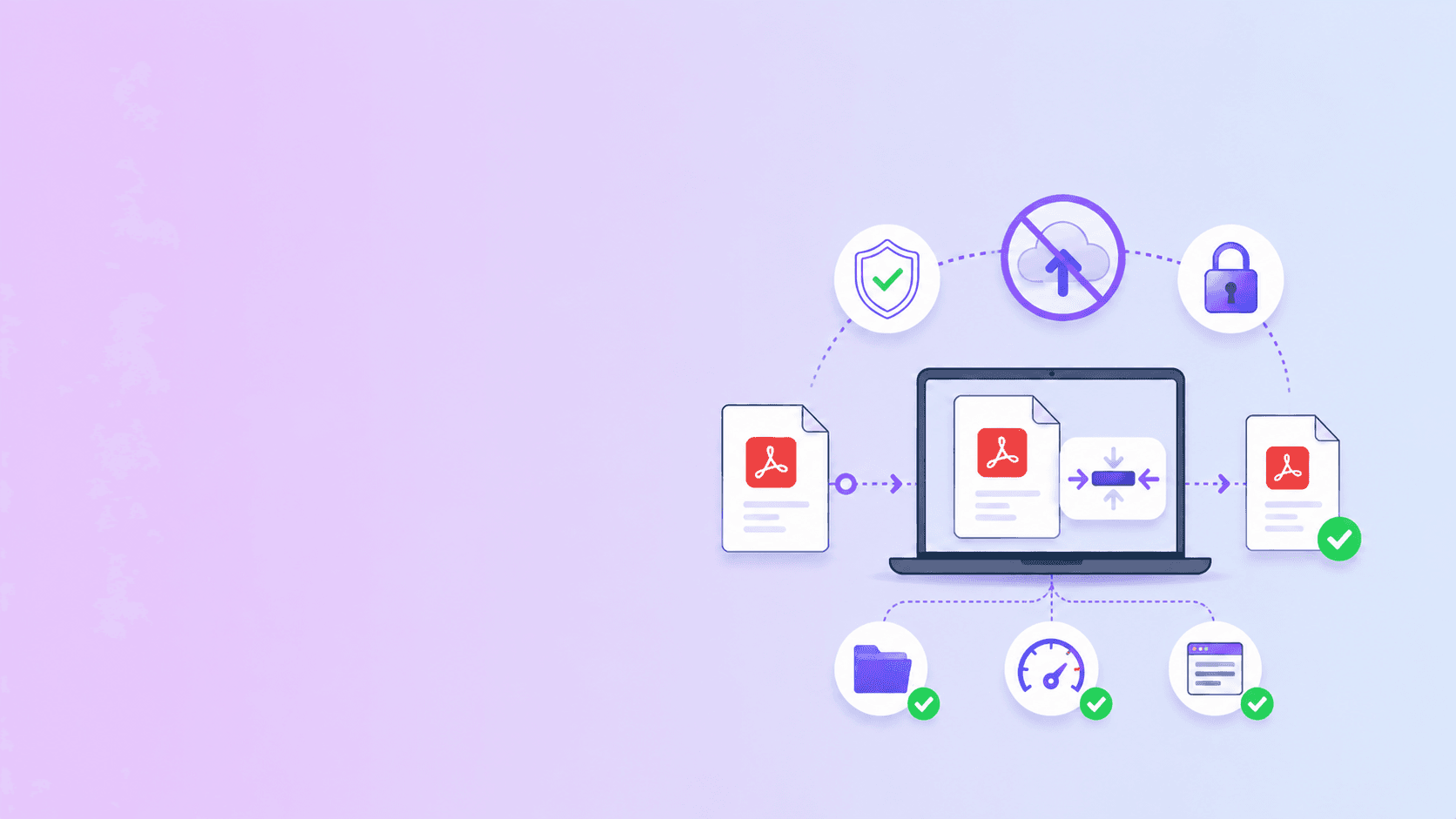
- Browser tools process locally when the task can be done safely in the browser.
- Server tools are used only when the task requires hosted processing.
Best Free Alternatives by Use Case
Best for local page work: ShellPDFs
Use ShellPDFs when you need to merge, split, remove, rotate, organize, or protect a PDF without uploading the file. These workflows are well suited to browser processing because the tool can read the PDF, rearrange page objects, and create a new download locally.
That makes ShellPDFs a strong fit for privacy-conscious users who want an Acrobat alternative for everyday tasks.
Best for built-in viewing: Your browser
Modern browsers are good PDF viewers. If you only need to open, read, print, or search a PDF, you may not need any external tool at all.
The browser becomes limited when you need to change the document structure. That is where a tool like ShellPDFs is useful.
Best for operating system basics: Preview or print-to-PDF
On some devices, built-in tools can rotate, print selected pages, or save a webpage as PDF. These are good first options when the task is simple and you trust the output.
The limitation is consistency. Built-in tools vary by platform, and they are not always good at batch workflows.
Best for advanced editing: Acrobat or a professional editor
If you need to edit text inside a PDF, apply legal redactions, build fillable forms, fix accessibility tags, manage print production settings, or run enterprise document controls, use a professional editor.
The point is not to avoid Acrobat at all costs. The point is to avoid paying for Acrobat when the job is basic.
Privacy Checklist for Acrobat Alternatives
Before using any free PDF tool, ask:
- Does this task require an upload?
- If it uploads, how long are files retained?
- Does the provider explain deletion?
- Does the tool need an account?
- Are downloads one-time or publicly guessable?
- Is the business model clear?
- Can the task run in the browser instead?
For confidential documents, choose the local path whenever possible.
Recommended ShellPDFs Workflow
For most basic PDF tasks:
- Use Merge PDF to combine documents.
- Use Organize PDF to reorder, rotate, and remove pages visually.
- Use Compress PDF to reduce file size.
- Use Password Protect PDF before sending sensitive files.
- Use OCR PDF when scanned pages need searchable text.
This covers the majority of everyday PDF work without needing a subscription editor.
Key Takeaway
Adobe Acrobat Pro is powerful, but many users only need a small set of PDF utilities. For basic PDF tasks, ShellPDFs is a practical free alternative because it focuses on fast workflows, browser-based privacy, and clear tool boundaries.
Use Acrobat when you need professional editing. Use ShellPDFs when you need to quickly fix, compress, merge, split, organize, or protect a PDF.
Frequently Asked Questions
ShellPDFs Editorial Desk
ShellPDFs Editorial Desk is the byline we use for product-tested guides reviewed against the live tool flow, privacy boundaries, and file-handling rules before publication. See our editorial standards for the process behind each article.
Focus: PDF workflow analysis, browser-based document tools, and software comparison
Questions or feedback? Get in touch.