Direct Answer
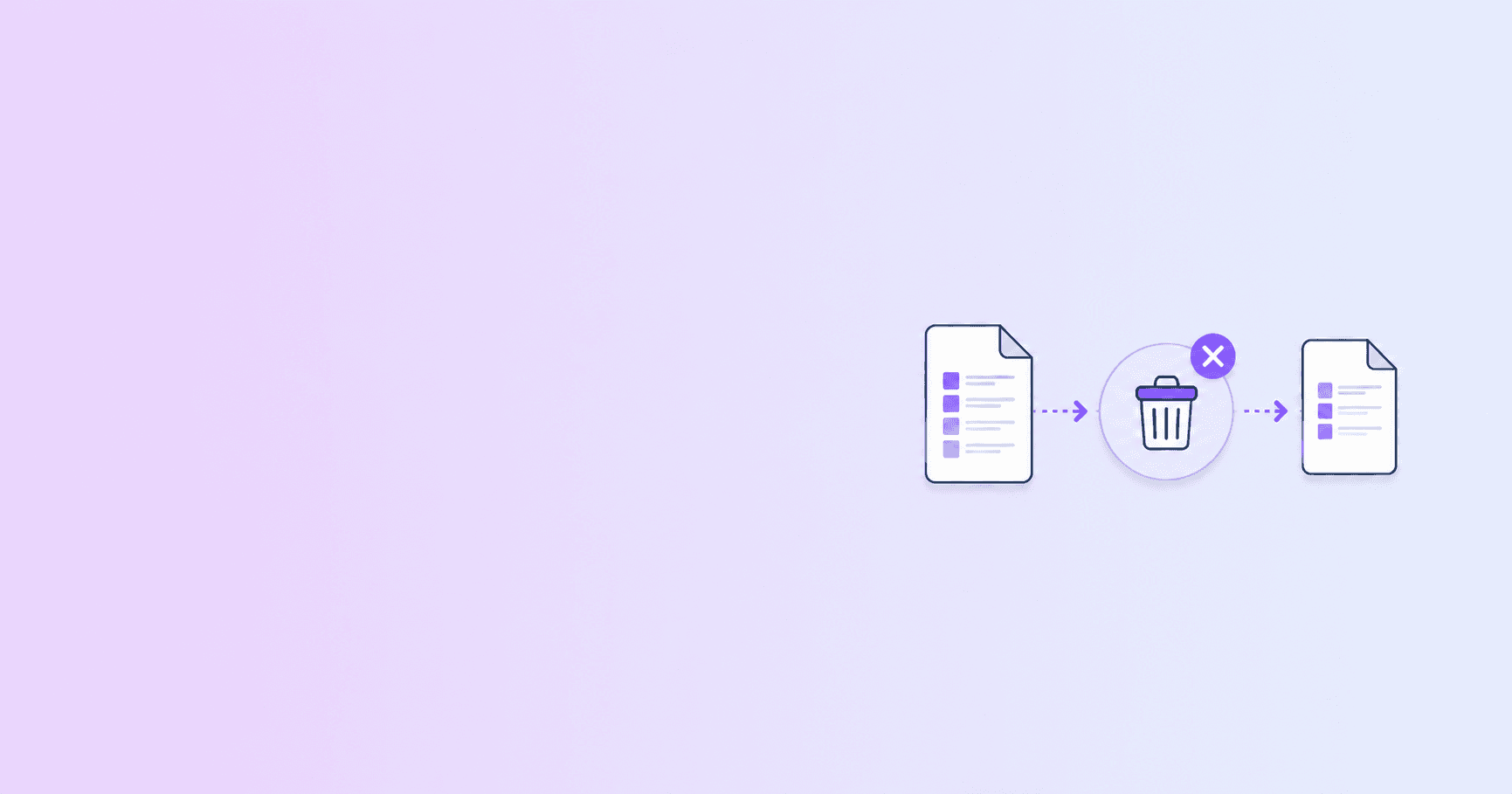
You can remove pages from a PDF without Adobe Acrobat by using a browser-based page remover. Select the pages you do not need, create a new PDF, and download the cleaned file. The original PDF remains unchanged.
Use Remove PDF Pages when you want to delete pages without a subscription and without uploading the file.
Why Remove PDF Pages?
People remove pages for practical reasons:
- Delete blank scanner pages.
- Remove duplicate pages.
- Remove old instructions before submitting a form.
- Delete sensitive pages before sharing.
- Extract only the pages a portal requires.
- Reduce file size before compression.
- Clean up a combined document.
This is one of the most common PDF tasks, and it does not require a heavyweight editor.
Step-by-Step: Remove Pages Without Acrobat
- Open Remove PDF Pages.
- Select your PDF.
- Wait for page thumbnails to load.
- Click the pages you want to remove.
- Review the remaining page order.
- Apply the change.
- Download the cleaned PDF.
The tool creates a new file. If you make a mistake, go back to the original PDF and repeat the process.
Why Browser-Based Removal Is Safer
Removing pages often involves sensitive documents. You may be deleting:
- A page with a Social Security number.
- Old salary information.
- Internal notes.
- A blank page that still has metadata.
- A document section meant for another recipient.
If the goal is to reduce exposure, uploading the full sensitive PDF to a cloud tool first defeats part of the purpose.
A browser-based page remover lets you do the cleanup locally before sharing the final file.
Remove Pages Before Compressing
If your PDF is too large for an upload form, remove unnecessary pages before compressing.
This is often more effective than compression alone. Compression makes each page lighter. Page removal eliminates the page completely.
Recommended order:
- Remove pages.
- Reorder or rotate if needed.
- Compress the final PDF.
- Download and review.
Use Compress PDF after page cleanup if the file still exceeds the size limit.
What to Check After Removing Pages
Before sending the cleaned PDF, verify:
- Page order is correct.
- Required pages are still present.
- Signatures are still visible.
- Page references still make sense.
- The file opens in a normal PDF viewer.
- The file name is clear.
If the document has a table of contents or references to page numbers, those references may no longer match. Page removal does not rewrite the meaning of the document.
Common Mistakes
Deleting the wrong page
Always review thumbnails and download output before submitting. Keep the original file.
Removing required attachments
Some official forms include required instruction or declaration pages. Check the portal requirements before deleting.
Assuming page removal redacts information
Removing a page deletes that page from the new PDF. It is not the same as redacting text on a page. If sensitive information appears on a page you are keeping, you need a proper redaction workflow.
Uploading sensitive files unnecessarily
If the page removal can happen locally, use the local path first.
Acrobat vs Browser Page Removal
Adobe Acrobat is useful if you need advanced editing, redaction, accessibility, or enterprise controls. But for deleting whole pages, a browser tool is usually enough.
| Need | Best fit |
|---|---|
| Delete blank pages | Browser page remover |
| Remove pages before upload | Browser page remover |
| Redact text on a page | Professional editor |
| Edit PDF text | Professional editor |
| Reorder pages visually | Browser organizer |
Key Takeaway
You do not need Adobe Acrobat just to remove pages from a PDF. Use a browser-based tool, keep the original file, delete only the pages you do not need, and review the result before sending.
Start with Remove PDF Pages. If you also need to rotate or reorder pages, use Organize PDF.
Frequently Asked Questions
ShellPDFs Team
The ShellPDFs editorial group writes and maintains guides for everyday PDF workflows, with updates made when tool behavior or documented limits change. See our editorial standards for the process behind each article.
Focus: Browser PDF page editing, document cleanup, and no-upload PDF workflows
Questions or feedback? Get in touch.