Direct Answer
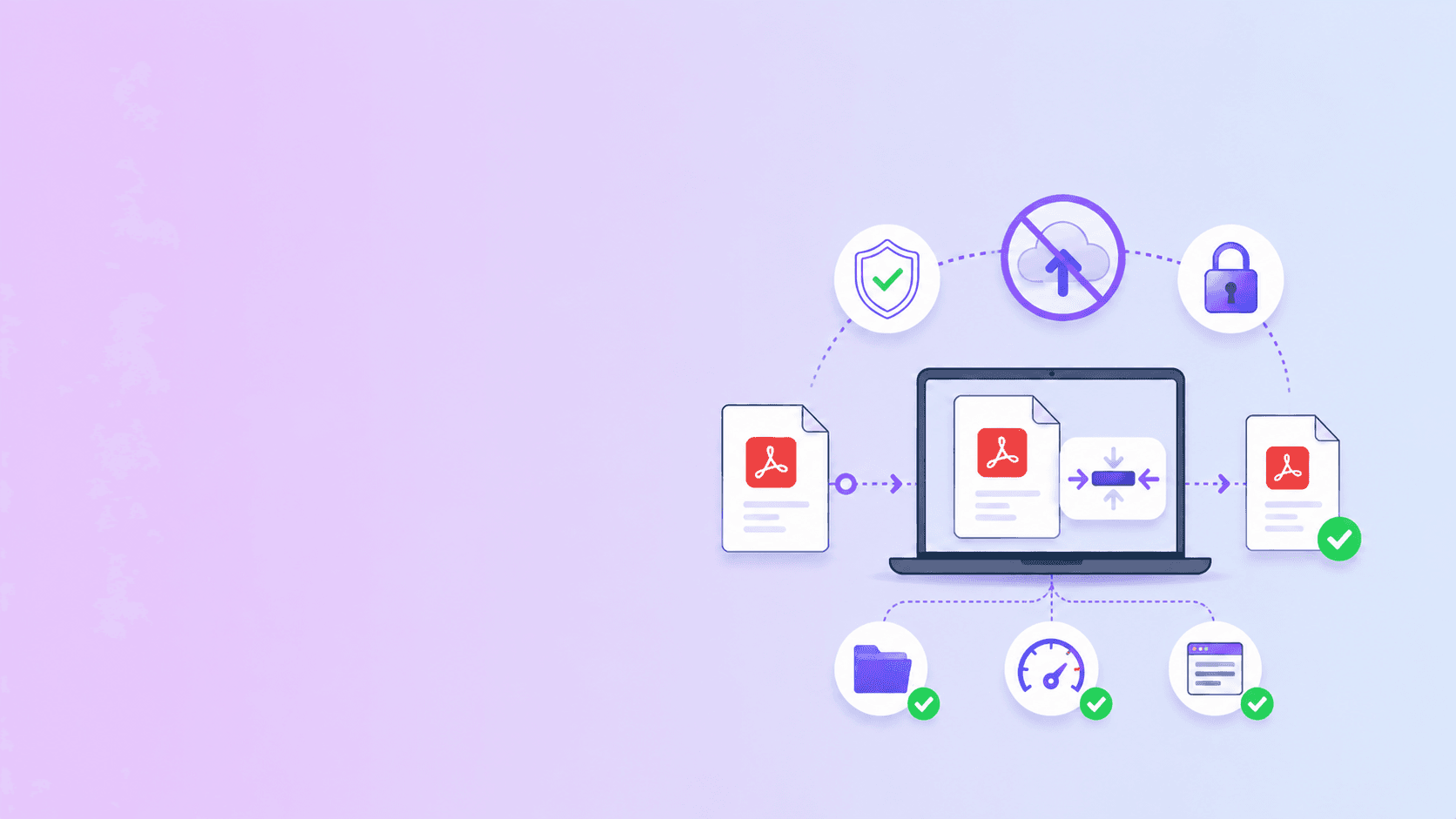
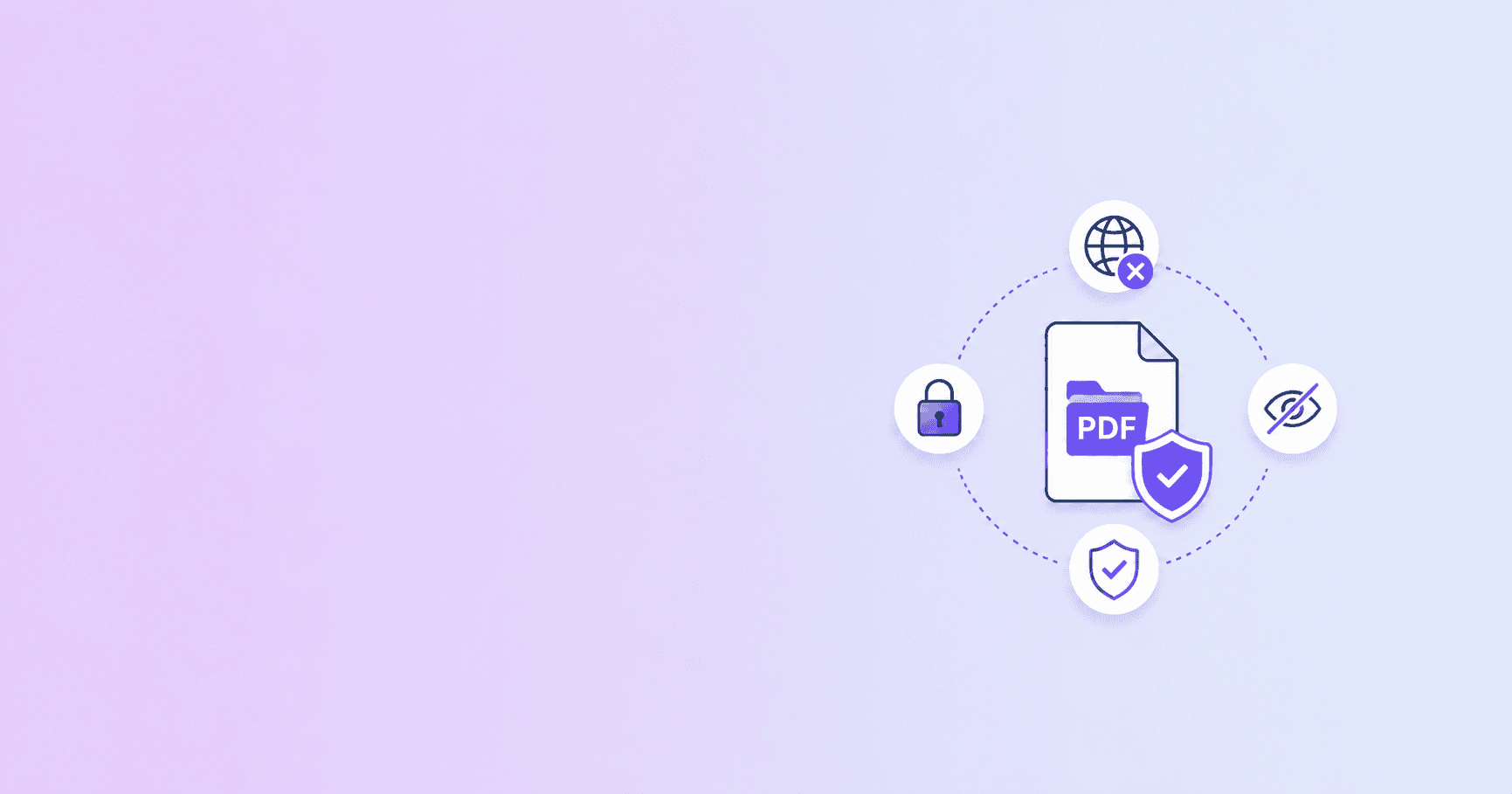
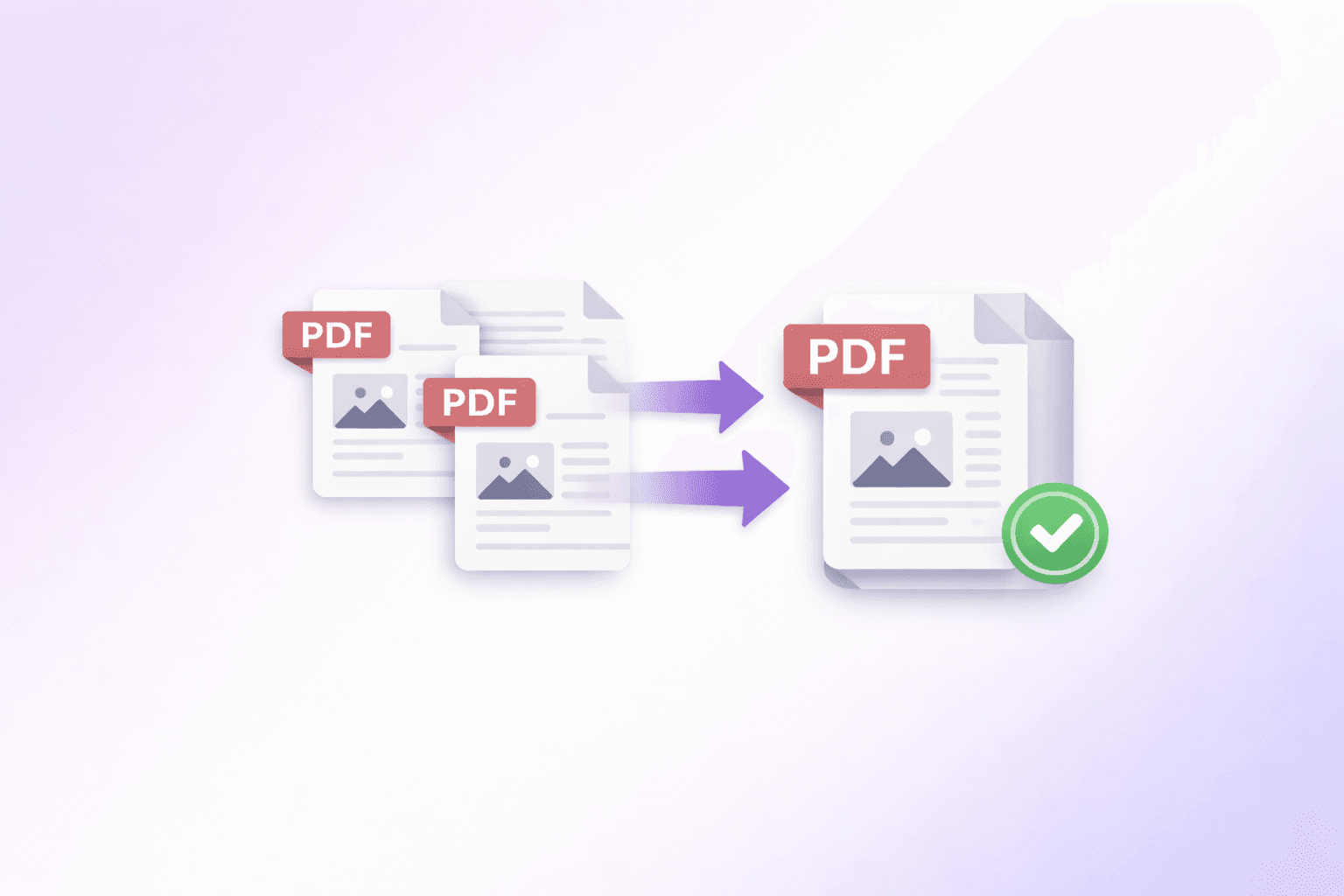
You can merge PDF files without uploading them by using a browser-based PDF merger. The files are read locally, combined inside the browser, and downloaded as one PDF. This is the best approach when the documents contain private, legal, financial, HR, or client information.
Use Merge PDF when you want to combine files without creating a cloud copy of the documents.
Why No-Upload Merging Is Different
Traditional online PDF mergers often ask you to upload every file, wait for server processing, and then download the combined PDF. That workflow is convenient, but it means all source documents leave your device.
Browser-based merging avoids that. The browser reads the PDFs as local files, copies the selected pages into a new document structure, and creates a local download.
For many users, that privacy difference matters more than speed:
- HR teams combining resumes.
- Students assembling scanned forms.
- Freelancers sending client invoices.
- Legal assistants preparing document packets.
- Families combining identity or travel documents.
If the task is simply "put these PDFs in one file", uploading should not be required.
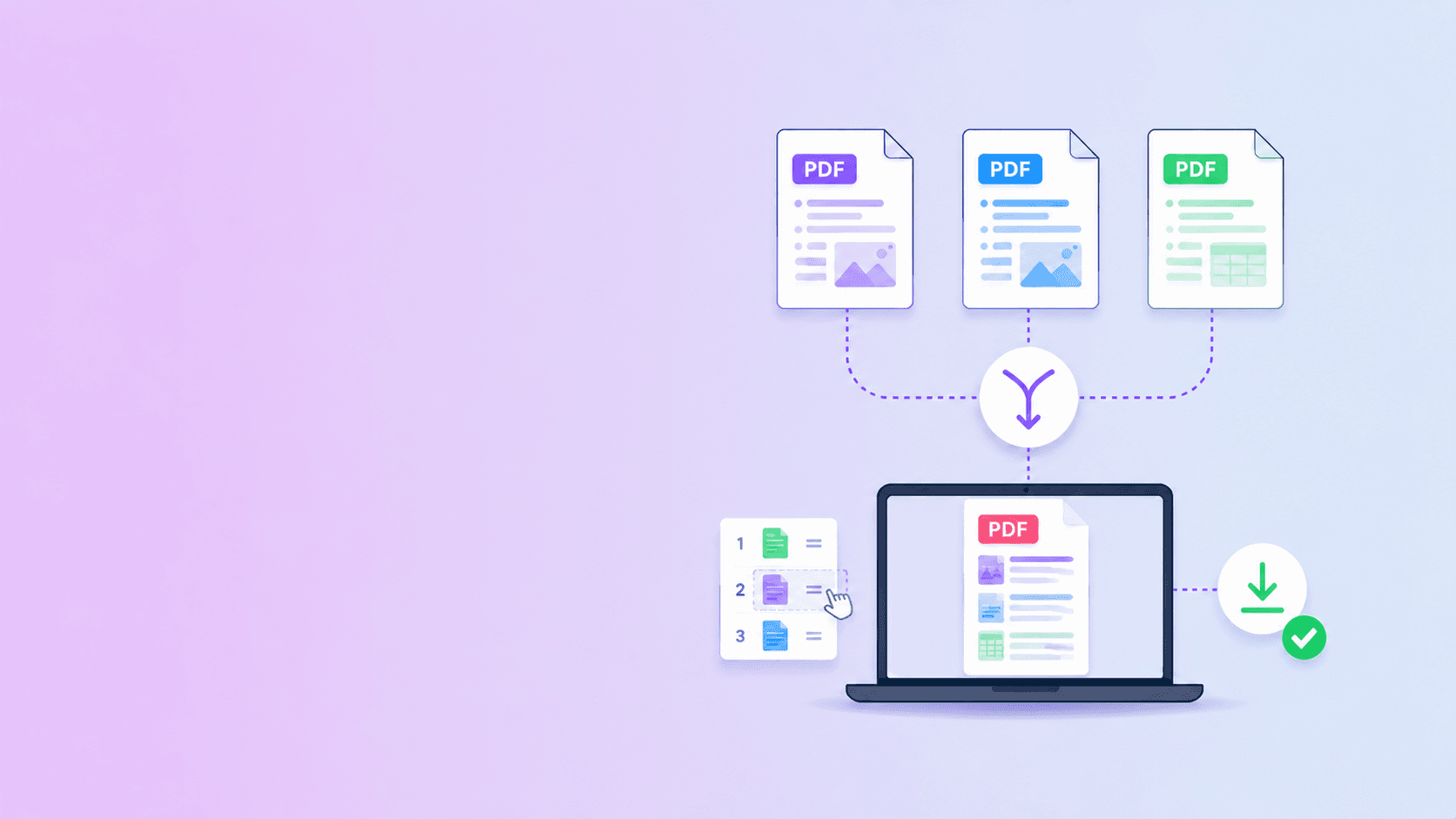
Step-by-Step: Merge PDFs Locally
- Open Merge PDF.
- Drag your PDFs into the drop zone.
- Add more files if needed.
- Put files in the correct order.
- Review page thumbnails if the tool shows them.
- Click merge.
- Download the combined PDF.
Your source PDFs stay on your device during the merge step. The downloaded file is a new PDF that contains the combined pages.
What to Check Before You Merge
Before creating the final file, check:
- Are the PDFs in the correct order?
- Are there duplicate cover pages?
- Are any pages blank?
- Are any pages sideways?
- Are all documents unlocked?
- Is the final file likely to exceed an upload limit?
If you need more control than file-level order, use Organize PDF. It lets you rotate, delete, and reorder pages visually before downloading the final document.
Common Use Cases
Job applications
You may need to combine a resume, cover letter, certificates, and ID proof into one file. Merge locally first, then use Compress PDF if the portal has a strict size limit.
Invoices and receipts
Freelancers and small teams often need one monthly PDF for billing records. A no-upload merge keeps financial documents on the device.
Legal and administrative packets
Legal paperwork often has a fixed order. Merge locally, review the page order, and then password protect the final PDF if it will be sent externally.
Scanned family documents
Passport scans, school forms, travel documents, and medical forms often need to be combined. These are exactly the files you should avoid uploading unnecessarily.
Why the Merged PDF Can Be Large
Merging is not the same as compression. A good merge tool preserves page content, fonts, images, and layout. That means the final file may be roughly the combined size of all source files.
If the merged PDF is too large:
- Remove duplicate or blank pages.
- Compress the final PDF.
- Split the result into sections if the limit is strict.
Use Compress PDF after merging when you need a smaller file for email, portals, or messaging apps.
How to Tell Whether a PDF Merger Uploads Files
Look for these signals:
- A large network upload starts after selecting files.
- The tool shows "uploading" before any page preview.
- The site does not explain local processing.
- The download URL comes from a server-hosted file.
- The privacy policy does not separate browser tools from cloud tools.
In a local merge workflow, the heavy file processing should happen in the browser.
Key Takeaway
You do not need Adobe Acrobat or a cloud upload to merge PDFs. If the task is basic document assembly, a browser-based merger is usually enough.
Use Merge PDF for a no-upload merge, then use Organize PDF or Compress PDF if you need to clean up the final file.
Frequently Asked Questions
ShellPDFs Team
The ShellPDFs editorial group writes and maintains guides for everyday PDF workflows, with updates made when tool behavior or documented limits change. See our editorial standards for the process behind each article.
Focus: Browser-based PDF page operations and privacy-first document assembly
Questions or feedback? Get in touch.