You have a finished report, but your manager just sent you one more page that needs to go on page 3. Or maybe you have ten separate invoices that the accounting system requires as a single file. Whatever the scenario, needing to add pages to a PDF or combine PDF files is one of the most common document tasks — and it used to be one of the most annoying.
Expensive desktop software, forced account sign-ups, or tools that quietly upload your private files to a server you know nothing about. None of that is necessary anymore.
With ShellPDFs, you can add pages to a PDF or combine PDFs entirely in your browser — no uploads, no accounts, no cost.
Quick Answer
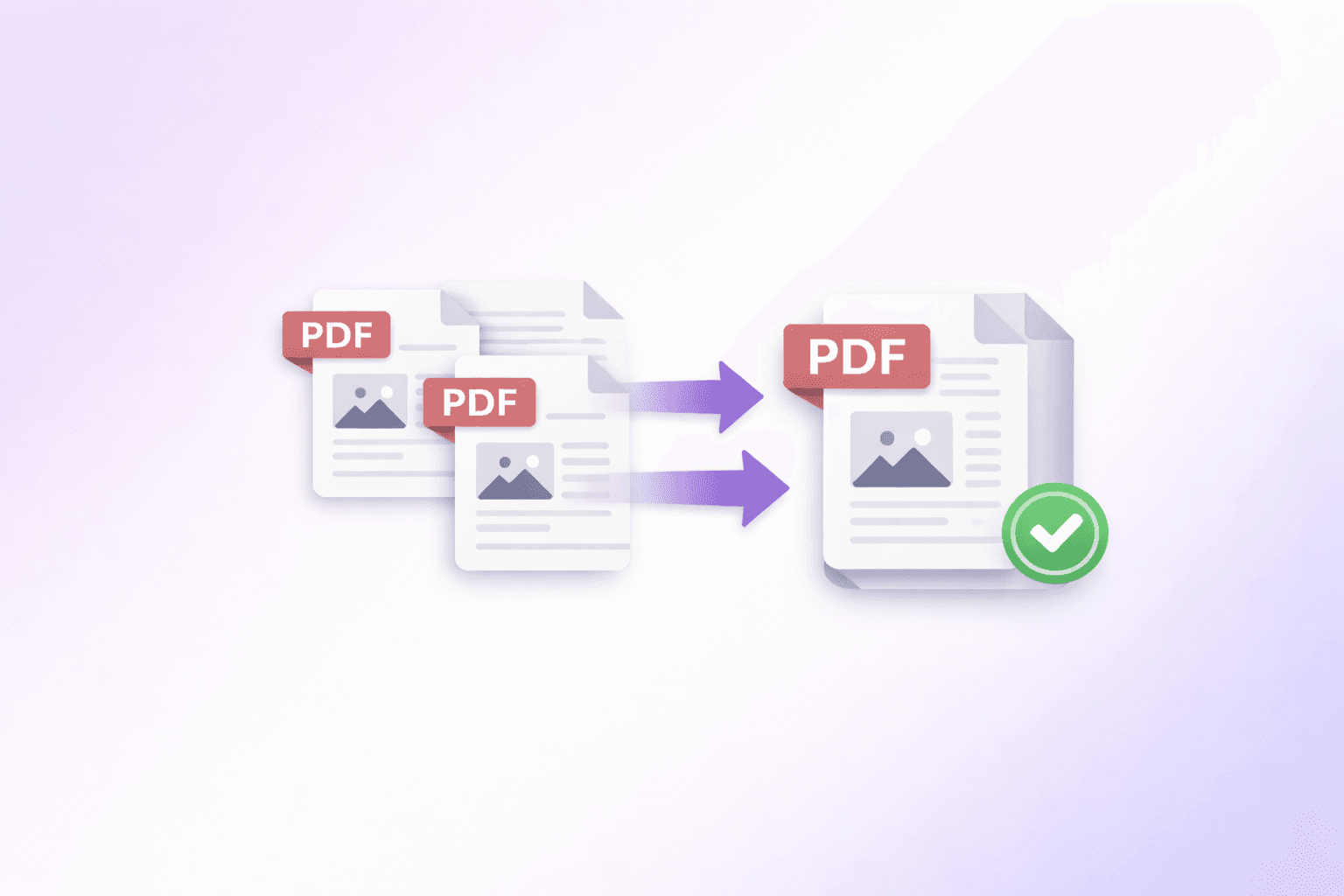
To add pages to a PDF or combine PDFs online, use the Merge PDF tool on ShellPDFs. Upload your base PDF and the file containing the pages you want to add, arrange the order by dragging thumbnails, and click Merge. The final document downloads to your device in seconds. Your files never leave your browser.
Why In-Browser PDF Combining Is the Right Approach
When you search for PDF tools online, the majority of them follow the same model: you upload your file to their server, their server does the work, and they send the processed file back. That model has real problems:
Privacy exposure. Contracts, financial records, medical files — you are sending these to a third-party server with no certainty about how long the files are retained or who has access.
Speed bottlenecks. Upload speed is capped by your internet connection. A 100 MB merge job can take minutes on a cellular connection.
Artificial file size limits. Most server-based tools cap files at 20–50 MB to control hosting costs, which makes them useless for real-world business documents.
ShellPDFs processes everything using WebAssembly directly inside your browser tab. The files stay on your device the whole time.
How to Add Pages to a PDF & Combine PDFs Online (Step-by-Step)
Step 1 — Open the Merge PDF Tool
Go to the Merge PDF tool on ShellPDFs. No sign-in or account creation is needed.
Step 2 — Upload Your Base Document
Drag and drop your primary PDF into the upload zone, or click the button to browse your device. This is the document you want to expand or combine.
Step 3 — Add the New PDF(s)
Upload the PDF or PDFs that contain the pages you want to insert. You can drag multiple files at once. There is no hard limit on how many files you can add.
Step 4 — Arrange the Page Order
After uploading, each file appears as a block with a thumbnail. Drag and drop these blocks to arrange the final page sequence. If you need to insert pages in the middle of an existing document, place the new file block in the correct position.
For more granular control — say, you only need pages 2 and 5 from the new document — use the Split PDF tool first to extract those specific pages, then merge the extracted file.
Step 5 — Optional: Compress the Output
If you expect the combined file to be large, check the "Compress after merging" option. This runs a lossless compression pass on the output to reduce file size without degrading quality.
Step 6 — Merge and Download
Click "Merge & Download PDF." Your browser generates the final combined document immediately and downloads it to your device. The whole operation typically completes in under five seconds for files under 50 MB.
Step 7 — Reorder Individual Pages (if needed)
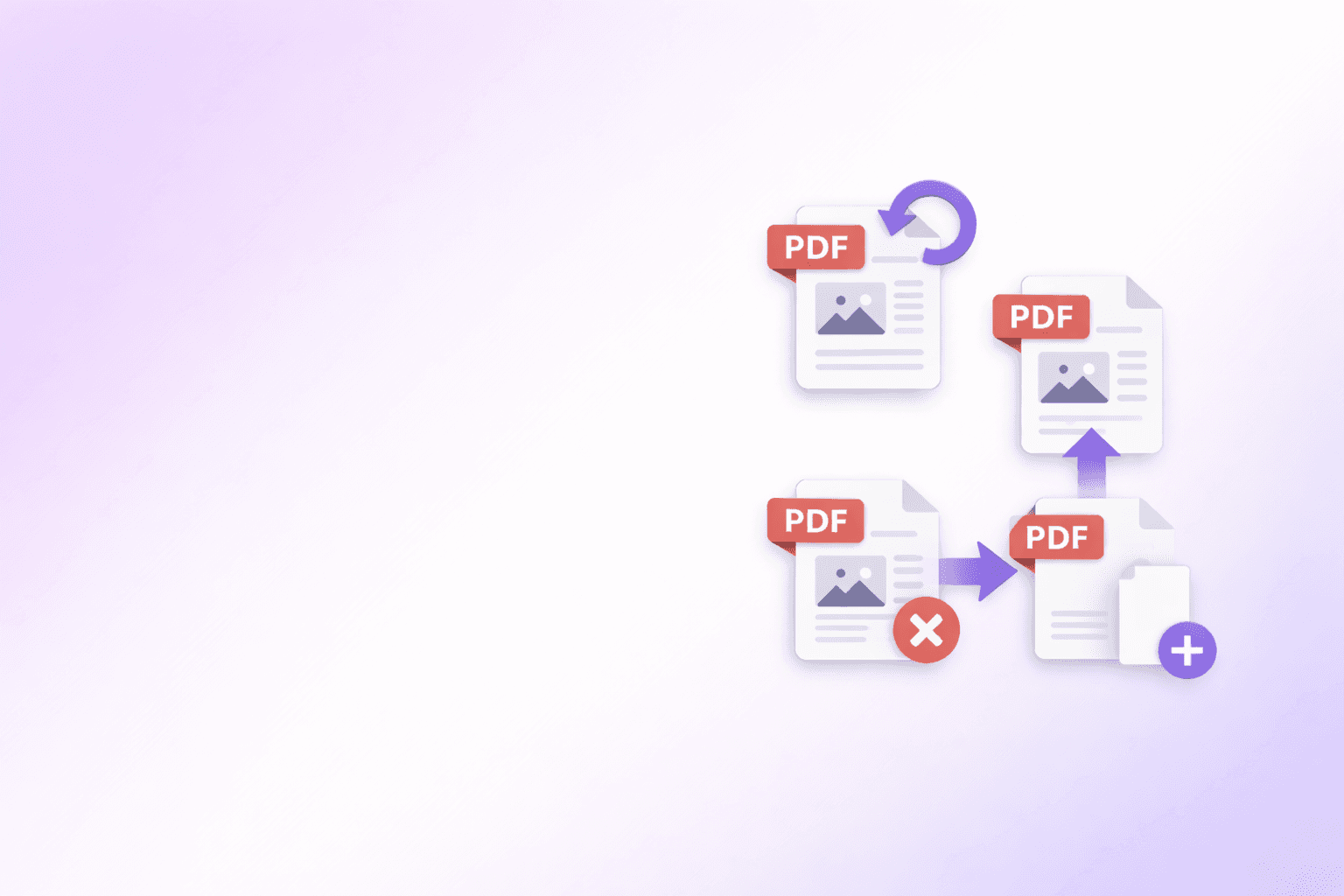
If you need to move a specific page from page 12 to page 3 within the merged result, open the downloaded file in the Organize PDF tool. You can drag individual page thumbnails into any position, then download the re-ordered document.
Best Ways to Add Pages to a PDF
There is more than one way to get this done. Here is how the main options compare:
| Method | Cost | Privacy | File Size Limit | Speed | Setup Required |
|---|---|---|---|---|---|
| ShellPDFs (browser) | Free | Maximum — files stay local | None (RAM only) | Instant | None |
| Adobe Acrobat (desktop) | $19.99/mo | High | None | Fast | Install + subscription |
| Adobe Acrobat Online | Free tier | Low (cloud upload) | 2 GB | Moderate | Adobe account |
| Smallpdf / ILovePDF | Free (limited) | Low (server upload) | 5–100 MB | Moderate | None / account |
| Preview (macOS) | Free | High | None | Fast | macOS only |
| PDFtk (command line) | Free | High | None | Fast | Technical setup |
For most users — especially those who regularly handle sensitive documents — the combination of zero cost, full privacy, and instant speed makes ShellPDFs the practical best choice.
Why Use ShellPDFs for Combining PDFs
No uploads, ever. Every single PDF operation on ShellPDFs runs locally in your browser. Your documents never touch a remote server.
No account needed. Open the tool, use it, close the tab. There is no registration wall, no email confirmation, and no subscription prompt.
Works on any device. The same tools work on Windows, macOS, Linux, iOS, and Android in any modern browser — Chrome, Firefox, Safari, and Edge.
Free with no hidden limits. There are no page limits, no file size caps (beyond your device's available RAM), and no daily quotas.
Fast enough that it feels instant. Because processing happens on your own device's CPU, there is no upload/download round-trip. Most operations finish in two to five seconds.
Try the Merge PDF tool directly — no signup required.
Common Use Cases
Businesses and Professionals
Finance teams regularly need to combine monthly P&L statements into a single annual report. Legal teams attach supporting documents — certificates, correspondence, annexures — to a primary contract. Consultants assemble multi-section deliverables into one polished PDF before sending to a client.
Students and Academics
Submitting a thesis that requires your dissertation, bibliography, and appendix as one file. Combining lecture notes from multiple PDF handouts into a single revision document. Assembling a portfolio of assignments for end-of-year assessment.
Medical and Legal Documents
Collecting multiple lab reports into a single patient record PDF. Combining witness statements, evidence photos, and legal filings into one submission. Assembling insurance claim documents from multiple PDFs before uploading to a portal.
Personal Document Management
Merging months of scanned bank statements into one year-end file. Combining insurance policy documents, renewal letters, and claim records into a single reference PDF. Assembling travel documents — passport photo, booking confirmations, hotel vouchers — into one file before a trip.
Common Problems and How to Fix Them
The combined PDF file is too large. Use the built-in compress option before downloading, or run the merged file through the Compress PDF tool afterward. For documents with many high-resolution images, this can cut the file size by 50–80%.
Pages are in the wrong order after merging. Open the merged file in the Organize PDF tool and drag the individual page thumbnails into the correct sequence. You can also rearrange full file blocks before merging by dragging them in the Merge tool interface.
One of the source PDFs is scanned and blurry. Merging does not affect image quality — if the source is blurry, the merged file will also be blurry. Consider re-scanning the source document at a higher DPI before merging.
The PDF I want to add pages from is password-protected. ShellPDFs cannot read encrypted PDFs without the password. Remove the password protection first using a tool like PDF Unlock before merging.
My phone runs out of memory on large files. If you are combining very large PDFs (200 MB+) on a mobile device, try using a desktop browser instead. Desktop machines have significantly more RAM available for in-browser processing.
Pro Tips for Better PDF Combining
Split before you merge. If you only need specific pages from a multi-page source document, use the Split PDF tool to extract just those pages first. This keeps your final merged file clean and compact.
Name your files clearly before uploading. When combining many files, clear filenames (e.g., Q1_report.pdf, Q2_report.pdf) make it easier to arrange them in the correct order at a glance.
Compress large source files before merging. Merging does not reduce the combined file size — it is the sum of its parts. If each source file is already optimized, the output will be lean. Use Compress PDF on heavy source documents before combining.
Use page ranges for precision. When you need pages from the middle of a document, combine Split and Merge: split first to extract pages 5–9, then merge that extracted file with your base document.
Check page orientation before merging. If your documents mix portrait and landscape pages, preview the output after merging. You may need to use the Organize tool to rotate specific pages to match the rest of the document.
Consider PDF/A for long-term storage. If you are creating a combined archive document that needs to be preserved, learn about PDF/A format — a standard designed specifically for long-term archival.
Merge, then apply watermarks. If you need to brand the combined document, merge all pages first and then apply any watermarks or stamps as a final step. This ensures consistent treatment across all pages.
Frequently Asked Questions
How do I add pages to a PDF for free?
Use the Merge PDF tool on ShellPDFs. It is completely free, requires no account, and processes everything locally in your browser. Upload your existing PDF and the new pages PDF, arrange the order, and download the result.
Is combining PDFs online safe?
It depends on the tool. With ShellPDFs, your files are processed entirely within your browser using local computation — they are never uploaded to any external server. This makes it as safe as using desktop software.
Does merging PDFs reduce quality?
No. The merge process appends the page data from one PDF to another at the file level. Text, images, fonts, and formatting are carried over unchanged from the source files. Quality is only reduced if you also apply optional compression.
Can I add pages to a PDF on my iPhone or Android?
Yes. ShellPDFs works in mobile browsers on both iOS and Android. Open the Merge PDF tool in Safari or Chrome on your phone, upload the files, and download the result — no app installation needed.
How many PDFs can I combine at once?
There is no hard limit. You can load as many files as your device's available RAM permits. Most modern devices handle dozens of files totaling several hundred megabytes with ease.
Can I insert a page in the middle of an existing PDF?
Yes. Upload your base PDF and the new pages PDF in the Merge tool. Arrange the file blocks so the new file block sits in the correct position. For precise page-level control, combine with the Organize PDF tool after merging.
Do I need to install any software?
No. ShellPDFs runs entirely in your browser. There is nothing to install, download, or update.
Can I combine a PDF with a Word document?
Not directly. The Merge PDF tool only accepts PDF files. If you have a Word document to include, convert it to PDF first using a Word-to-PDF converter, then merge the resulting PDF with your other files.
Conclusion
Adding pages to a PDF or combining multiple PDFs used to be a task that required paid desktop software or trusting your private files to an unknown server. That is no longer the case.
ShellPDFs handles both operations — adding pages and combining full documents — entirely within your browser, for free, without requiring an account or ever touching your files on a remote server. Whether you are a professional merging quarterly reports, a student assembling a thesis, or anyone who just needs to quickly insert a page into a PDF, the process takes under a minute.
Go to the Merge PDF tool and try it now — no registration, no waiting, no limits.
If you work in legal, healthcare, real estate, finance, HR, government, or construction, the same browser-based merge flow still applies. The main difference is the final packet you are building and the size or compliance limits you need to satisfy afterward. Once the files are combined, use Organize PDF for page order cleanup or Compress PDF if the final bundle is too large for email or portal upload.
Also useful: How to Reorder and Organize PDF Pages | How to Split and Extract PDF Pages | How to Combine Multiple PDFs Into One
Frequently Asked Questions
ShellPDFs Editorial Desk
ShellPDFs Editorial Desk is the byline we use for product-tested guides reviewed against the live tool flow, privacy boundaries, and file-handling rules before publication. See our editorial standards for the process behind each article.
Focus: Product-tested editorial byline for PDF assembly workflows, including page insertion, packet building, and browser-based merging.
Questions or feedback? Get in touch.