Direct Answer
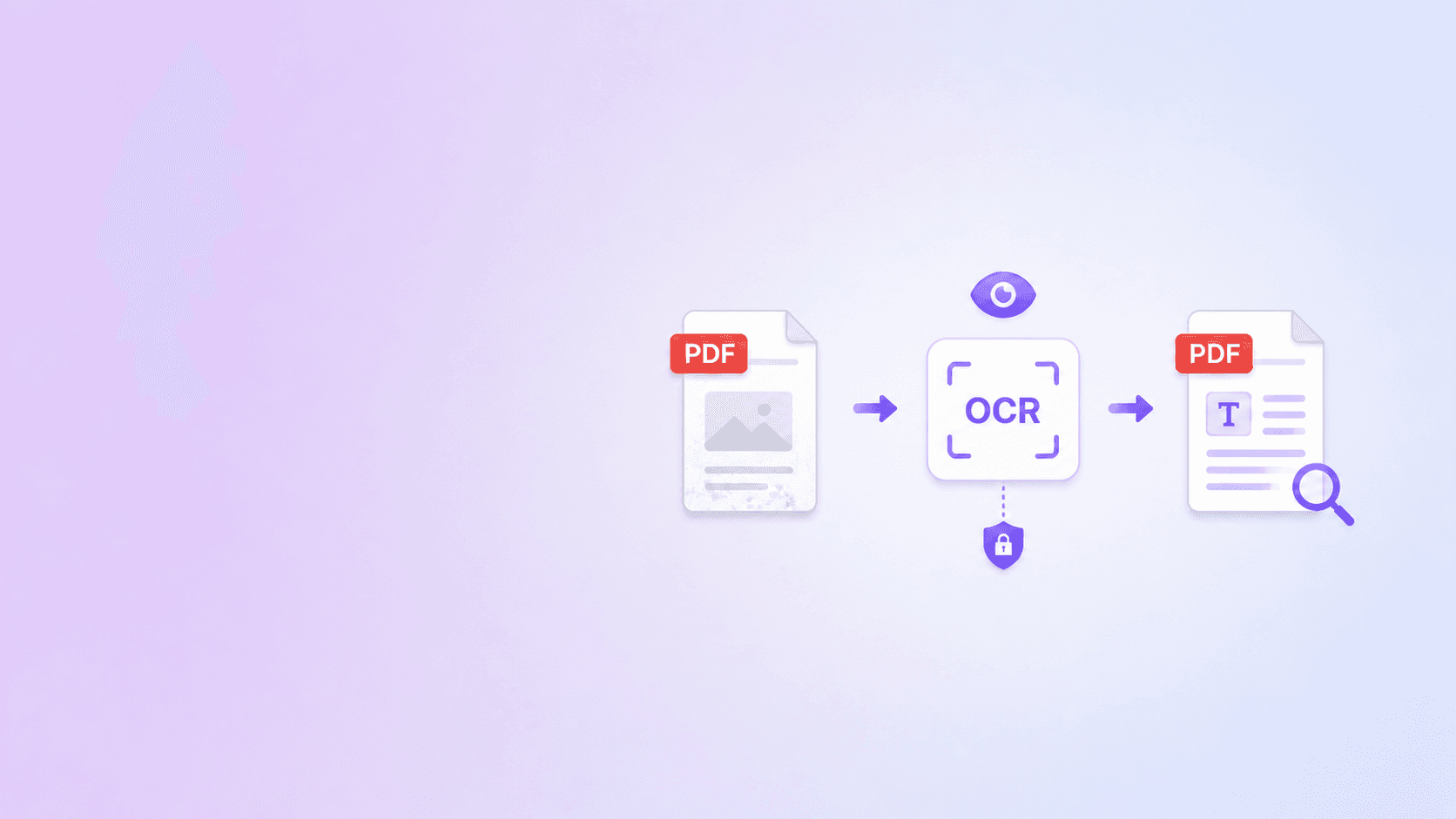
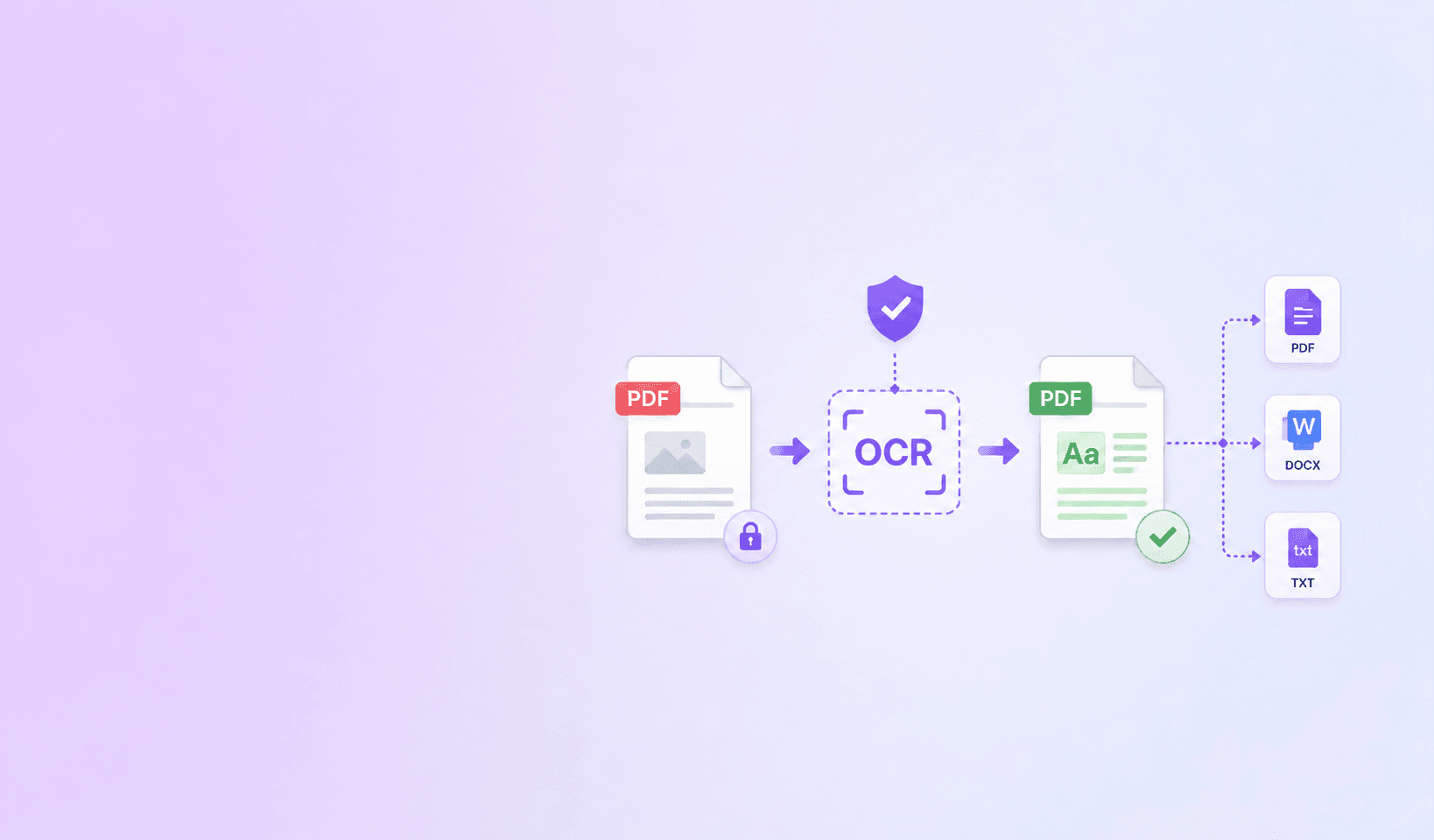
You can OCR a PDF without uploading it by using a browser-based OCR workflow. The PDF is read in your browser, scanned pages are recognized locally, and the searchable PDF is created as a download on your device.
This matters because many scanned PDFs contain sensitive information: signed contracts, employee records, tax documents, medical notes, school forms, bank statements, or client paperwork. If all you need is searchable text, uploading that file to a random OCR website is often unnecessary risk.
Use OCR PDF when you want a local-first workflow for English scanned PDFs. The steps below show how to prepare the file, process it, and review the result.
Step 1: Confirm the PDF Actually Needs OCR
Before running OCR, check whether the file already contains text.
Open the PDF and try to select a sentence. If individual words highlight, the document already has a text layer. You may not need OCR at all.
If the page acts like a flat image, OCR can help.
You can also use search:
- Search for a name that appears on the first page.
- Search for a date or invoice number.
- Search for a section heading.
If the visible word is not found, the PDF is probably image-only.
This check is worth doing because unnecessary OCR can slow down processing and may create duplicate text layers in poorly designed tools. A good OCR workflow reuses pages that already have text and only recognizes scanned pages.
Step 2: Prepare the Scan
OCR accuracy depends heavily on source quality. The tool cannot recover letters that are not visible.
Before processing, check the PDF for:
- Crooked pages.
- Very dark or very light scans.
- Blurry camera photos.
- Cut-off margins.
- Pages rotated sideways.
- Heavy compression artifacts.
If the PDF is badly rotated, fix the page orientation first. If it is huge because every page is a high-resolution image, process it first, then compress the final searchable PDF if needed. For file-size cleanup after OCR, see How to Compress a PDF Without Losing Quality.
For a deeper quality checklist, read OCR Accuracy: How to Prepare Scanned PDFs.
Step 3: Use a Browser-Based OCR Tool
Open OCR PDF and choose your file.
The browser-based workflow is designed around three ideas:
- Keep the PDF local.
- Reuse existing text when it is good enough.
- Create local downloads for the searchable PDF, TXT, and JSON review data.
This differs from many online OCR tools that upload your document, process it on a server, and then make you download the output. Server-side processing is not automatically bad, but it should be a deliberate choice, especially for sensitive documents.
Step 4: Process the PDF
After choosing the file, click Process PDF.
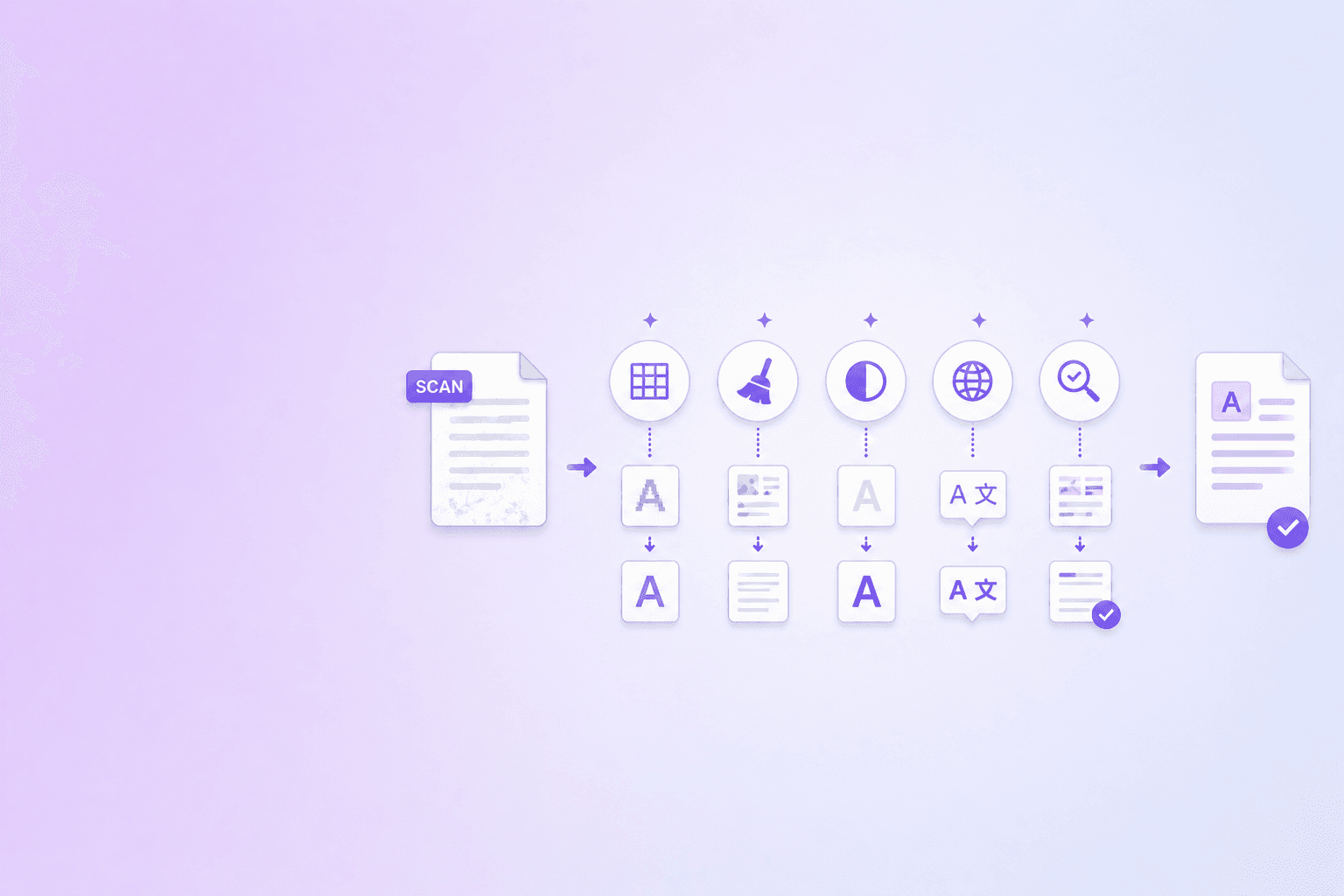
During processing, scanned pages are rendered and recognized in the browser. Depending on file size, page count, and device speed, this can take a few seconds or longer.
The first run may load OCR assets into the browser. Later runs in the same tab can be faster because the assets are already available.
Avoid switching devices, closing the tab, or putting the browser to sleep while processing. OCR is CPU-heavy compared with ordinary PDF viewing.
Step 5: Review the Result Before Trusting It
When processing completes, download the searchable PDF and try a few practical checks:
- Search for the document title.
- Search for a name or account number.
- Copy a paragraph and paste it into a text editor.
- Check any page that was flagged for low confidence.
- Compare important numbers against the visual scan.
OCR is best treated as a productivity layer, not a guarantee. It makes documents searchable and easier to review, but important documents still deserve human verification.
This is especially true for:
- Contracts.
- Invoices.
- Medical records.
- Legal filings.
- Compliance evidence.
- Identity documents.
For these files, the searchable PDF is a better starting point for review, not a replacement for review.
Which Output Should You Use?
A complete OCR workflow should give you more than one output.
Searchable PDF
Use the searchable PDF when you want to keep the original document format. This is the best output for sharing, archiving, uploading to portals, or storing in a document management system.
Plain TXT
Use the TXT file when you only need the words. It is useful for quick review, copy-paste, search indexing, and simple downstream processing.
JSON Details
Use JSON when you need quality signals, page status, confidence details, or structured review data. This is more technical, but it is valuable for document workflows where someone needs to know which pages are safe to trust.
If your next step is structured extraction for automation or AI workflows, read PDF to JSON, Markdown, or HTML: Best Format for AI.
Privacy Checklist for OCR
Before using any OCR tool, ask:
- Does the file upload to a server?
- Is there a retention policy?
- Are uploaded files deleted automatically?
- Does the service require an account?
- Does it support local processing?
- Do you need cloud OCR, or is browser OCR enough?
For ordinary searchable PDF creation, local browser OCR is often the simpler privacy answer.
Key Takeaway
You do not need to upload every scanned PDF to make it searchable. For clear English scans, browser-based OCR can recognize text locally, create a searchable PDF, and give you text and review data without creating a cloud copy of the document.
Start with OCR PDF, check any quality warning, and keep the searchable PDF as the clean working copy.
Frequently Asked Questions
ShellPDFs Team
The ShellPDFs editorial group writes and maintains guides for everyday PDF workflows, with updates made when tool behavior or documented limits change. See our editorial standards for the process behind each article.
Focus: Private browser-based PDF processing, OCR review workflows, and searchable document exports
Questions or feedback? Get in touch.