Direct Answer
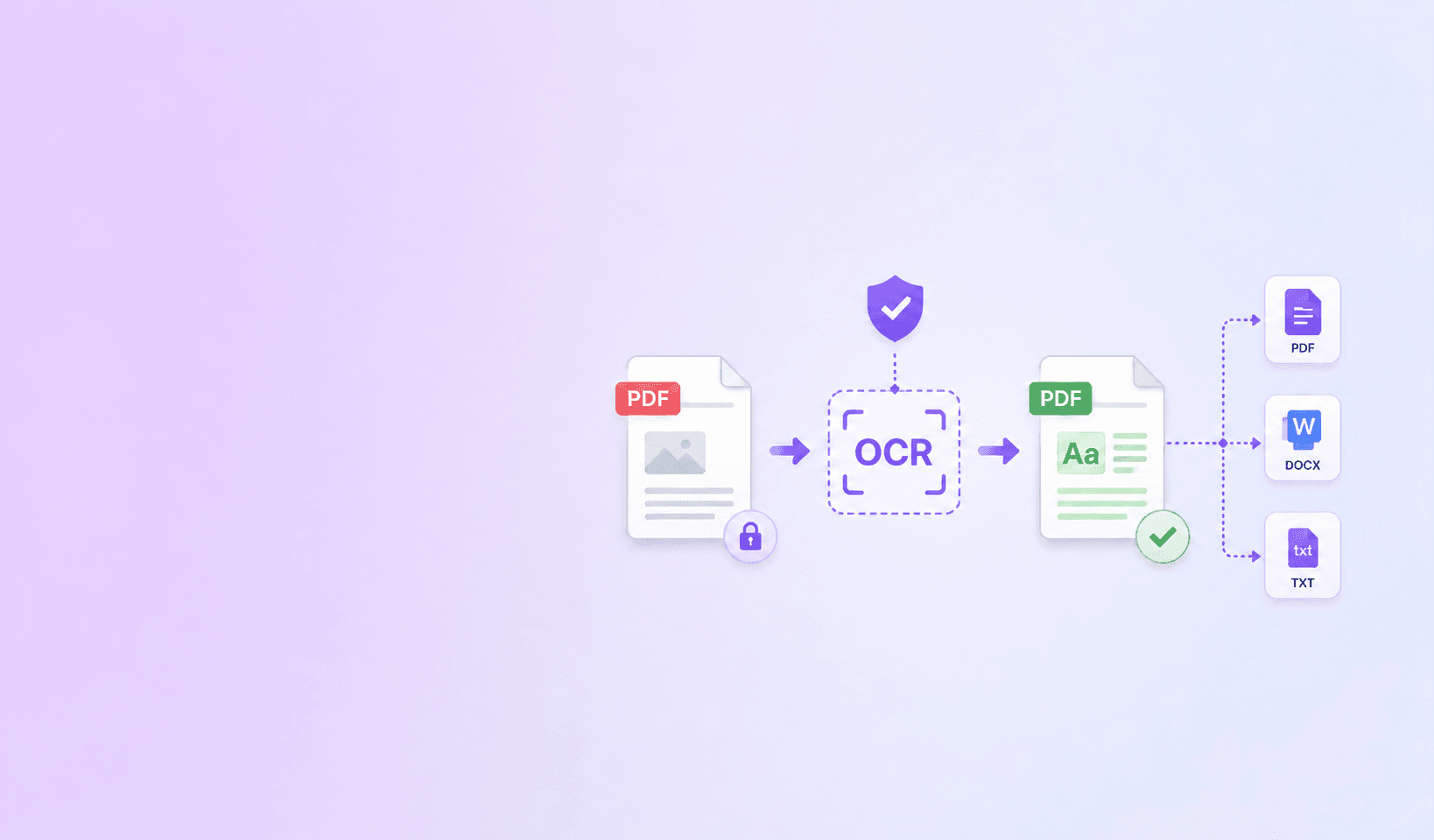
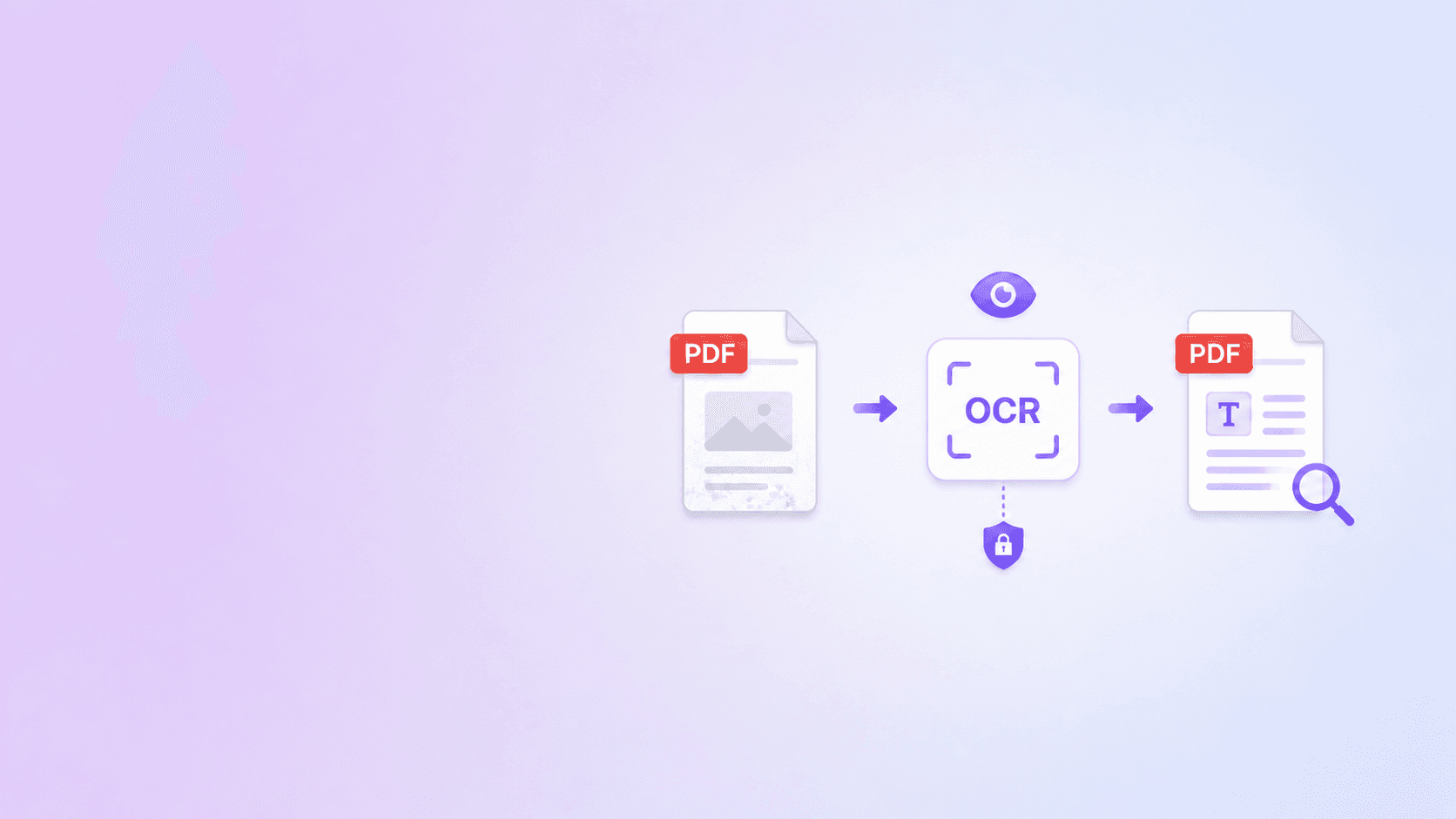
OCR for PDF is the process of adding readable text to a scanned or image-only PDF. It lets you search inside the file, copy text, index the document, and use the content in downstream workflows.
A normal PDF can contain real text, images, vector shapes, fonts, forms, annotations, or any mixture of those. A scanned PDF is different. Each page is usually one large image. It may look like a contract, invoice, medical record, or application form, but to the computer it behaves more like a photo.
That is why you can open a scanned PDF and see every word clearly, yet search for a phrase and get no results. The words are visible to your eyes, but not available as text.
OCR bridges that gap.
If you want a quick private workflow, use OCR PDF to make a scanned document searchable in your browser. This article explains what happens under the hood, when OCR helps, and what to expect from the result.
What OCR Actually Adds to a PDF
OCR stands for optical character recognition. The OCR engine looks at the pixels on a page, detects shapes that look like characters, groups them into words and lines, and returns recognized text.
For PDFs, the important output is not just plain text. The useful output is a text layer that maps recognized words back to the original page.
A searchable PDF usually has two layers:
- The visual layer: the original scan or page image.
- The text layer: recognized text positioned over or behind the visible page.
Most users never see the text layer directly. They experience it through features like:
- Search inside the PDF.
- Select and copy text.
- Screen reader access.
- Document management indexing.
- Better file discovery in email, cloud drives, and local folders.
The best OCR workflows preserve the visual page while adding text. That matters because scans often include signatures, stamps, handwritten notes, diagrams, and layout context that should not be replaced by plain text.
Searchable PDF vs Plain Text Export
OCR can create different outputs. The two most common are searchable PDF and plain text.
A searchable PDF keeps the document format intact. It is best when you need to share, archive, or upload the document while keeping the original look.
A plain text export is best when you only need the words. It is useful for notes, review, search indexing, legal discovery prep, or copying content into another system.
Many workflows need both. A records team might store the searchable PDF as the official file and use the text export for search. An analyst might review the TXT file for quick reading, then return to the PDF for citations and page context.
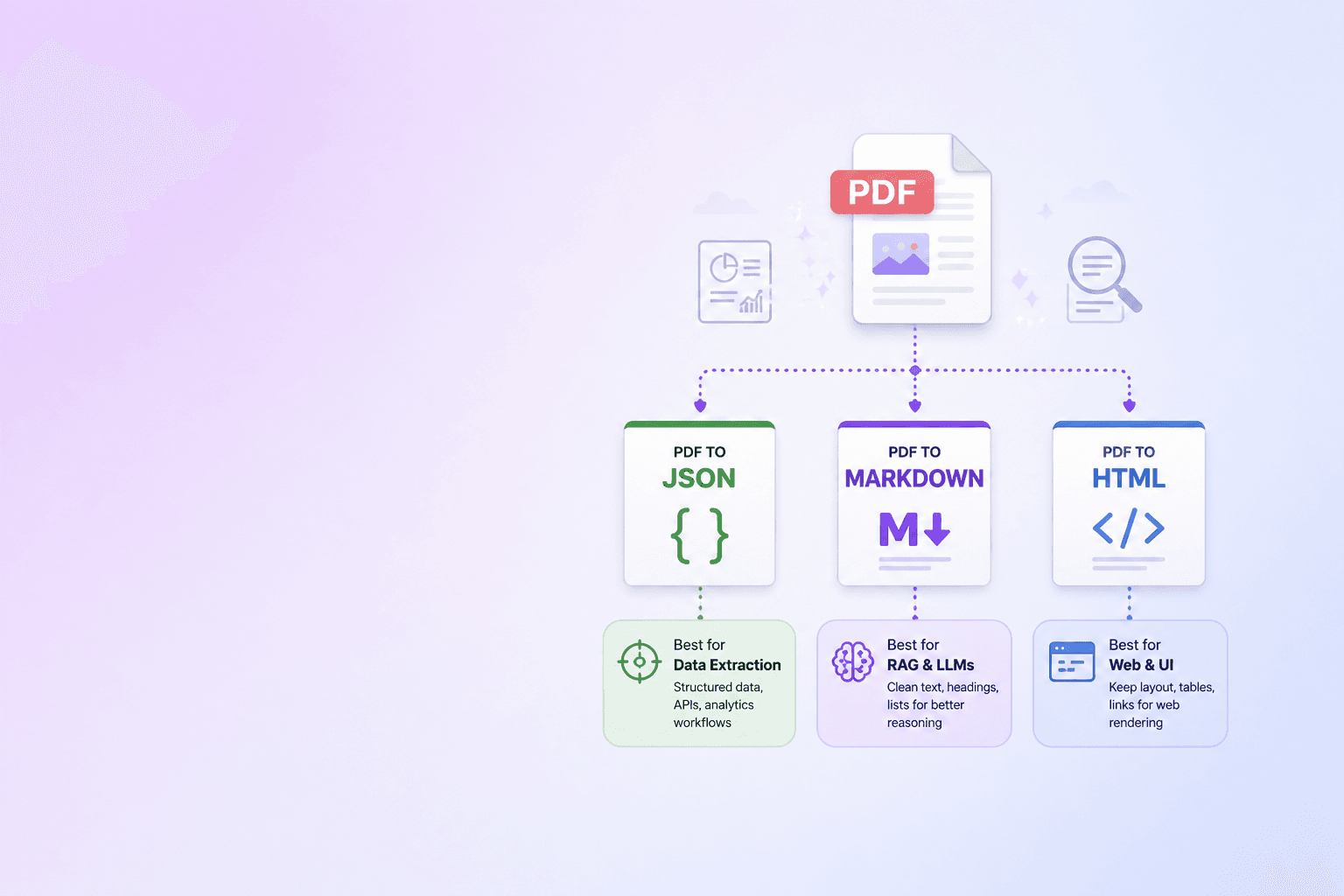
ShellPDFs OCR also provides JSON confidence details. That is useful when you need to know which pages may require human review rather than blindly trusting the OCR.
When a PDF Needs OCR
The easiest test is selection.
Open the PDF and try to drag across a word. If the text highlights cleanly, the PDF probably already has a text layer. If the entire page behaves like one image, it probably needs OCR.
OCR is commonly needed for:
- Scanned paper contracts.
- Uploaded government forms.
- Old archived documents.
- Faxed PDFs.
- Phone camera scans.
- Printed invoices.
- Signed agreements that were rescanned.
- Court filings delivered as image-only PDFs.
OCR is usually not needed for:
- PDFs exported directly from Microsoft Word.
- PDFs printed from Google Docs.
- Webpages saved as PDF.
- InDesign or Canva exports with embedded text.
- Reports generated from software systems.
Some files are mixed. A PDF may have selectable text on page 1 and scanned images on pages 2 through 5. A good OCR tool should detect this and avoid rerunning OCR where text already exists. That saves time and avoids duplicate text layers.
Why OCR Confidence Matters
OCR is powerful, but it is not perfect. Recognition quality depends on the scan.
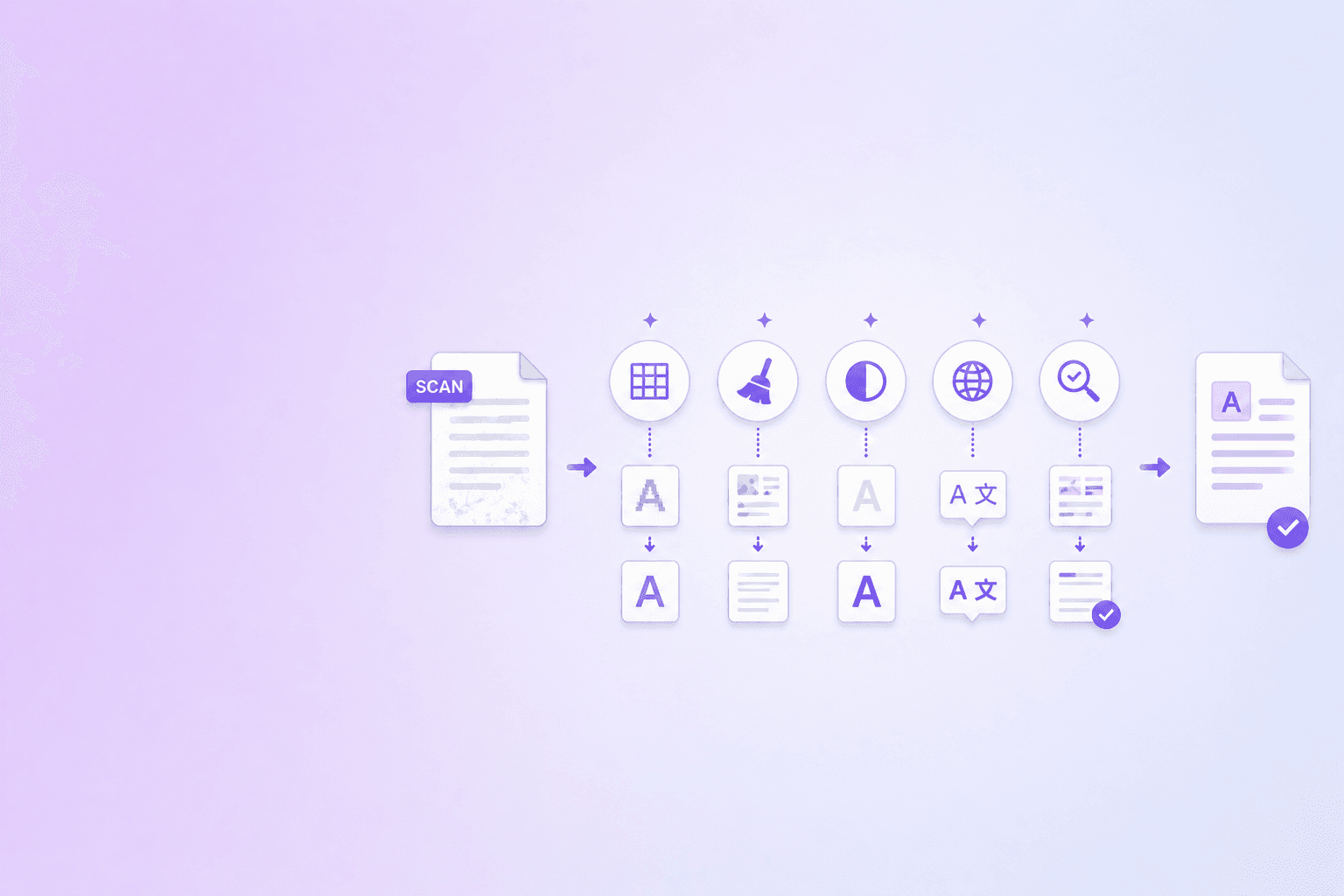
The engine has to infer letters from pixels. That gets harder when a page is skewed, blurry, low resolution, compressed too aggressively, or printed with unusual fonts.
Low confidence does not mean the output is useless. It means the tool detected uncertainty. A human should review that page before relying on it for legal, financial, medical, or compliance work.
Common causes of low confidence include:
- Faint ink.
- Shadows near the binding.
- Crooked pages.
- Very small text.
- Handwriting.
- Heavy compression artifacts.
- Mixed languages.
- Tables with tight spacing.
For practical tips, read OCR Accuracy: How to Prepare Scanned PDFs. Small improvements before OCR can produce much cleaner text.
Browser-Based OCR vs Cloud OCR
Most online OCR tools upload your PDF to a server. That can be convenient, but it also creates a privacy question: where did the file go, how long is it stored, and who can access it?
Browser-based OCR is different. The PDF is processed inside your browser tab. The file stays on your device, and the output is created locally.
This is a strong fit for:
- HR paperwork.
- Legal drafts.
- School records.
- Client documents.
- Internal business files.
- Personal identity documents.
Cloud OCR can still be useful for very large files, many languages, handwriting models, or enterprise batch processing. But for everyday scanned PDFs, local browser OCR is often enough and reduces exposure.
This local-first idea is similar to the privacy pattern discussed in Why Cloud-Based PDF Tools Risk SOC 2 and GDPR: avoid creating a server-side copy unless you actually need one.
What Makes a Good OCR Result
A good OCR result is not only about whether text exists. It should be usable.
Look for these signs:
- You can search for important names, dates, and phrases.
- Text selection follows the line order.
- Copied text is readable.
- Page numbers still match the original.
- The PDF still looks like the original scan.
- Any low-confidence pages are clearly identified.
If the document is important, do not stop at "OCR completed." Search for a few known phrases. Copy a paragraph. Check a table. Review pages that the tool flagged.
Key Takeaway
OCR turns a scanned PDF from a picture of text into a document that software can read. It is the difference between a file that only looks readable and a file that can be searched, copied, indexed, and reviewed.
Use OCR when a PDF is image-only. Skip it when the file already has clean selectable text. And when privacy matters, choose a browser-based workflow that keeps the document local.
To try it, open OCR PDF, choose a scanned file, and download the searchable PDF plus TXT and JSON outputs.
Frequently Asked Questions
ShellPDFs Team
The ShellPDFs editorial group writes and maintains guides for everyday PDF workflows, with updates made when tool behavior or documented limits change. See our editorial standards for the process behind each article.
Focus: Browser-based PDF workflows, OCR quality review, and privacy-first document processing
Questions or feedback? Get in touch.