Direct Answer
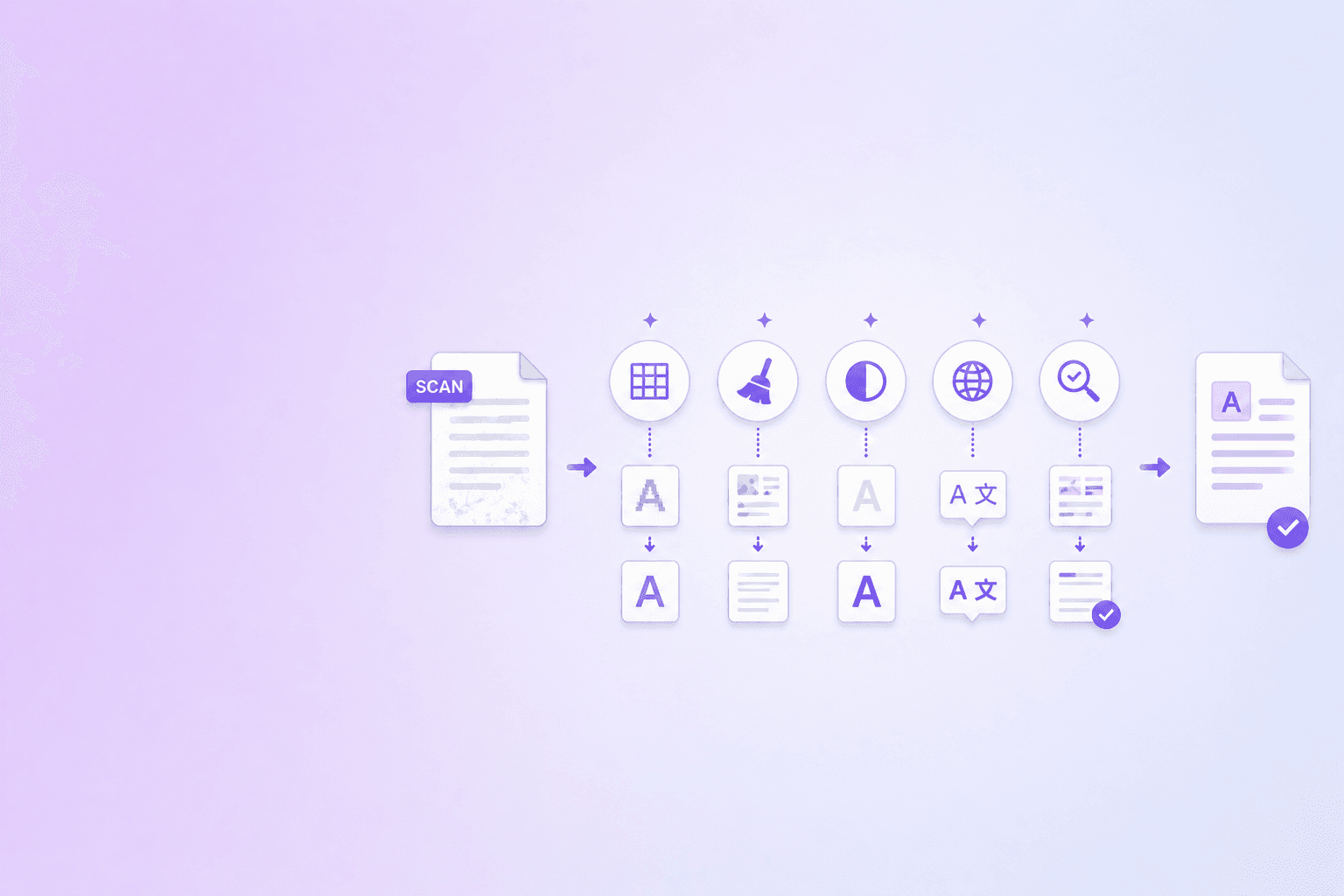
The best way to improve OCR accuracy is to start with a clean scan: straight pages, readable text, good contrast, enough resolution, and the correct language. OCR is much more reliable when the page image is easy for both humans and software to read.
OCR quality is not only a software problem. It is a source-document problem.
If the scan is sharp, straight, and well lit, even a browser-based OCR tool can create useful searchable text. If the scan is tilted, fuzzy, shadowed, or compressed into artifacts, the OCR engine has to guess.
This guide explains how to prepare scanned PDFs before running OCR, what causes low-confidence results, and how to review the output after processing with OCR PDF.
Why OCR Accuracy Varies
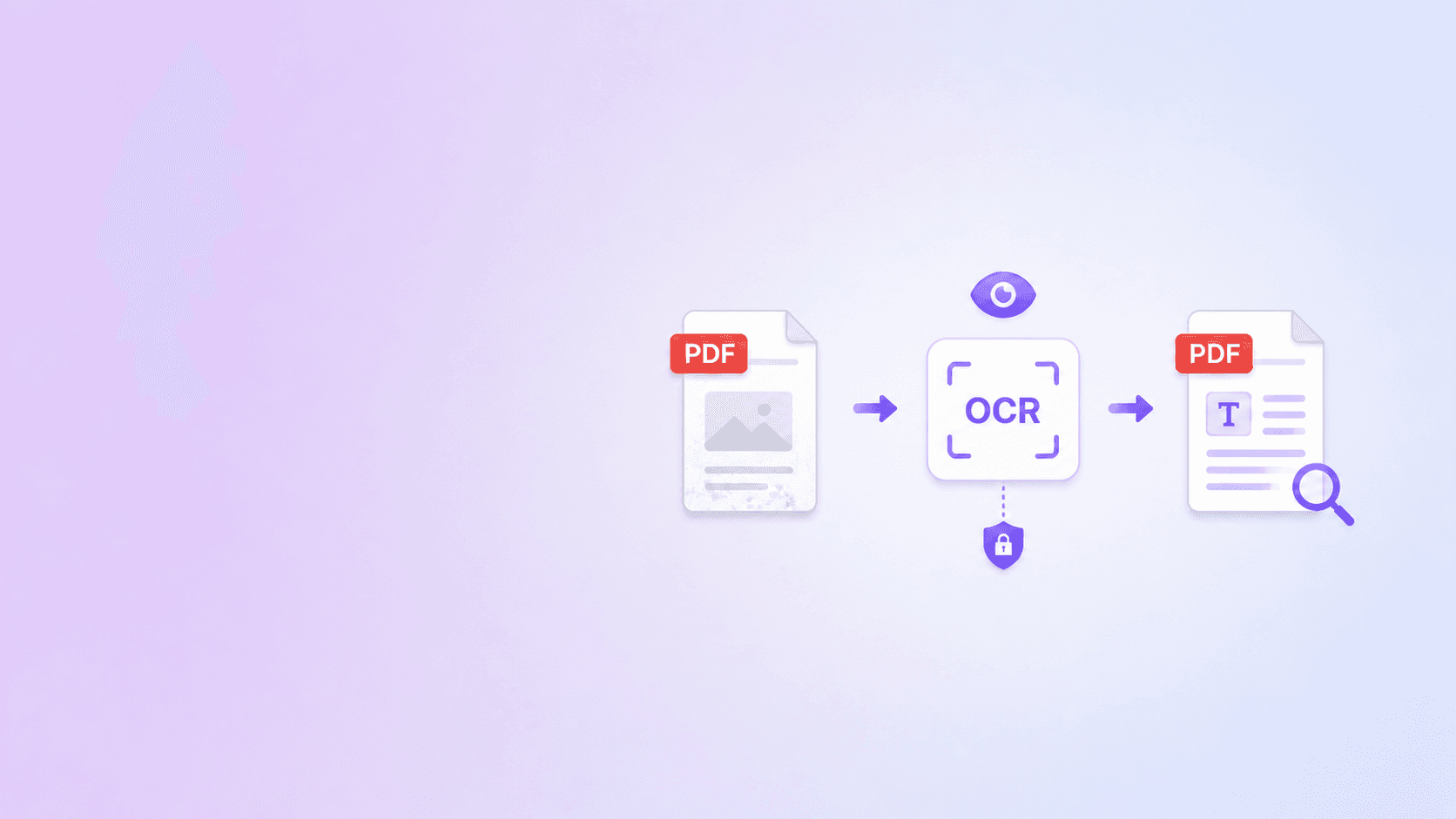
OCR works by analyzing pixel patterns. It tries to identify characters, group them into words, group words into lines, and place those lines back onto the PDF page.
That process is sensitive to visual quality.
The engine is not reading a document the way a person reads it. It is making probability decisions from shapes. A clean "8" might look obvious. A blurry "8" can look like "B", "S", "0", or two broken circles.
That is why two PDFs with the same text can produce very different OCR results.
Start With Resolution: 200 to 300 DPI
Resolution is one of the biggest OCR factors.
For normal printed text, 200 DPI is often acceptable. 300 DPI is safer for small text, forms, tables, and legal documents. Below 150 DPI, OCR quality often drops because the letters do not have enough pixel detail.
If you are scanning paper, choose 300 DPI when possible. If you are using a phone scanning app, pick a document mode rather than a normal photo mode. Document mode usually sharpens text, flattens perspective, and improves contrast.
Avoid rescanning at extreme resolutions unless you need archival quality. Very high DPI creates large files and can slow down OCR without improving recognition much.
Keep Pages Straight
Skewed pages make OCR harder. Even a small tilt can affect line detection, especially in dense forms or tables.
Before OCR, check whether the page edges are parallel to the screen. If a scan is sideways, rotate it first. If it is slightly crooked, a dedicated scanner or phone scanning app with auto-crop can help.
If the whole PDF has sideways pages, fix orientation before OCR. The Rotate PDF tool is useful for correcting page direction before running recognition.
Improve Contrast Without Crushing Detail
OCR likes strong contrast: dark text on a light background.
Low contrast creates weak character edges. Too much contrast can also hurt if it fills in small spaces inside letters.
Good scan settings usually look like this:
- Background is light but not blown out.
- Text is dark and crisp.
- Thin punctuation marks remain visible.
- Gray stamps and signatures are still readable.
- Shadows near the spine are minimized.
Avoid filters that make the page look dramatic but destroy detail. OCR needs information, not style.
Avoid Heavy Compression Before OCR
Compression can create blocky artifacts around text. Those artifacts confuse OCR because they change the shape of letters.
If you have the original scan, run OCR before aggressive compression. After you have a searchable PDF, you can compress the output if file size matters.
This order is usually better:
- Scan clearly.
- Run OCR.
- Review quality warnings.
- Compress the final searchable PDF if needed.
For size reduction after the OCR step, see How to Compress a PDF Without Losing Quality.
Watch Out for Tables and Forms
Tables and forms are harder than paragraphs. OCR may recognize the words correctly but lose the relationship between cells.
For tables, check:
- Column headers.
- Row labels.
- Numbers with decimals.
- Dates.
- Currency symbols.
- Checkbox labels.
For forms, check:
- Field labels.
- Handwritten entries.
- Signature blocks.
- Small print near checkboxes.
- Stamps and seals.
If the form is important, use the searchable PDF for navigation and review, then verify the exact values visually.
Language and Fonts Matter
OCR works best when the engine knows the language. An English OCR model is optimized for English words and character patterns. It may struggle with accents, non-Latin scripts, or documents that mix multiple languages.
Fonts also matter. Standard printed fonts usually work well. Decorative fonts, tiny condensed text, dot-matrix printing, and old typewriter scans can be harder.
Handwriting is a separate challenge. Many OCR tools that work well on printed text do not reliably read handwriting. Treat handwritten sections as manual-review content unless the tool specifically supports handwriting recognition.
How to Review OCR Output
Do not judge OCR only by whether the tool finished. Check the output.
Use this review pattern:
- Search for a title or heading.
- Search for a name that appears on the page.
- Search for a date or invoice number.
- Copy one paragraph into a plain text editor.
- Check any low-confidence page against the image.
- Verify critical numbers manually.
If you are working with contracts, invoices, compliance records, or medical documents, the review step is not optional. OCR reduces effort, but it does not remove responsibility.
What Low Confidence Means
Low confidence means the OCR engine was uncertain about some recognition results. It does not mean the entire page failed.
The page may still be searchable. Many words may be correct. But the tool is telling you to review the page before relying on it.
Low confidence is common when a page has:
- Light text.
- Blurry lines.
- Crooked scan angle.
- Dense tables.
- Handwritten notes.
- Background noise.
- Tiny footnotes.
- Mixed languages.
If a tool provides page-level details, use them. They help you focus attention where review is most needed.
Best Practice Checklist
Before OCR:
- Use 200 to 300 DPI.
- Keep pages straight.
- Rotate sideways pages.
- Avoid shadows and glare.
- Preserve margins.
- Use strong but natural contrast.
- Avoid heavy compression.
- Choose the right language when available.
After OCR:
- Download the searchable PDF.
- Search for important terms.
- Check low-confidence pages.
- Copy sample text.
- Verify critical values.
- Keep the original scan if the document is important.
Key Takeaway
OCR accuracy starts before you click Process. Clean scans produce better searchable PDFs, better TXT exports, and more trustworthy review data.
For a private browser workflow, use OCR PDF. For the bigger picture of what OCR adds to a document, read What Is OCR for PDF? Searchable PDFs Explained.
Frequently Asked Questions
ShellPDFs Team
The ShellPDFs editorial group writes and maintains guides for everyday PDF workflows, with updates made when tool behavior or documented limits change. See our editorial standards for the process behind each article.
Focus: OCR quality testing, scanned document cleanup, and searchable PDF review workflows
Questions or feedback? Get in touch.